Integrations
Find every app Vertiqa connects to — calendars, email, messaging, social, voice, AI, video and education — see what's connected, and open each one's setup.
Integrations lists everything Vertiqa connects to in one place. Open
Settings → Integrations (route /settings/integrations). Each card says
whether it's connected and takes you to where it's set up.
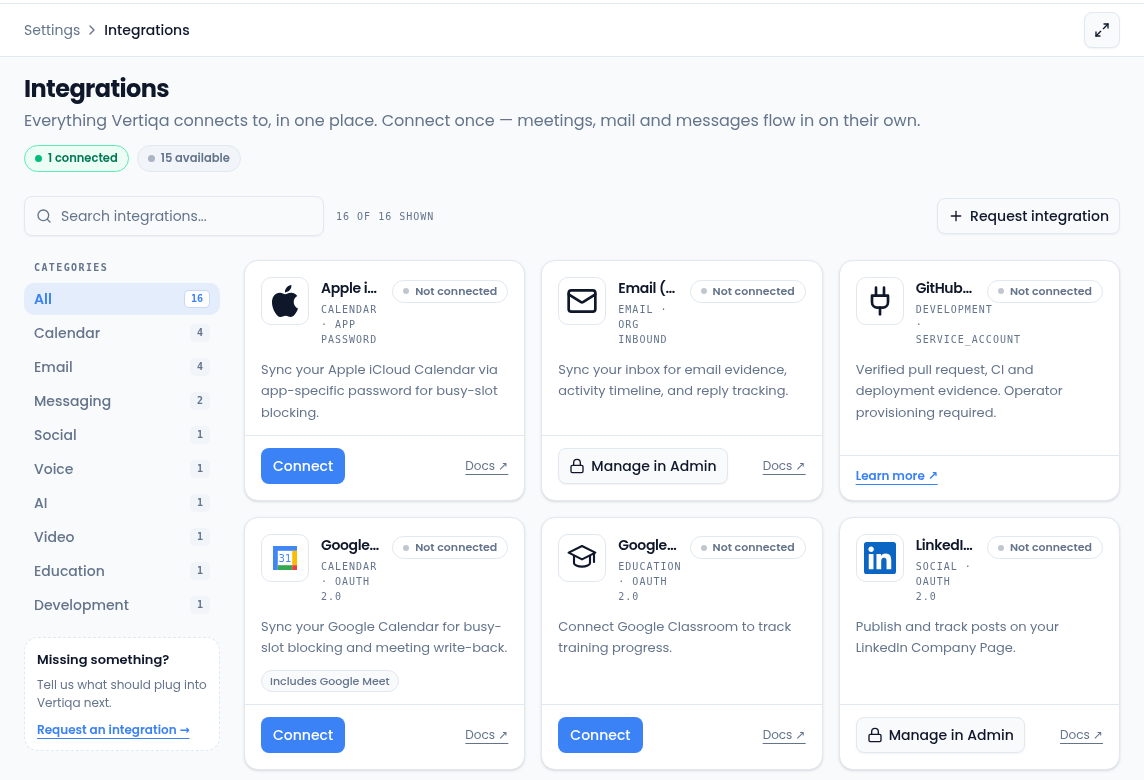
Find an integration
- The chips under the title count what's connected, what needs attention, and what's available.
- Pick a category on the left, or type in Search integrations..., to narrow the cards. The count beside the search box says how many are shown.
What each card shows
- The badge: Not connected, Connected, Connected · org (set up for the whole organization) or Needs attention.
- What the integration does, and any extras it includes, such as Includes Google Meet or Includes Microsoft Teams.
- The button that sets it up:
- Connect, or Manage once it's connected, or Reconnect if it needs attention.
- Set up for WhatsApp, which opens its settings page.
- Open Voice settings for the voice agent.
- Manage in Admin for connections set up for the whole organization. People without admin access see Requires admin instead.
- Learn more opens the documentation for integrations that are set up elsewhere, with a note such as Set up by your admin.
- Managed by Vertiqa means there's nothing for you to set up.
- Docs opens the integration's documentation.
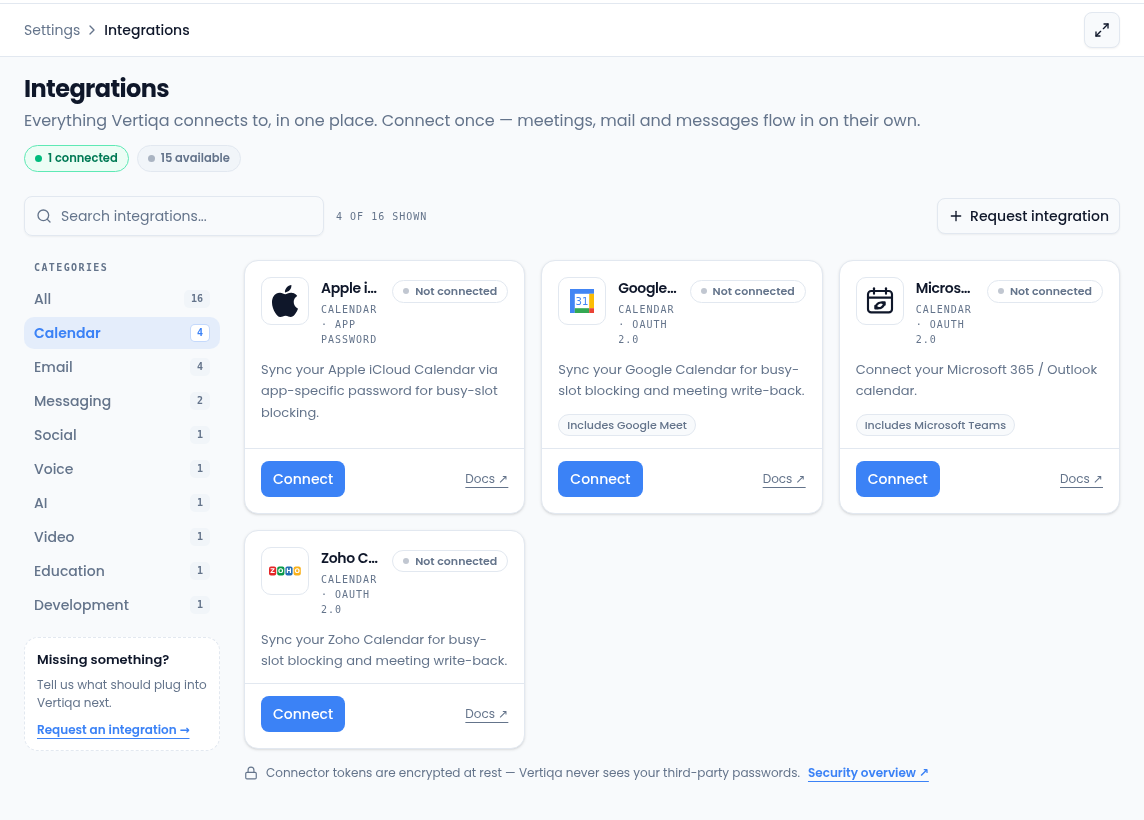
Calendars and personal mailboxes are per person: connecting one here is the same as connecting it from Calendar or Email connectors.
Google Classroom asks you to confirm who the account belongs to before it connects; see Google Classroom connector.
Ask for an integration
If what you need isn't listed, select Request integration or Request an integration on the Missing something? card to email the Vertiqa team.
Connector tokens are encrypted at rest, and Vertiqa never sees your third-party passwords.