Invoices & payments
Choose where the Pay button on emailed invoices sends your customers, connect Stripe for card payments, and set your invoice defaults and reminders.
Invoices & payments decides how customers pay the invoices you email, and
what every invoice says. Open Settings → Invoices & payments (route
/settings/online-payments). An invoice that can't be paid online yet shows a
Set up online payments link that opens this page.
Vertiqa never holds your customers' money or card details. Payments go to your own account with Stripe or your own payment provider.
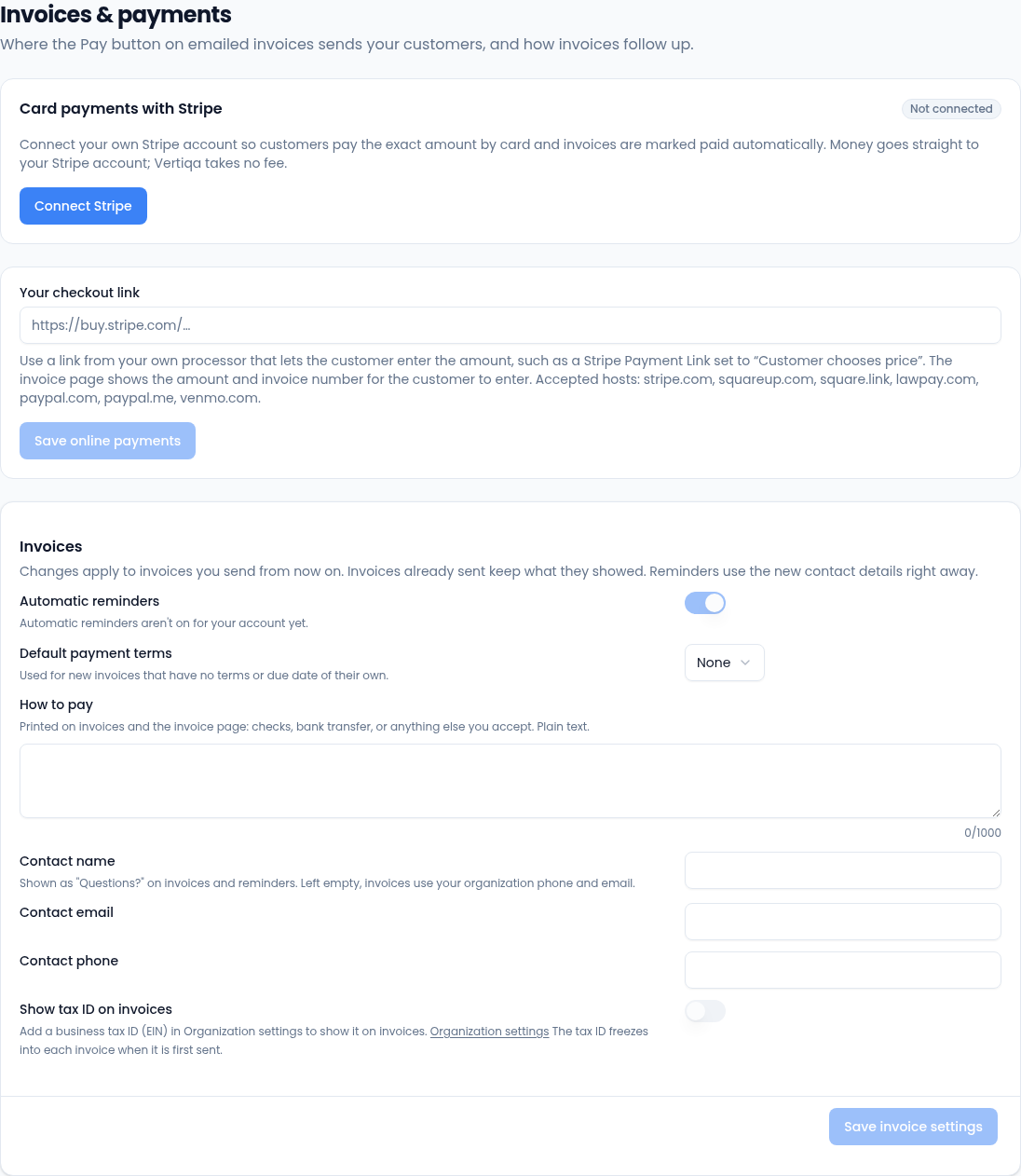
Changing anything on this page needs permission to edit settings. Without it, you can read the settings but the buttons don't appear.
Card payments with Stripe
Connect your own Stripe account so customers pay the exact amount due by card on Stripe's checkout page. When the payment goes through, the invoice is marked paid automatically. The money goes straight to your Stripe account, and Vertiqa takes no fee.
- Select Connect Stripe. Stripe asks for your business details on its own site, then sends you back here.
- If Stripe still needs more details, the card says so. Select Continue Stripe setup to finish, or Check status after you've finished on Stripe. Until Stripe is ready, the Pay button uses your checkout link, if you have one.
- Once connected, the card shows your Stripe account, its currency and, for a test account, test mode.
Disconnect stops card payments through Stripe. The Pay button then falls back to your checkout link, and Reconnect Stripe sets it up again. If your Vertiqa workspace doesn't offer Stripe, this card isn't shown.
Your checkout link
If you don't use Stripe through Vertiqa, or as a fallback while Stripe isn't ready, paste a payment link from your own provider. The Pay button on the invoice page sends customers there.
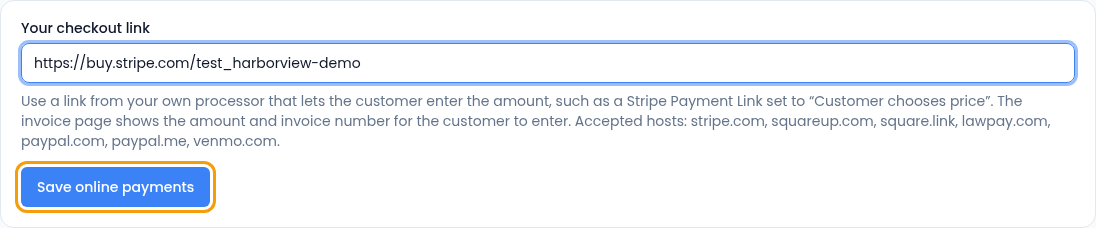
- Create a link with your provider that lets the customer enter the amount, such as a Stripe Payment Link set to Customer chooses price. The invoice page shows the amount and invoice number for them to type in.
- Paste it under Your checkout link. It has to be an
httpslink from one of the accepted hosts listed under the field: Stripe, Square, PayPal, Venmo or LawPay. - Select Save online payments. Remove link takes it off, and invoices then show without a Pay button.
Because this link decides where customers send money, every change is recorded in the audit log and emailed to your organization's owners. Payments made through a checkout link aren't recorded in Vertiqa automatically: record them on the invoice when they arrive. See Get paid online from an invoice.
Invoices
These settings apply to invoices you send from now on. Invoices already sent keep what they showed, but reminders use new contact details right away. Select Save invoice settings when you're done.
- Automatic reminders: up to four polite emails for each unpaid invoice, 3 days before the due date, on it, and 7 and 14 days after. If reminders aren't available for your account yet, the setting says so and can't be changed. You can also turn reminders off for one invoice from its Reminders card.
- Default payment terms: None, Due on receipt or Net 7 to Net 60. They're used for new invoices that have no terms or due date of their own.
- How to pay: plain text printed on invoices and the invoice page, such as bank transfer details or where to send a check.
- Contact name, Contact email and Contact phone: shown as Questions? on invoices and reminders. Left empty, invoices use your organization's phone and email.
- Show tax ID on invoices: prints your business tax ID (EIN). Add it in Organization settings first. The tax ID is fixed into each invoice when it's first sent.