Sender details
Set the From name, From email, Reply-To and postal address that every outreach and marketing email shows — email cohorts can't be activated until these are set.
Settings → Sender details holds your organization's sender profile: who outreach and marketing emails say they are from, where replies go, and the physical postal address shown in every email footer. Anti-spam law (CAN-SPAM) requires all four, so Vertiqa won't activate an email outreach cohort until they are set.
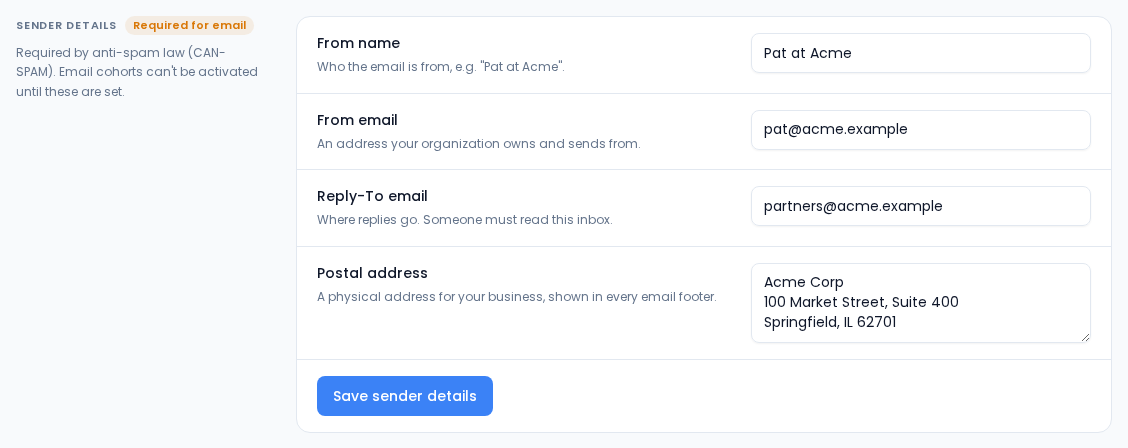
Fill in the details
| Field | What to enter |
|---|---|
| From name | Who the email is from, such as Pat at Acme. |
| From email | An address your organization owns and sends from. |
| Reply-To email | Where replies go. Someone must read this inbox. |
| Postal address | A physical address for your business, shown in every email footer. |
Select Save sender details. The badge next to the section title changes from Required for email to Set.
If a field is wrong, the message appears under that field. If someone else saved changes after you opened the page, Vertiqa refuses the save and asks you to reload, so you don't overwrite their changes.
Who can change it
Anyone with access to Settings can view the sender details. Changing them needs the settings edit permission; without it the page says Ask an admin to change them.
Sender details are organization-wide. Your personal email signature is separate and set on your profile.