Email signature
Save a personal email signature once — written by hand or taken from your business card — and Vertiqa adds it to the emails you send from contact, account and opportunity pages.
Your email signature is personal to your account. Save it once and the email composer adds it to the emails you send from Vertiqa, with a checkbox to leave it off for a single email.
Write your signature
Open Settings → My Profile and scroll to Email signature.
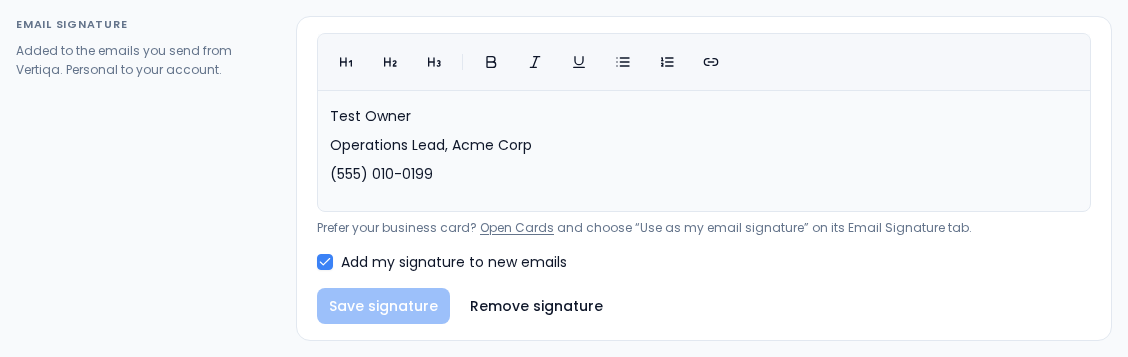
- Type your signature in the editor — name, role, phone, and a link if you want one. The toolbar has headings, bold, italic, underline, lists and links.
- Leave Add my signature to new emails ticked to include it by default. Untick it if you'd rather add it email by email.
- Select Save signature. Remove signature deletes it.
If the signature is too long to save, Vertiqa asks you to shorten it.
Use your business card instead
If you have a digital business card, you can use its designed signature:
- Open Cards, edit your card, and switch to the Email Signature tab.
- Select Use as my email signature.
Your profile then shows a preview of the card signature. To change it, edit the card and select Use as my email signature again. To go back to a typed signature, select Write my own instead on your profile.
When you send an email
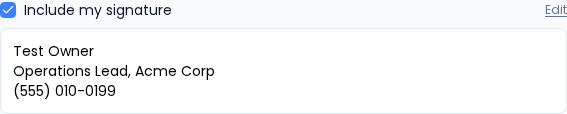
When you send from a contact, account or opportunity page, the Compose Email dialog shows Include my signature and a preview of it under the message. Untick it to send this one email without it, or select Edit to jump to your profile. Vertiqa adds your saved signature when the email is sent.
Some specialized senders don't add a signature yet — for example replies to inbound inquiries and reviewed outreach emails. The checkbox only appears where the signature will be added. If your signature can't be loaded, the composer says so before you send.