Outreach cohorts
Track a group of prospects, partners, advisors, investors or referrers — each person gets an owner, an objective and one next action, and nothing is sent from a tracking cohort.
An outreach cohort is a named group of people you are working on for one reason: ten partners you want pilot conversations with, the advisors you check in with each quarter, the investors for a raise. Each person in the cohort is an approach. Every approach has an owner, an objective, the context you know about the person, and one next action that keeps it moving.
Cohorts are for relationship work done by people. A Tracking only cohort sends nothing: you log what happened and set what happens next. The Follow-up Agent can suggest that next step; it never sends anything either.
Open Outreach Cohorts in the sidebar (route /sales/campaigns). Cohorts
are a Full-mode page. Their next actions also show on Home and on each
person's contact page in both Full and Simple mode, so daily follow-through
doesn't require the cohort page.
Create a cohort
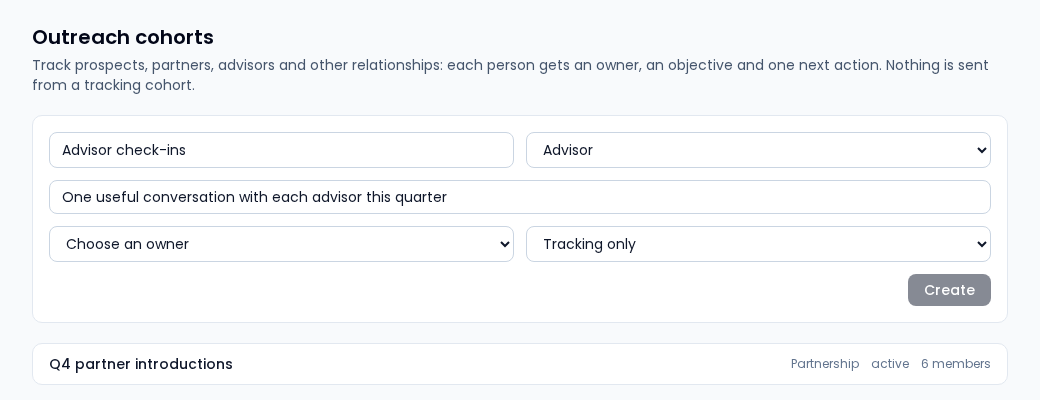
- Enter a Cohort name — something your team will recognize, such as Q4 partner introductions.
- Choose a Purpose: Prospecting, Partnership, Advisor, Investor, Referral or Other.
- Write the Objective — the outcome that would make this cohort a success, such as Agree two pilot discussions before year end. It is shown on every approach so owners remember what they are working toward.
- Choose an Owner. The owner is accountable for the cohort and owns each approach unless you assign someone else.
- Leave Mode on Tracking only unless your organization has email sending enabled (see Email cohorts below).
- Select Create. The cohort starts as a draft; open it and select Activate when you are ready to work it.
You need the outreach edit permission to create or change cohorts. Without it the page is view-only.
The cohort page
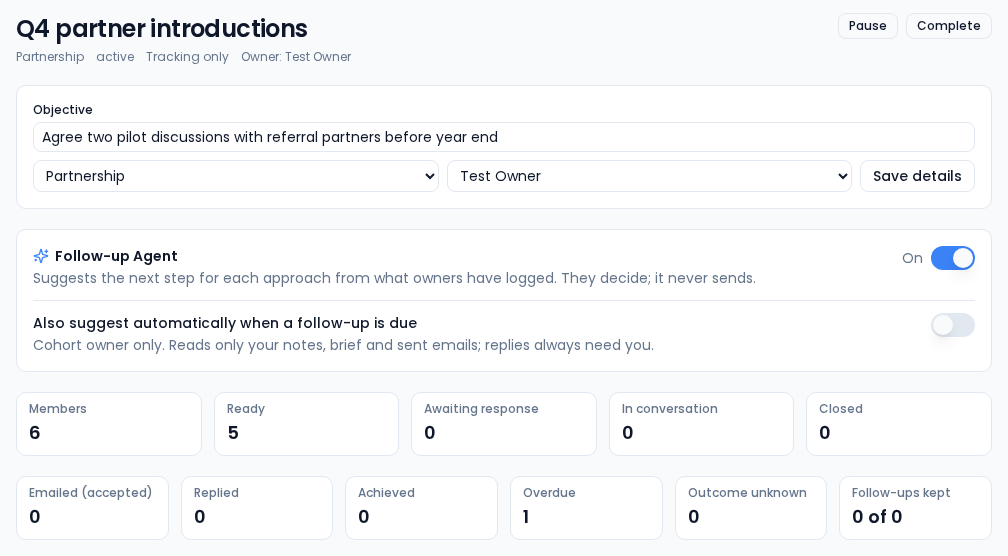
- Status buttons — Activate a draft, then Pause, Resume or Complete it. A completed cohort is read-only history.
- Cohort details — change the objective, purpose or owner and select Save details.
- Follow-up Agent — turn AI next-step suggestions on or off for this cohort. See Follow-up Agent.
- Counts — how many members are Ready, Awaiting response, In conversation or Closed. The second row counts evidence, one per person: Emailed (accepted) and Replied (replies to emails sent from the cohort), Achieved (closed with that outcome), Overdue next actions, Outcome unknown, and Follow-ups kept (email follow-ups that a later send actually completed). The email counts stay at zero in a tracking cohort.
- Add contacts — search by name, email or phone and select Add to cohort. Everyone you add is tracked. Anything that would stop email to that person — Do not contact, a suppressed address, an unsupported region — is shown on the approach as a reason rather than blocking the add.
- Members — one row per approach with its state and next action. Select Work to open it.
Work an approach
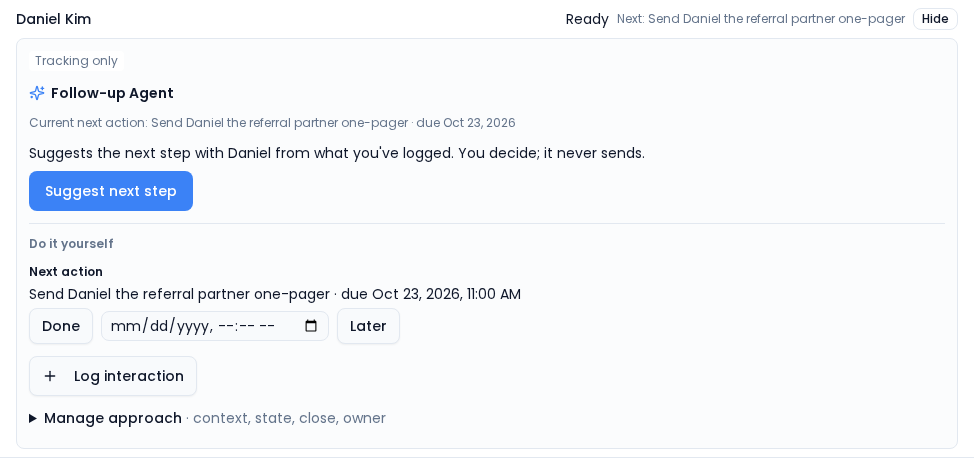
Each approach moves through these states:
| State | What it means |
|---|---|
| Preparing | Added, but its context hasn't been reviewed yet. |
| Ready | Context reviewed; the owner can reach out. |
| Awaiting response | You reached out and are waiting to hear back. |
| In conversation | You are talking. |
| Deferred | Parked on purpose until a later date. |
| Closed | Finished as Achieved, Declined or Stopped. |
The usual path through one approach:
-
Review the context. Open Manage approach, pick what you are working from — Manual brief or Known relationship — write a short brief, and select Review context. The brief is saved as a note on the contact and the approach moves to Ready.
-
Set the next action. Select Set next action, give it a subject and a due date, and save. It is a normal CRM task on the contact, so it also appears in your task list.
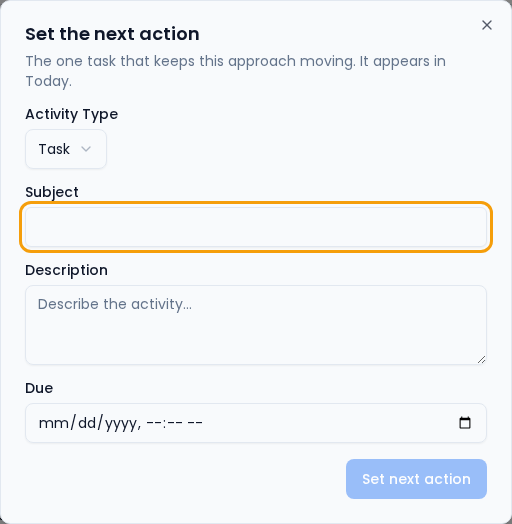
One task keeps each approach moving. It appears on Home. -
Log what happens. After a call, meeting or an email sent from your own mailbox, select Log interaction so the approach's history is true. Choose Email sent elsewhere when you emailed from outside Vertiqa.
-
Finish the action. Select Done when it's finished, or change the date and select Later to move it. Then set the next one.
-
Close the approach from Manage approach with an outcome: Achieved, Declined or Stopped. To close as Achieved or Declined, first log the interaction that shows that outcome, so cohort results are backed by evidence.
Manage approach is also where you move the state by hand, re-review context, or give one approach its own owner or objective instead of the cohort's.
Where next actions show up
You don't have to open the cohort to keep up.
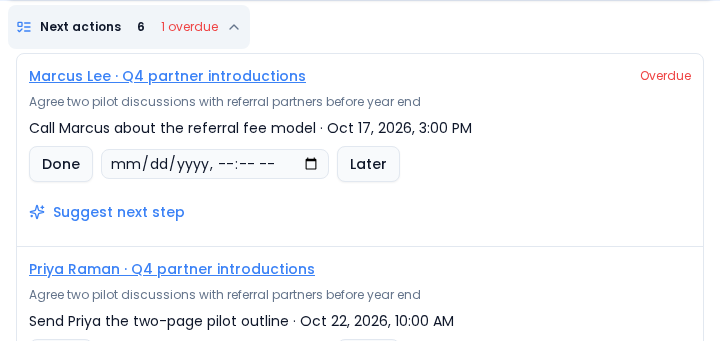
- Home — the Next actions list shows each approach you own with its due date, flags Overdue ones, and lets you mark Done, move it Later, or ask for a suggestion. An approach with no next action says so and offers Set next action.
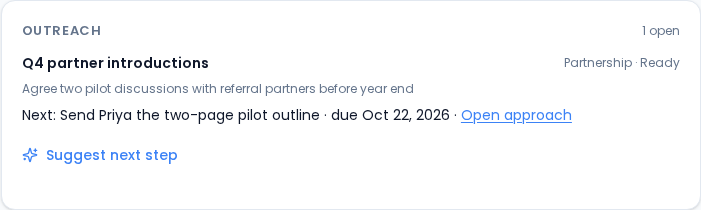
- The contact page — the Outreach card on a person's Overview lists every cohort they are in, with its purpose, state, objective and next action, and an Open approach link back to the cohort.
Email cohorts
Choosing Email mode lets a cohort send reviewed emails, with follow-ups after a set number of days (Follow up if no reply after …). Each follow-up becomes a task for the owner, and nothing is sent without review.
An email cohort can't be activated until:
- it has a Sender domain (the domain you send from, such as
acme.com), and - an admin has filled in Sender details — From name, From email, Reply-To and postal address.
Email sending is also switched on per organization by Vertiqa. Until it is, approaches in an email cohort show Email sending not yet enabled, and you can still track the work. Use Tracking only for relationship work you send from your own mailbox.