Email templates
Write your own reusable email templates with merge tags, and customize the team and portal invitation emails Vertiqa sends for your organization.
Email Templates holds two kinds of template: your own reusable emails,
and the system emails Vertiqa sends when someone is invited. Open Settings →
Email Templates (route /settings/email-templates).
My templates
Your templates are personal to you. Apply one from the email composer with Apply a saved template….
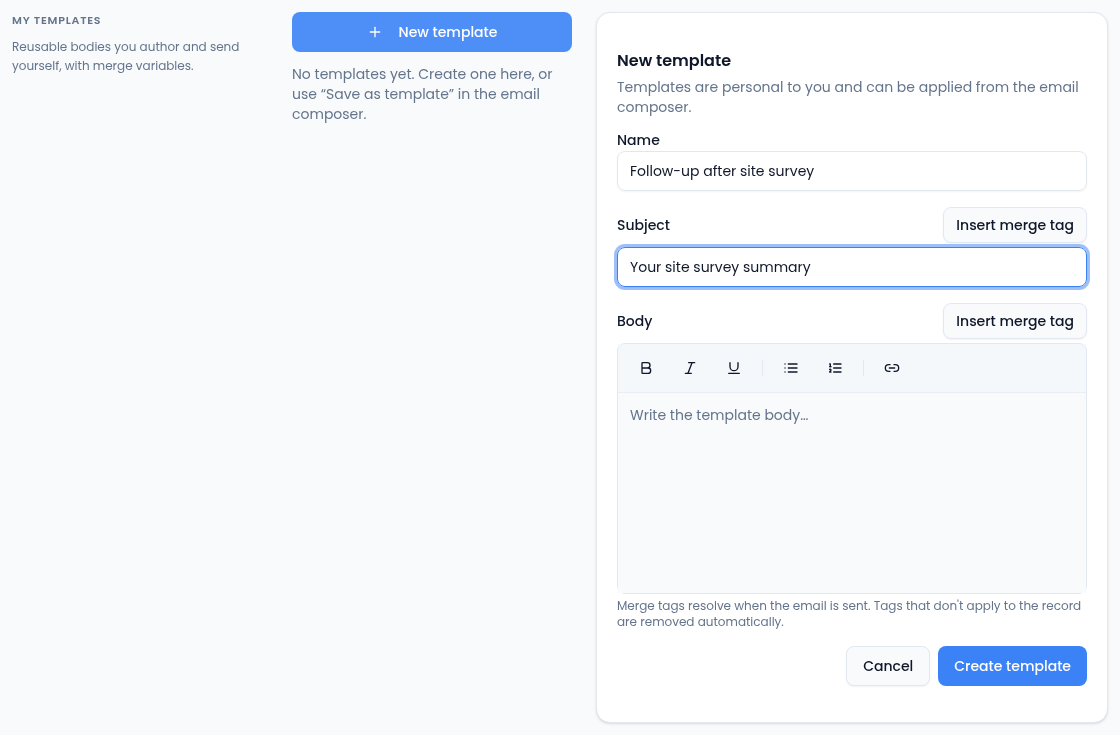
- Select New template.
- Enter a Name, such as "Follow-up after demo", and a Subject.
- Write the Body. Format it with bold, italic, underline, lists and links.
- Use Insert merge tag to add a tag to the subject or body, such as the contact's first name. Tags that don't apply to the record you're emailing are removed when it's sent.
- Select Create template.
To change a template, select it in the list, edit it and select Save changes. Delete removes it for good.
You can also save an email you've written as a template: select Save as template in the email composer.
System emails
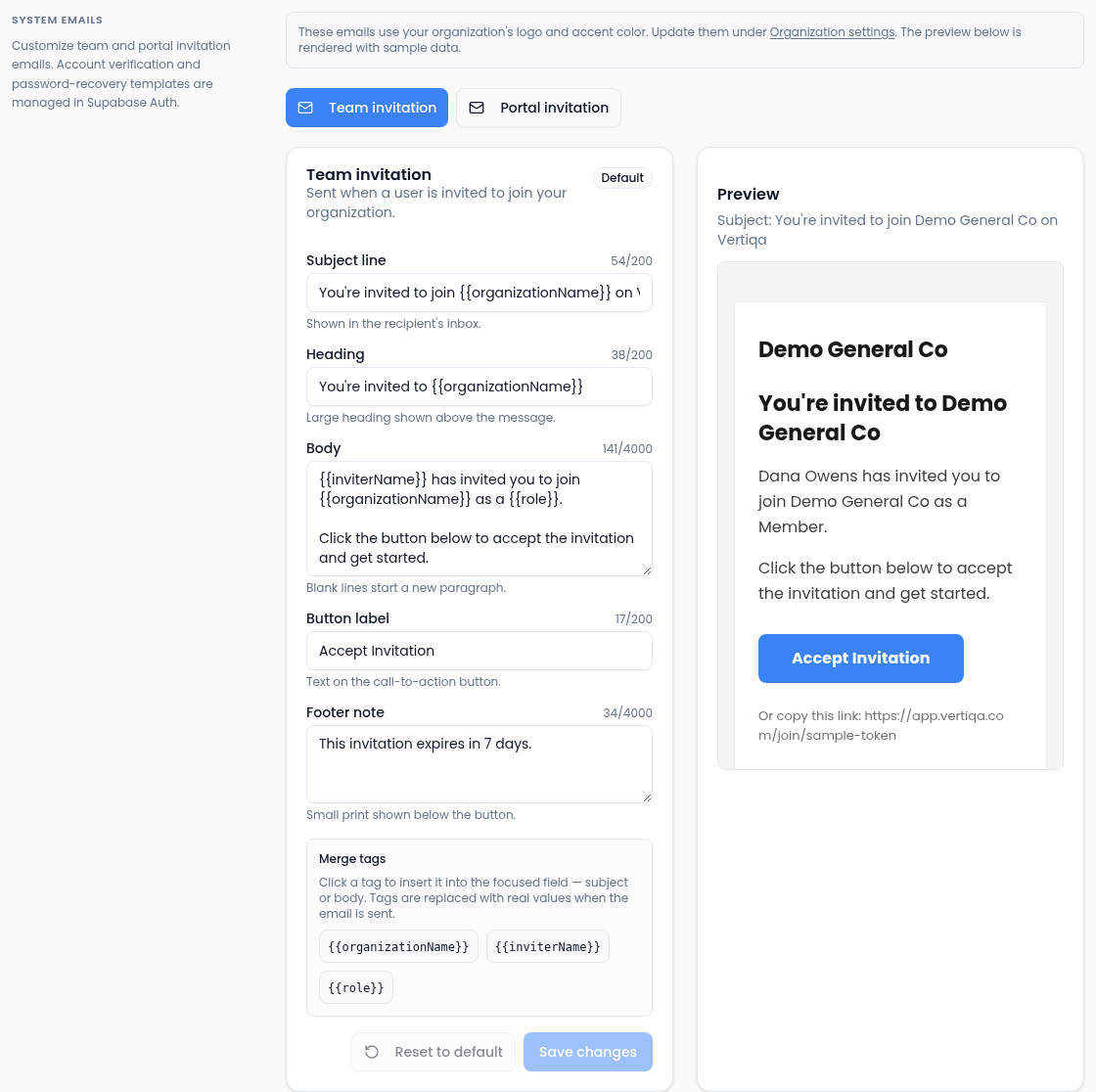
Customize the emails people get when they're invited:
- Team invitation: sent when someone is invited to join your organization.
- Portal invitation: sent when a client is invited to your portal.
Pick one, then edit its Subject line, Heading, Body, Button
label and Footer note. Select a merge tag, such as
{{organizationName}}, to insert it into the field you're in. The
Preview updates as you type.
Select Save changes. A customized email shows Customized and its version; Reset to default goes back to Vertiqa's wording.
These emails use your organization's logo and accent colour from Organization. Account verification and password reset emails can't be changed here.