Events overview
Host gatherings — publish an event page, collect registrations, approve guests, and check people in at the door.
Events is where you host gatherings — a customer summit, a training session, a webinar, an open house. You create an event, publish a page guests can register on, approve who attends, and check people in on the day. Every guest is a CRM contact, so attendance flows back into the customer record.
Events is not Scheduling. Scheduling books one-on-one meetings through booking links and Meeting Types (the tab formerly labeled Event Types). Events handles many-guest gatherings with a public page, a guest list, and a door.
The lifecycle
- Draft — where every event starts. Nothing is visible to guests; edit freely.
- Published — the event is live. Its public link is locked at publish and publishing can't be undone by unpublishing, so finish the basics first. You can still edit content and manage guests, and the event page gains Reschedule and Cancel event actions — both notify approved guests.
- Canceled and Completed — terminal states shown on the list and event page.
Need the same event again? Duplicate copies it into a fresh draft — the closest thing to recurrence. Set the new dates on the draft's Settings tab before publishing.
Visibility: public vs invite only
- Public — anyone with the link can view the page at
/event/{slug}and register. - Invite only — the event page is not discoverable. Guests get in
through invite links (
/e/{token}) that you create and share yourself, or by being added directly from your CRM contacts. Invite pages never reveal the guest list.
The first five things to do
-
Open Events in the left nav and click New event — title, start and end, timezone, location, visibility — then Create draft.
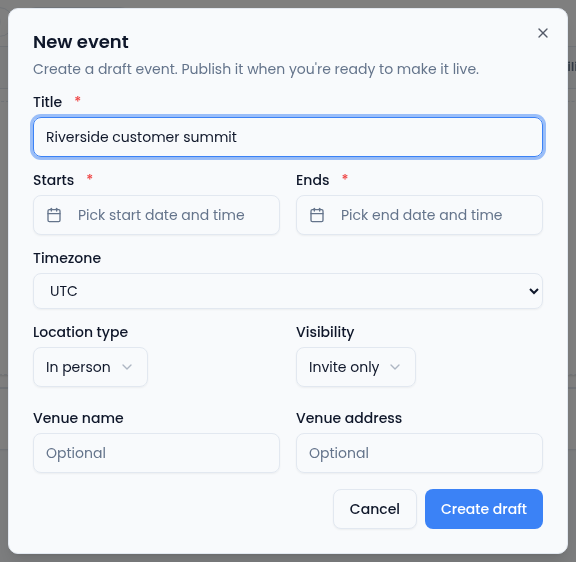
Visibility starts as Invite only; change it here or later. -
Open the draft and use the Settings tab to add a description, cover image, capacity, registration questions, and co-hosts.
-
Publish it from the list (or review it first from its page).
-
Share the event — copy the public link, or mint invite links on the Communications tab and share them yourself.
-
Work the Guests tab as registrations come in — approve, decline, or watch the waitlist — then run the Check-in console on the day.
Full and Simple mode
In Full mode, /events is the complete list with search, filters,
and publish actions. In Simple mode, the same page becomes Events
needing attention — approvals waiting, events starting soon with low
RSVP, and recent no-shows to follow up — with the same New event
quick-create.
Who can do what
Seeing Events in the nav requires event read access, and creating events is a separate permission — without it the New event button doesn't appear. Guest approval, invites, publishing, and check-in are enforced when you use them: the buttons show, and an action you're not permitted to take is denied with an error. If that happens, ask your workspace admin about your permissions.