Share documents through the client portal
Share a document or a whole folder on a contact and it appears in that client's portal; files they upload come back onto their contact record and show up on the timeline.
Documents in Vertiqa are internal by default. A client sees a file only when someone deliberately shares it. There's no "share everything on this record" switch and no link you have to email.
How a document reaches a client
A portal user sees a document when both are true:
- The document sits on their contact record, or on an opportunity whose contact is them.
- The document is shared, or it sits in a folder that is shared.
The second rule is the useful one: share a folder once, and everything you put in it afterwards is visible without a second decision.
Share a single document
- Open the contact and select the Documents tab.
- On the file's row, open the ⋯ menu and select Share.
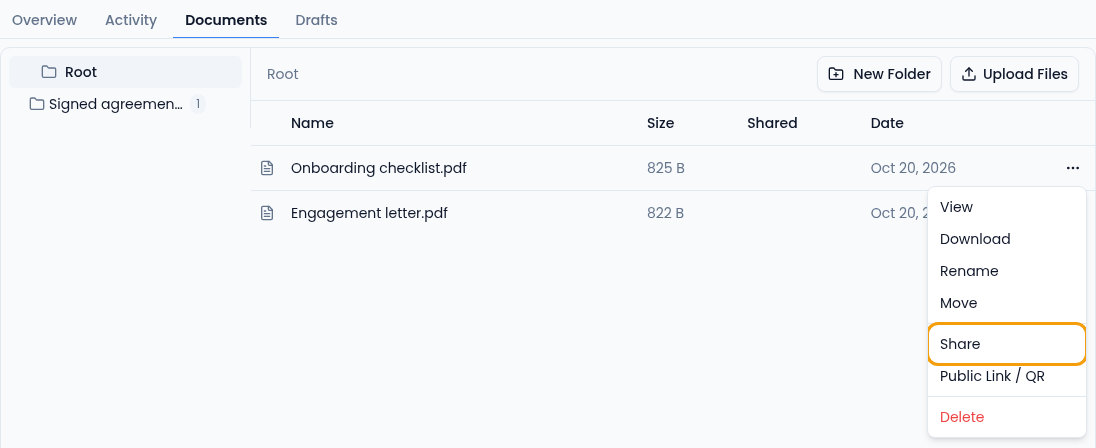
You'll see "… is now shared with portal users." and the file shows Shared in the Shared column. Unshare in the same menu removes it from their portal straight away.
On an opportunity's Documents tab it works the same way; the file reaches the opportunity's contact.
In Documents (the library of every file in your organization), a file's Sharing pill and the Client sharing switch in its detail panel do the same thing. The pill shows the file's own setting, so a file that's only visible through a shared folder still reads Private there.
Share a whole folder
On the contact's Documents tab, open the folder's ⋯ menu (it appears when you hover over the folder) and select Share. Every document in that folder is now visible in that client's portal, including files you add later.
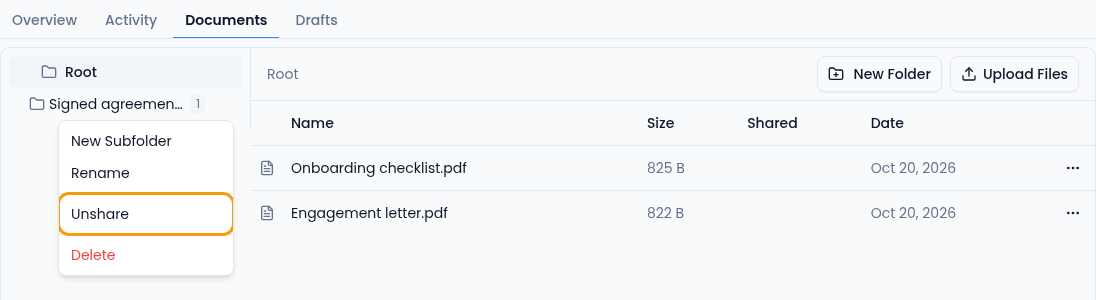
Use folders for the sets you always share (signed agreements, statements, handover packs) and per-document sharing for one-offs. The Shared column only marks files shared on their own, not files shared through their folder.
Unsharing
Unsharing removes the document from the client's portal from that moment. It doesn't recall anything they already downloaded, so treat sharing a document the way you'd treat sending it.
What the client sees
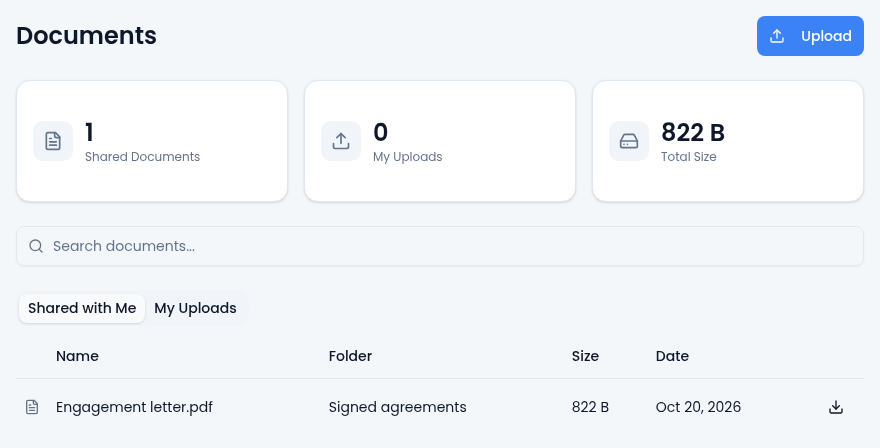
Their Documents page has three tiles (Shared Documents, My Uploads, Total Size), a search box, and two tabs:
- Shared with Me: name, folder, size and date, with a download button on each row. Downloads use short-lived links, so a copied download address stops working after a while; they just download again from the portal.
- My Uploads: everything they've sent you, each marked Uploaded.
When a client uploads a file
Clients upload by dragging files onto the page or using Upload.
- Allowed types: images, PDFs, Office documents (Word, Excel, PowerPoint), text, XML and ZIP archives.
- Maximum size: 50 MB per file. Anything larger is refused with the reason.
The file lands on their contact record, at the top level rather than in a folder, and it isn't shared back to them automatically: it's your copy of their file. It's attributed to them as the uploader and recorded on the contact's timeline, so it shows up in your normal activity view.
Practical setup
- On the contact, create a folder for the things this client should always see.
- Share the folder once.
- Add documents to it as the work progresses.
- Ask for the documents you need back through a form request rather than by email, so the response is tracked and reviewable.
Related
Learn more about the client portal →