Client portal overview
A branded space where the people you work with sign in to read documents you have shared, fill in the forms you ask for, and send files back — with every submission reviewed before you accept it.
The client portal gives a contact their own sign-in to a small space that belongs to your organization, with your name and logo on it. There they can read the documents you've shared with them, complete the forms you ask them to fill in, upload files back to you, and see where each request stands.
It replaces the loop most teams run over email (attach, chase, receive, chase again, re-attach the corrected version) with one place where the current state is visible to both sides.
Two sides, one feature
| Your team | Your client | |
|---|---|---|
| Where | CRM → Portal (/crm/portal) | /portal on your organization's address, after signing in |
| Sees | every portal user, every form request, every template | only their own requests, uploads, and documents shared with them |
| Does | invites, form requests, review, approve or send back | fills in forms, uploads files, downloads shared documents |
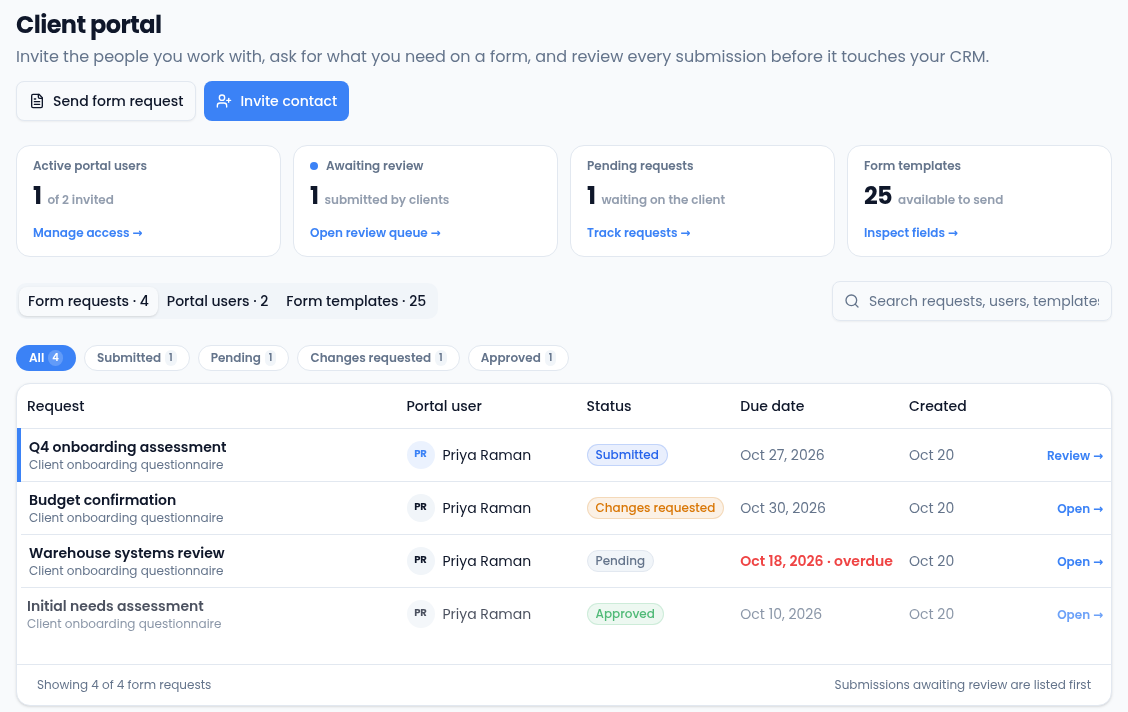
Everything a client sees is scoped to their own contact record. They never see your pipeline, other clients, internal notes, or documents you haven't shared.
The four things the portal does
- Access: you invite a contact; they activate and get a sign-in. See Invite a client and manage portal access.
- Document sharing: you share a document or a whole folder on their contact; it appears in their portal. They can upload files back to you. See Share documents through the client portal.
- Form requests: you send a form template to a portal user with an optional message and due date; they fill it in and submit. See Send and track form requests.
- Review: every submission lands in your review queue. You approve it or send it back with notes, and the client resubmits. See Review a portal form request.
Organizations that use calculators can also share an editable calculation with a client. See Calculations in the client portal.
What a client actually sees
Their portal has a Dashboard with their counts and recent activity, Documents, Forms, and Calculations if you share them, plus a Profile page in the account menu. Nothing else in Vertiqa is reachable from it.
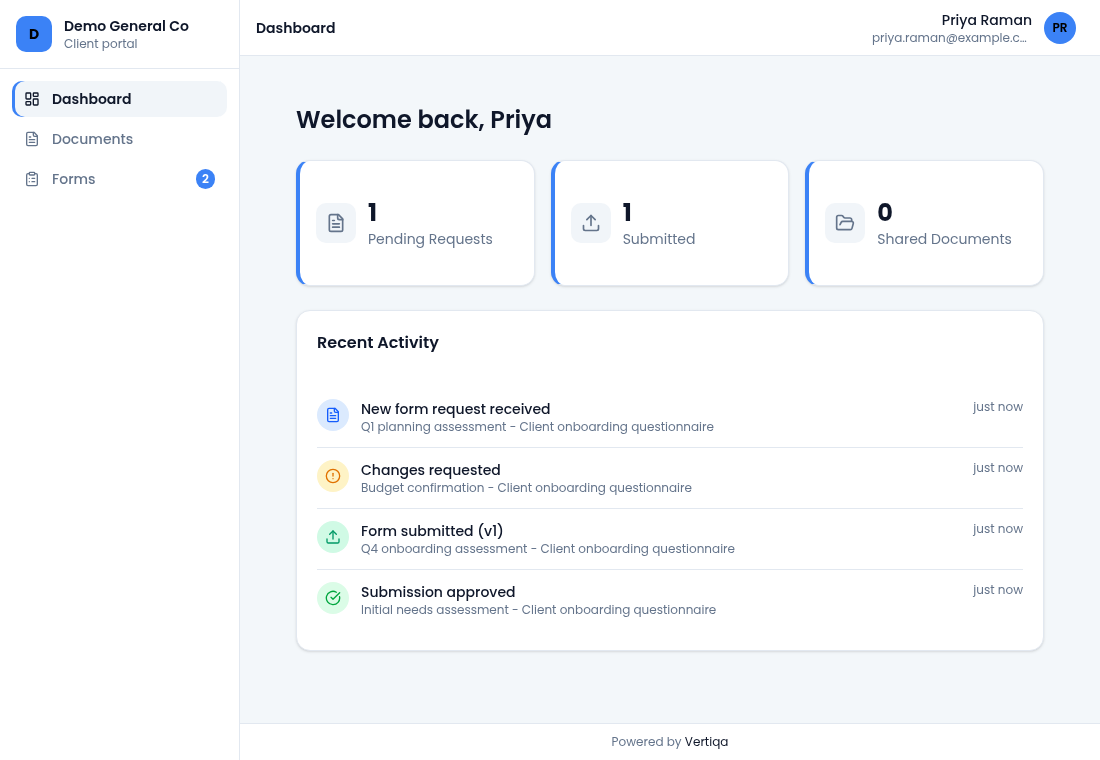
To walk a client through it, see What your client sees in the portal.
Who can manage it
The portal console needs the Manage Portal permission, which owners and admins have by default. It covers inviting, suspending, removing, sending form requests, and approving or sending back submissions. Without it, Portal isn't in the CRM menu and the console says the permission is missing.
Where to start
- Make sure the person exists as a contact in the CRM, with the email they'll sign in with. Portal access is granted to a contact, not to an email address on its own.
- Share the documents they need, or a folder on their contact record.
- Invite them from CRM → Portal → Invite contact.
- Send the first form request once they're active.
Related
Learn more about the client portal →