What your client sees in the portal
A walk through the client's side — sign-in, dashboard, documents, forms and profile — so you can talk someone through it without a screen share.
When a client is stuck, it helps to know exactly what's on their screen. Their portal is deliberately small: a sidebar with your organization's name and logo, Dashboard, Documents and Forms (plus Calculations when your organization shares calculations), and an account menu in the corner.
Signing in
Clients sign in on your portal's sign-in page, titled with your organization's name, using the email and password they set when they activated. They reset their own password with Forgot password?, so you never handle credentials.
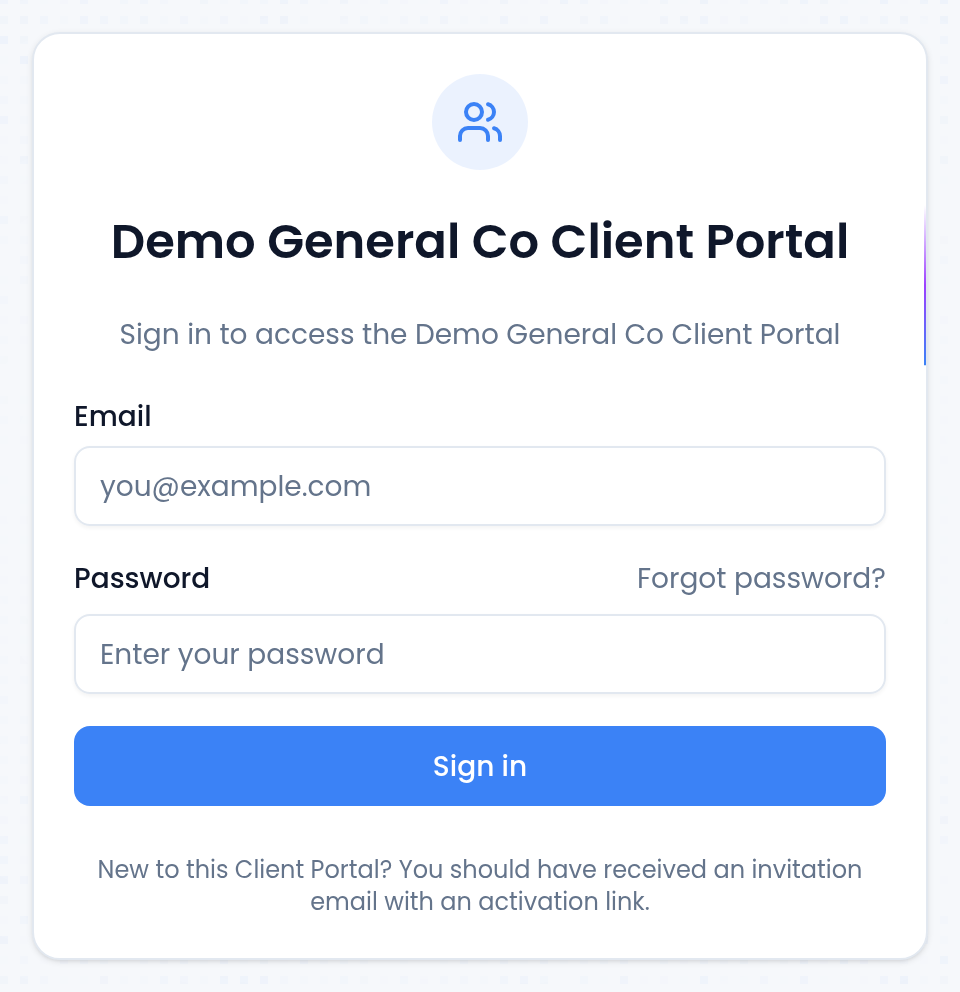
The first time, they follow the activation link in the invitation email instead. Until they've done that, sign-in says the account isn't activated yet. See Invite a client and manage portal access.
Dashboard
"Welcome back, <first name>", then tiles that link onwards
(Pending Requests, Submitted and Shared Documents) and a
Recent Activity feed of their form requests: what changed, on which
request, and when.
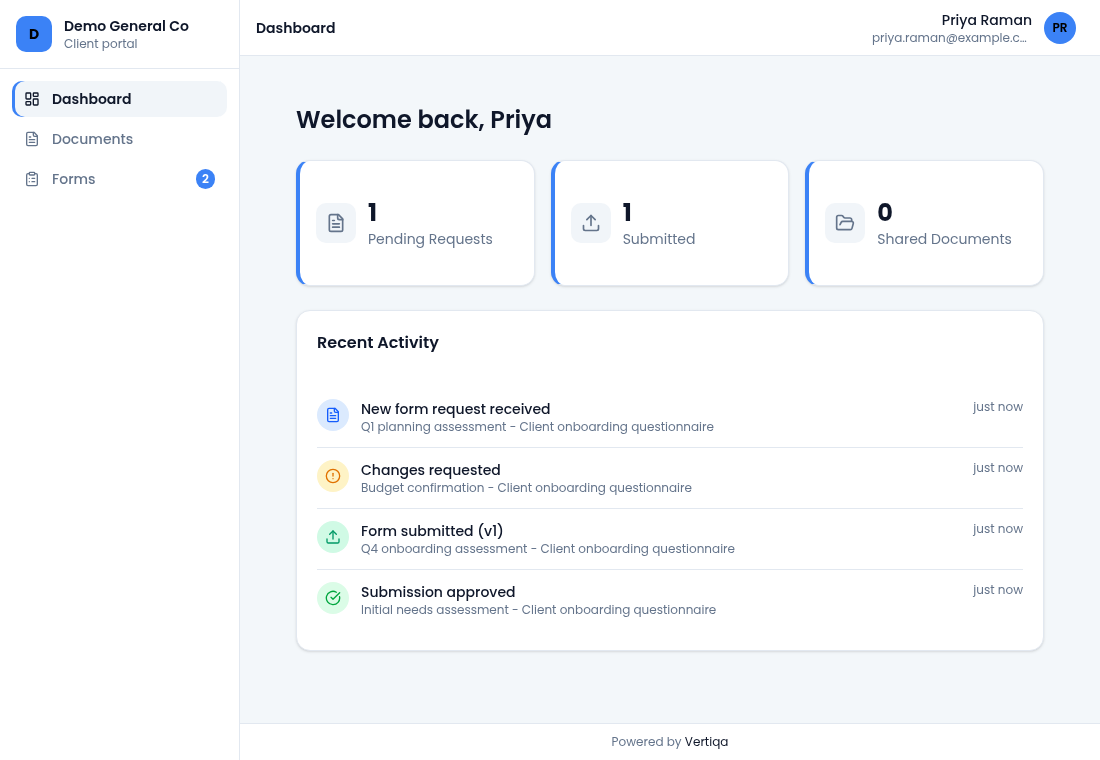
Shared Documents counts the documents shared with them, the same list the Documents page shows under Shared with Me.
If someone says "I can't find the form you sent", start with the number next to Forms in the sidebar: it counts the requests that are pending or sent back to them.
Documents
Two tabs:
- Shared with Me: what your team has shared with them, with the folder it's in, its size, its date and a download button.
- My Uploads: everything they've sent you.
They upload by dragging files onto the page or using Upload: images, PDFs, Office documents, text, XML or ZIP, up to 50 MB each. The search box filters both tabs.
If a client says a document is missing, it's almost always because it was never shared, or it sits on a record that isn't theirs. See Share documents through the client portal.
Forms
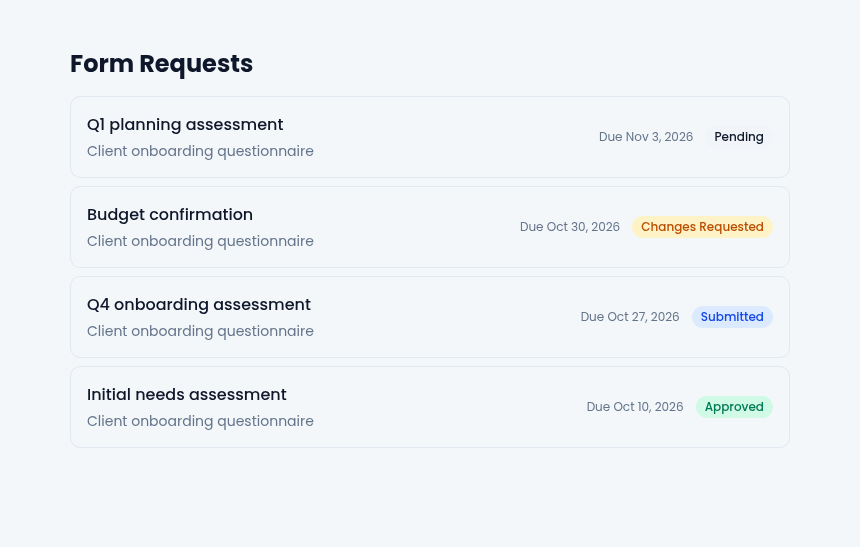
Form Requests lists every request you've sent them: its title, the template, the due date and a status (Pending, Submitted, Approved or Changes Requested).
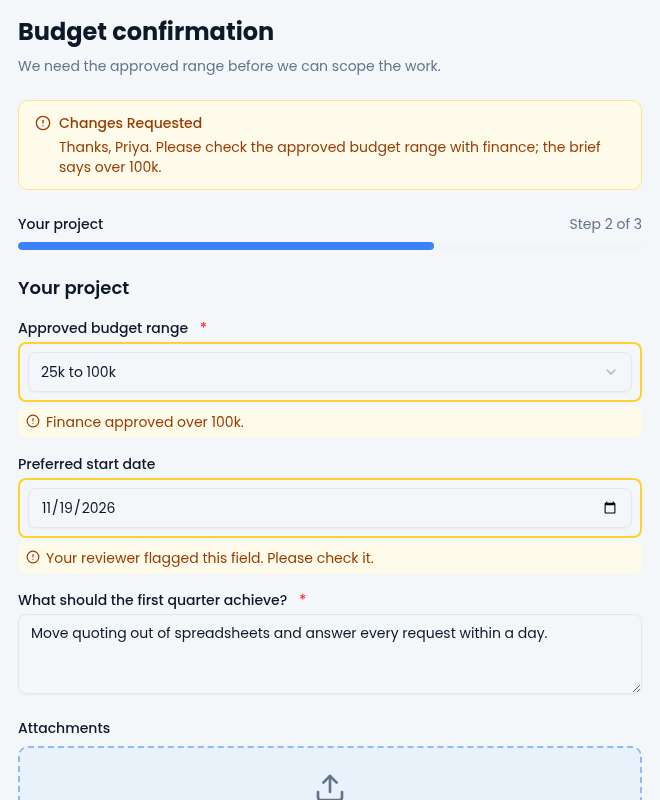
Opening one starts the form. A template with sections or steps becomes steps, with Back, Next and a Step 1 of 3 bar; each step has an Attachments area for files up to 10 MB. Multi-select fields are checkboxes and ratings are numbered buttons. Required fields are checked when they submit. After submitting they can still read what they sent, but not change it.
If you send it back, the form reopens with their previous answers filled in and your reviewer notes in a Changes Requested banner at the top. Fields you flagged are outlined, with your note for each one underneath. They fix it and select Resubmit. A Submission History below the form lists each version and the notes left on it.
Profile and signing out
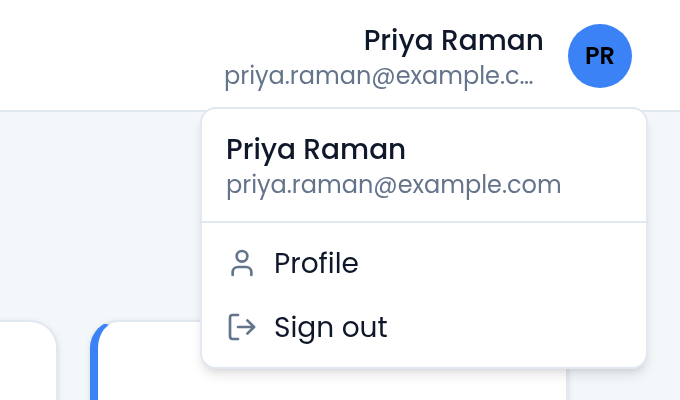
The account menu (their name and email, top right) has Profile and Sign out. Profile shows their name and says to contact your organization to change their details; there's nothing for them to edit. Its Sign Out button, like the menu's, returns them to the portal sign-in page.
What they can never see
- Other clients, or any contact but their own.
- Your pipeline, notes, tasks or internal documents.
- Any document you haven't shared.
- Anything from another organization.
Common questions from clients
| They say | The answer |
|---|---|
| "The link says it expired." | The invitation timed out after 7 days. Resend it from the portal console. |
| "It says my account isn't activated." | They never finished the activation link. Resend the invitation. |
| "It says the email doesn't match." | They're signed in with a different address than the one invited. Sign out, then use the invited address. |
| "My download link stopped working." | Download links are short-lived by design. Download again from the portal. |
| "I can't edit what I submitted." | Right: submissions are read-only until a reviewer sends it back. |
Related
Learn more about the client portal →