Invite a client and manage portal access
Invite a contact to the portal, understand what the activation link does, and use invited, active and suspended states to control access without losing history.
Portal access belongs to a contact. You invite the contact, they activate the invitation themselves, and from then on they sign in with their own email and password. These actions need the Manage Portal permission.
Invite a contact
- On CRM → Portal, select Invite contact.
- Under Search contacts, type at least two characters of their name and pick the person. If they aren't in the CRM yet, add the contact first.
- Check the address under Invitation goes to. It's the contact's own email, and it can't be changed in the dialog. To invite a different address, update the contact's email first. A contact with no email can't be invited until you add one.
- Select Send invitation.
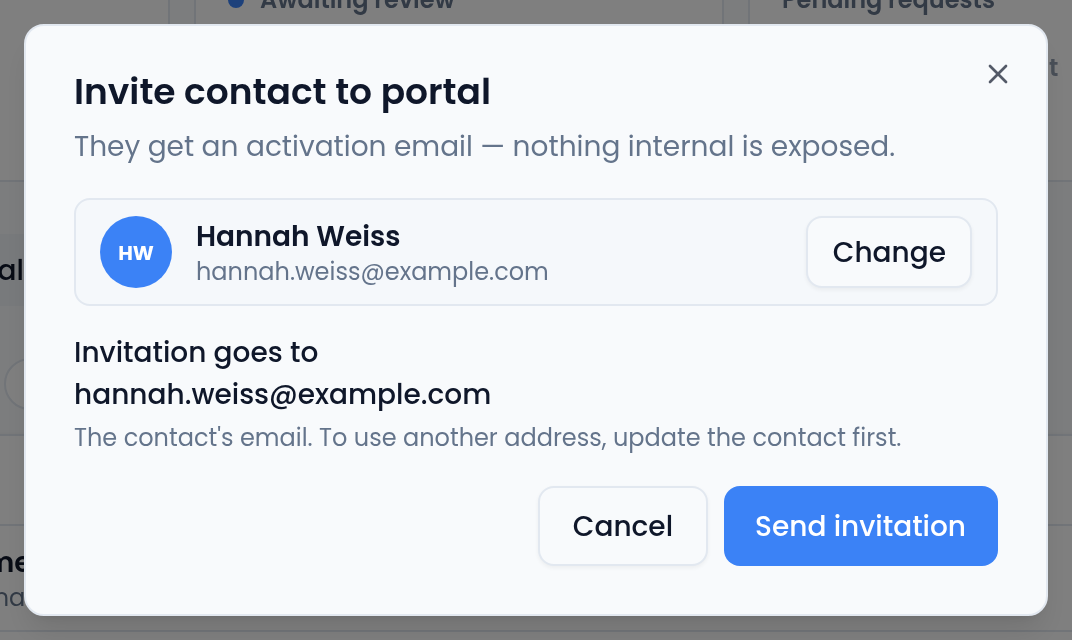
The invitation email carries an activation link, valid for 7 days. The link also signs the client in for that one visit, which is how Vertiqa knows they can read that mailbox; that sign-in part lasts about an hour. If the contact already has portal access, the dialog says "This contact already has portal access. Remove them first to re-invite."
Keep the address on the contact record the one they'll sign in with. The invitation, Resend invitation and the activation check all use the contact's email. Activation only works for someone signed in through a link emailed to that address, not a password sign-in, so a copied or forwarded activation link doesn't let anyone else claim the invitation.
What happens on their side
Opening the activation link, the client:
- Sees "You've been invited" and which organization it's for.
- Ticks I agree to the Terms of Service and acknowledge the Privacy Notice.
- Enters a password under Choose a password: at least 8 characters, used with their email to sign in next time.
- Selects Activate Portal Access, and from then on signs in at your portal's sign-in page.
If the sign-in part of the link has expired, the link was opened from Copy invite link, or they're signed in some other way, the page offers Email me a sign-in link instead. It sends a fresh link to the contact's email only. Opening that link brings them back to step 2. Other problems are named plainly:
- Sign-in link used up: "The sign-in link in that email has expired or was already used." They select Email me a sign-in link.
- Expired: "This activation link has expired." Use Resend invitation.
- Already activated: "Your account has already been activated." They sign in at the portal sign-in page instead.
- No longer valid: "This activation link is no longer valid." The invitation was removed or replaced by a newer one. Use the latest email, or invite again.
The three access states
| State | What it means | What you can do |
|---|---|---|
| Invited | The invitation was sent; they haven't activated yet. | Copy invite link to send it another way (opening it, they email themselves a sign-in link), or Resend invitation (a new link; the old one stops working). |
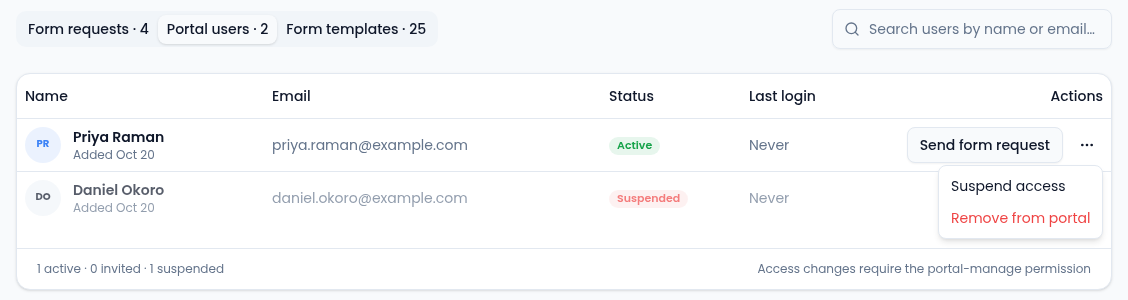
| Active | They've activated and can sign in. | Send form request, Suspend access, or Remove from portal. |
| Suspended | Access is revoked; history is kept. | Reactivate at any time. |
Each person's row in Portal users shows the status, the email they sign in with, when they were invited or added, and their last login.
Suspend or remove
- Suspend access revokes access straight away and keeps their history. Use it for staff turnover at a customer, a paused engagement, or a security concern you're still looking into. Reactivate restores it.
- Remove from portal permanently revokes portal access and can't be undone. Form requests you already sent them, and their submissions, stay in Form requests, marked Portal access removed. If you invite the same contact again later, they start with a fresh portal: the old requests stay on your side and don't reappear in theirs.
When a client can't sign in
The portal sign-in page names the cause:
- "You do not have access to this client portal": there's no portal access for that sign-in. Invite them.
- "Your portal account has been suspended": reactivate them, if that's intended.
- "Your account has not been activated yet": they never finished the activation link. Resend it.
- "Invalid email or password": a typo, or they haven't activated yet.
Clients reset their own password from Forgot password? on the sign-in page; you never handle their password.
Related
Learn more about the client portal →