Send and track form requests
Ask a portal user to complete a form template with an optional message and due date, then follow it through pending, submitted, changes requested and approved.
A form request is a specific ask: this person, this form, by this date. It lands in their portal, comes back as a submission, and waits in your review queue until someone approves it or sends it back.
Sending and reviewing requests needs the Manage Portal permission.
Before you send: templates
Templates are your organization's active forms. The Form templates tab of the portal console shows each one's Fields and a Client preview. Check the preview before sending a template for the first time: a label that reads fine internally can read as jargon to a client.
Send a request
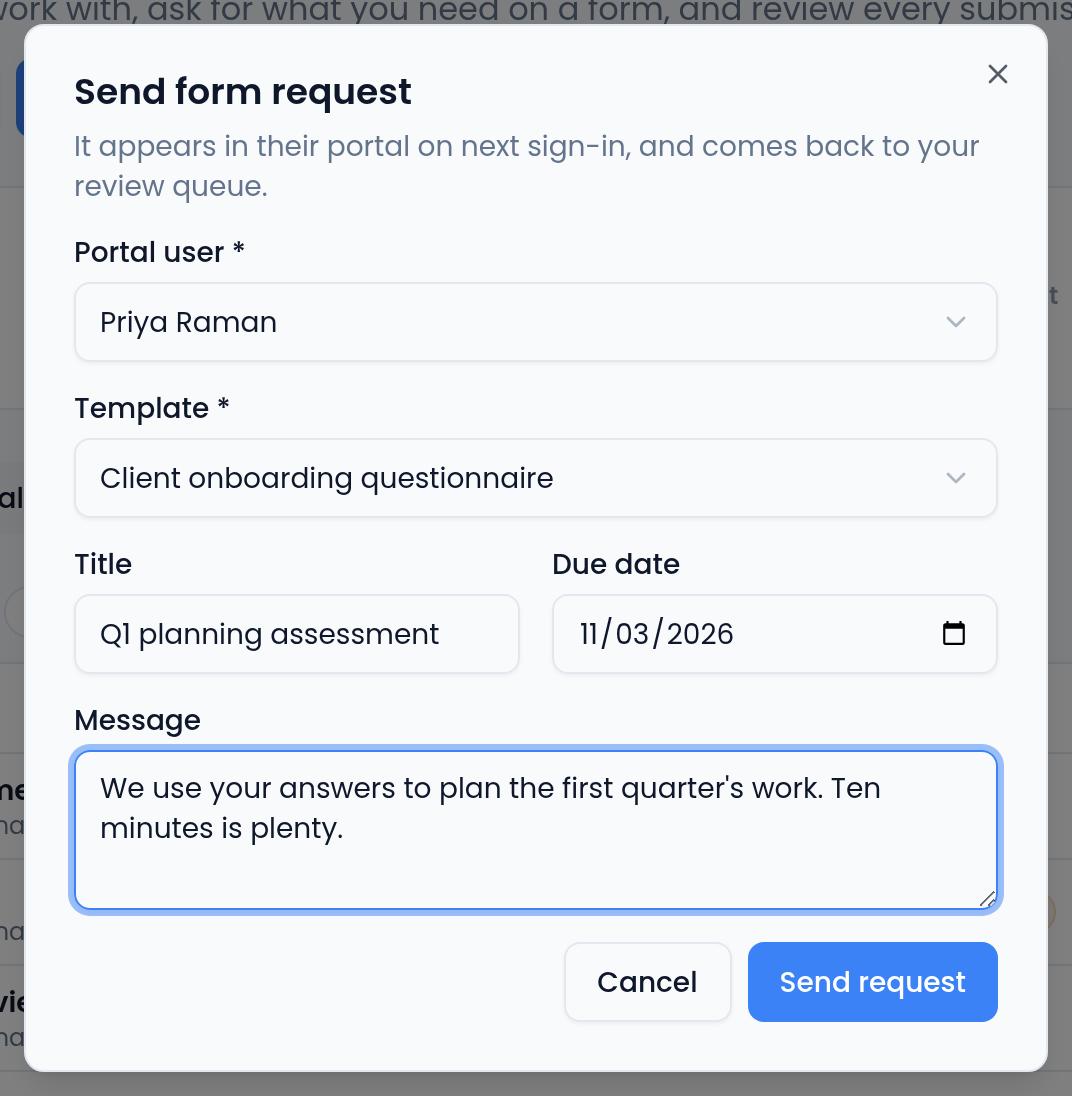
- On CRM → Portal, select Send form request (or the Send form request button on a row of Portal users, which picks that person for you).
- Choose the Portal user. Only active users are listed; someone still invited can't receive a request until they activate.
- Choose the Template.
- Optionally add a Title (it defaults to the template's name; use it when the same template goes out more than once), a Due date, and a Message the client sees with the request.
- Select Send request. The request appears at the top of Form requests as Pending.
Vertiqa doesn't email the client about a new request. It appears in their portal, and their Forms link shows a count of requests waiting on them, so let them know it's there.
The lifecycle
| Status | Meaning | Waiting on |
|---|---|---|
| Pending | Sent, not yet submitted. | The client |
| Submitted | Filled in and returned. | You |
| Changes requested | Sent back with reviewer notes. | The client |
| Approved | Accepted and closed. | Nobody |
The queue sorts by that, not by date: submitted first, then changes requested, then pending, with approved last. A due date turns red and says overdue once it has passed on a request that's still pending or sent back.
Track the queue
Form requests is the console's landing tab. Use the Awaiting review and Pending requests tiles, or the status chips above the table, to narrow it. Search matches request title, portal user and template name.
What the client does
In their portal, a request opens as a form:
- A template with sections or steps becomes steps, with Back and Next and a Step 1 of 3 bar. A template without either is one page.
- Multi-select fields show as a list of checkboxes and rating fields as a row of numbered buttons. Hidden fields aren't shown to the client. A field that only appears when another answer matches shows only then.
- Required fields are checked when they submit, and empty ones are marked This field is required. A field that isn't showing is never required.
- Each step has an Attachments area for files (up to 10 MB each).
- After submitting, the form becomes read-only: "Your form has been submitted and is under review."
- If you request changes, it reopens with their previous answers filled in and your reviewer notes at the top. They correct it and Resubmit, which creates a new version.
See What your client sees in the portal.
Review what comes back
Open a submitted request to read the answers next to the reviewer panel, then Approve or Request Changes. Every submission is kept as a numbered version. Approving closes the request; it doesn't copy the answers onto the contact or opportunity, so make any record updates yourself. The full workflow is in Review a portal form request.
Practical tips
- Set a due date when you need one. Overdue only means something if it's rare.
- Put the why in the message. "We need this to schedule your install" gets a faster answer than a bare form name.
- Send one form per subject rather than one long form.
Related
Learn more about the client portal →