Students
Turn a CRM contact into a student, link guardians, read a student's enrollments, attendance and assessments, and record an assessment.
A student is a CRM contact you've enrolled in your program. The contact
keeps the person's name, email and phone; the student record adds their
level, guardians, enrollments, attendance and assessments. Open
Enrollment → Students (route /enrollment/students).
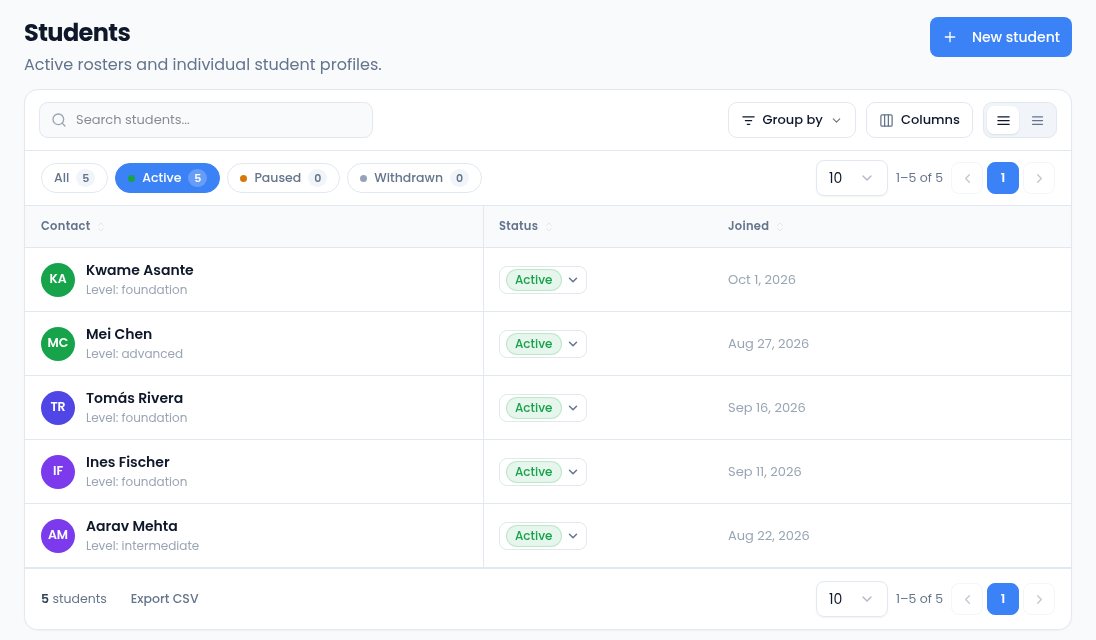
- Filter by Active, Paused or Withdrawn, search, Group by status or level, or Export CSV.
- Change a student's status right in the Status column.
Add a student
- Select New student.
- Under Contact, search for the person and select them. Add them under Contacts first if they aren't in your CRM.
- Enter a Level if you track one, such as
foundation. - Select Create. The student's page opens.
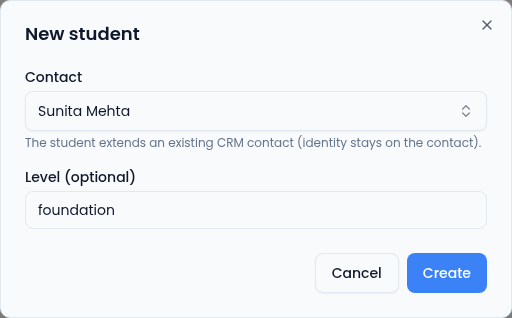
If the contact is already a student, the dialog says That contact is already a student.
The student page
Select a student to open their page. The header shows their status, level and join date, with the status changes they can make and Record assessment.
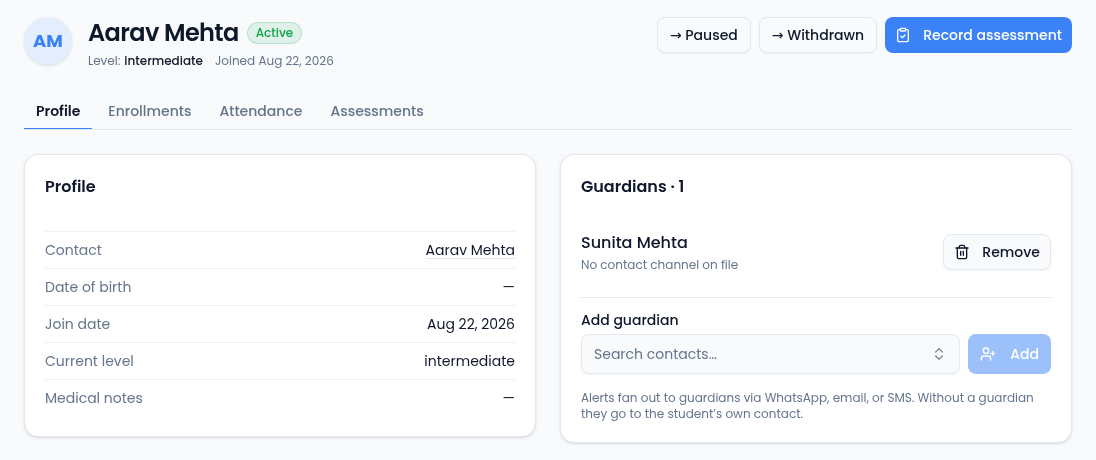
- Profile — the contact, date of birth, join date, current level and medical notes, with the student's Guardians.
- Enrollments — one card per batch, with the student's fees and invoices. See Fees and payments.
- Attendance — the attendance rate for the last 90 days and every session the student was marked for.
- Assessments — published results, newest first.
Status
A student is Active, Paused or Withdrawn. Use the buttons in the header (→ Paused, → Withdrawn, → Active) to move them; withdrawing asks for an optional note. A student's status is separate from their enrollments: withdrawing the student doesn't withdraw them from a batch.
Guardians
A guardian is another contact — a parent, say — who hears about the student. Search for them under Add guardian and select Add; Remove unlinks one. Each guardian shows the phone and email on their contact, or No contact channel on file.
When a student has guardians, Enrollment's messages (a new enrollment, an absence, a makeup, a published assessment) go to the guardians instead of the student. See Messages to students and guardians.
Record an assessment
- On the student's page, select Record assessment. It's available when one of the student's batches has an enabled assessment scheme.
- Choose the Scheme and the Value: a step of the ladder, pass or fail, or a number.
- Add Notes if you like.
- Leave Publish immediately ticked and select Record & publish.
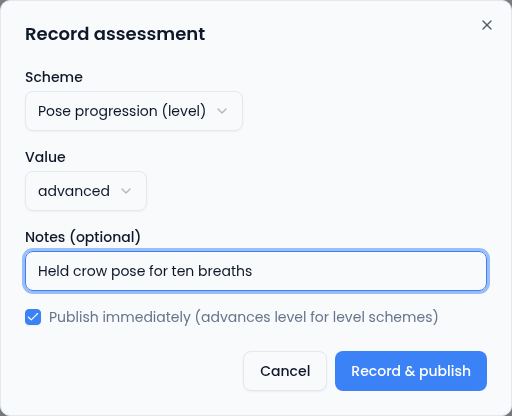
A published result appears on the Assessments tab and is sent to the guardians. If you untick Publish immediately, the button becomes Save draft; drafts don't appear on the student's page, and there's no way to publish one from the app yet, so publish straight away unless you mean to keep it private.