Fees and payments
Set up fee plans for your batches, give each batch a default plan, generate a student's invoice and record what they pay.
A fee plan is the rate for a batch: an amount and currency on a cadence.
Each student's invoices are made from a fee plan, and what they still owe
shows on the batch, the student and the dashboard. Open Enrollment → Fee
Plans (route /enrollment/fee-plans).
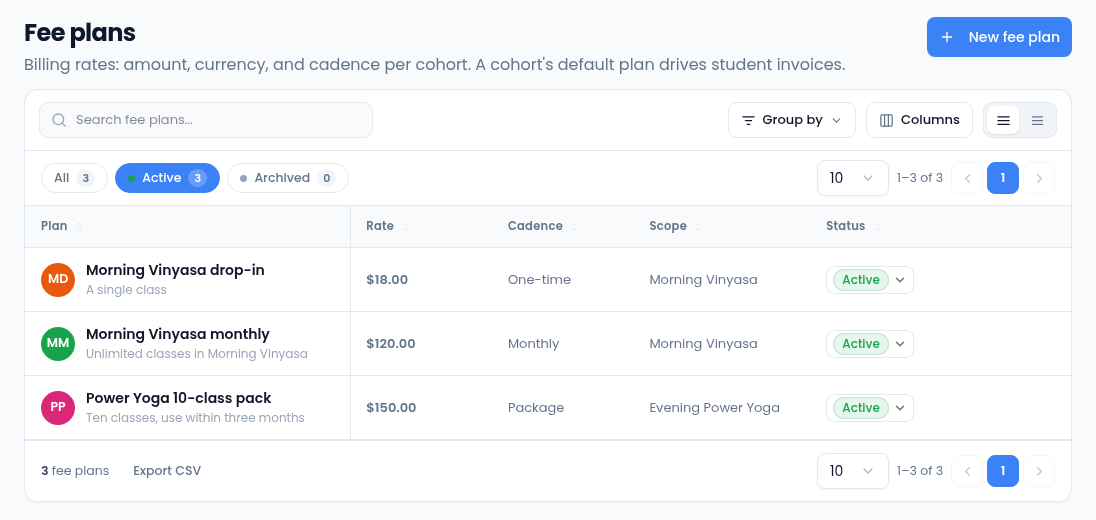
Create a fee plan
You need at least one batch first; plans belong to a batch.
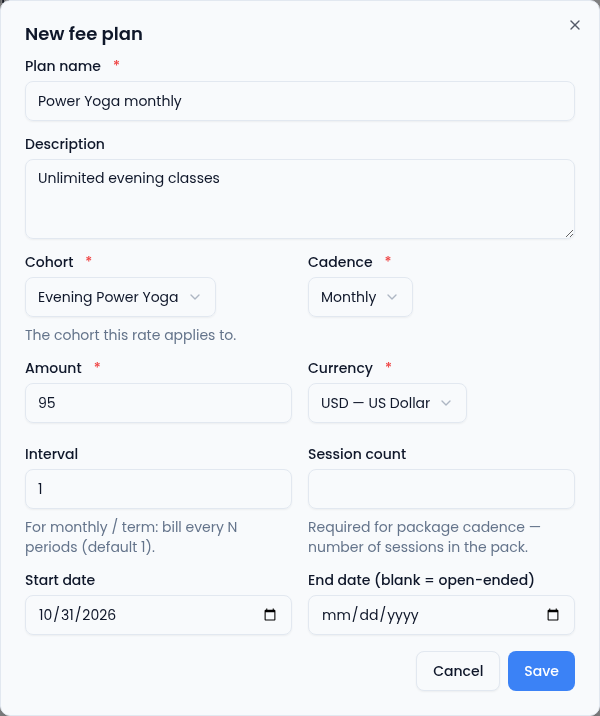
- Select New fee plan.
- Enter the Plan name and a Description.
- Choose the Cohort (the batch) it's for.
- Choose the Cadence:
- One-time — a single charge, such as a drop-in class or a registration fee.
- Monthly or Per term — repeating. Interval bills every N months or terms.
- Package — a pack of classes. Enter the Session count.
- Enter the Amount and choose the Currency.
- Set a Start date, and an End date if the plan stops.
- Select Save.
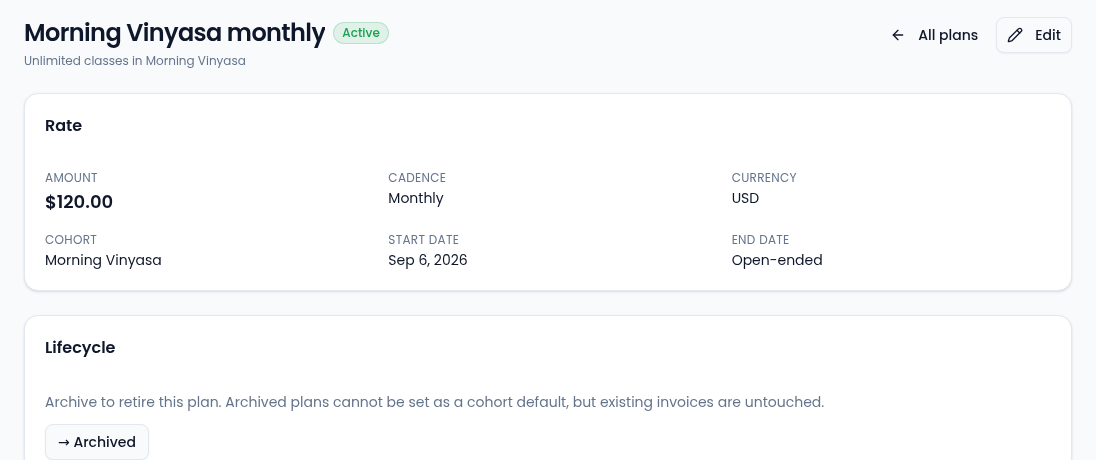
Open a plan to see its rate, Edit its name, description, amount, interval, session count or end date, or archive it under Lifecycle. Archived plans can't be a batch's default, but invoices already made from them are untouched; → Active brings one back. Creating and changing plans needs the Manage Fee Plans permission.
Set a batch's default plan
On the batch's page, choose the plan in the Default fee plan card. When you generate an invoice for a student in that batch, Vertiqa uses this plan. See Batches.
Invoice a student
Invoices aren't made automatically. To bill a student:
- Open the student and select the Enrollments tab.
- Select Generate invoice on the batch's card. Vertiqa makes an invoice for the batch's default fee plan, due in 14 days, and lists it on the card as Sent.
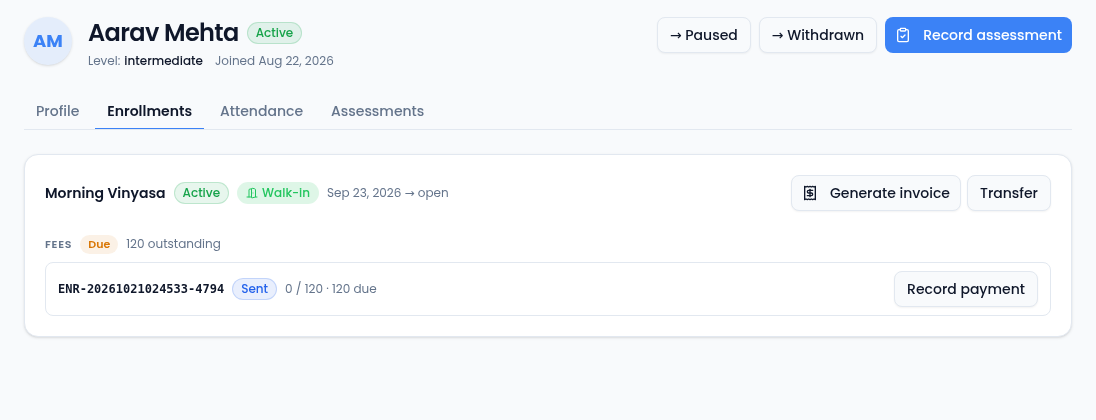
If the batch has no default plan, generating an invoice tells you so: set one on the batch first.
Generating an invoice doesn't email it. If automatic invoice reminders are on for your organization, an unpaid student invoice gets them like any other invoice, sent to the student's email. See Invoice details.
Record a payment
When a student pays — cash at the desk, a card, a bank transfer — record it against the invoice.
- Select Record payment beside the invoice.
- Enter the Amount. A smaller amount records a part payment.
- Choose the Method: Cash, Card, UPI, Bank transfer, Cheque or Other.
- Add a Reference such as a receipt or transaction number.
- Select Record payment.
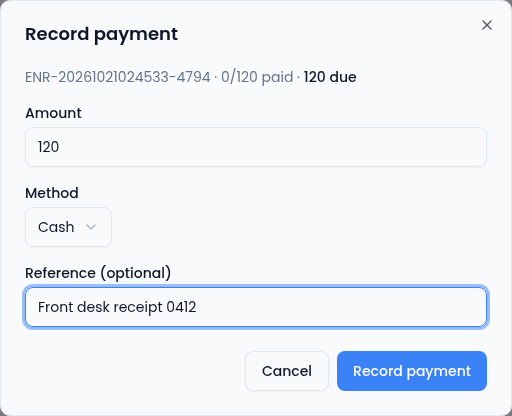
The invoice becomes Partial or Paid.
Fee status
Each enrollment shows one fee status, on the batch's roster and the student's card:
- No invoices — nothing has been billed yet.
- Due — billed and not yet due.
- Partial — part-paid.
- Overdue — past its due date with money still owed.
- Paid — fully paid.
The Fees outstanding totals on the batch and the dashboard add up what's still owed, and turn amber when anything is overdue.