Take attendance
Mark who came to a session in one tap each, mark everyone present at once, and add a drop-in who isn't on the roster.
Reviewed OperatorVertiqa 1.54+
Every session has a roster of the batch's students. Taking attendance is built for the door of the studio: one tap per student, on a phone if you like.
Open a session
- From the Enrollment dashboard, select Take attendance beside one of today's sessions.
- From a batch's page, select a session under Schedule, or pick a past date under Take attendance for a date and select Open day.
See Schedules if a session you expect isn't there.
Mark attendance
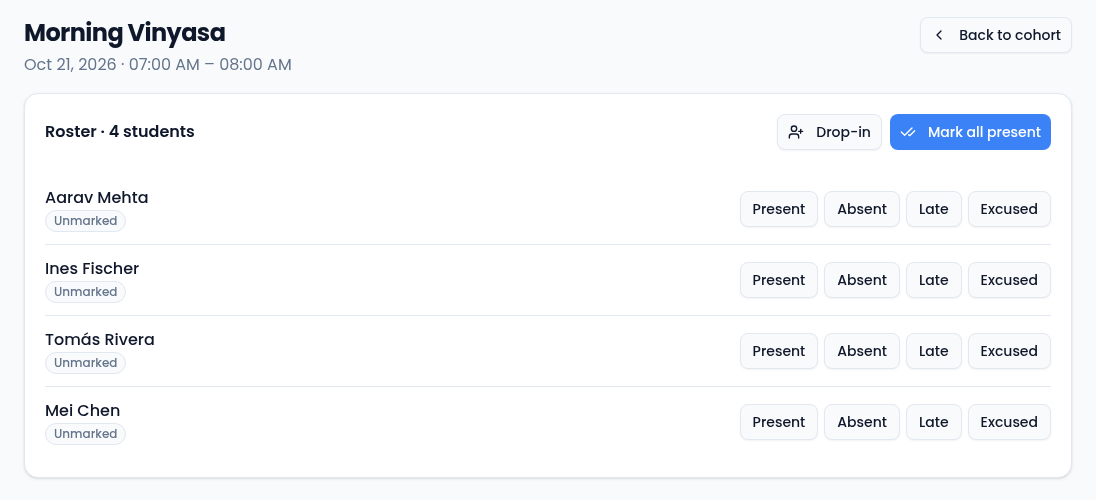
- Select Present, Absent, Late or Excused beside each student. Each tap saves straight away. If a mark doesn't save, the row says so; tap again to retry.
- Change a mark by tapping another status. The latest one counts.
- Mark all present marks everyone still unmarked as present. It never changes a mark you've already made, so mark the absentees first and then everyone else in one go.
Marking a student Absent sends their guardians, or the student, a message. Marking Present doesn't.
Add a drop-in
Someone who came but isn't enrolled in this batch can be added for this session only.
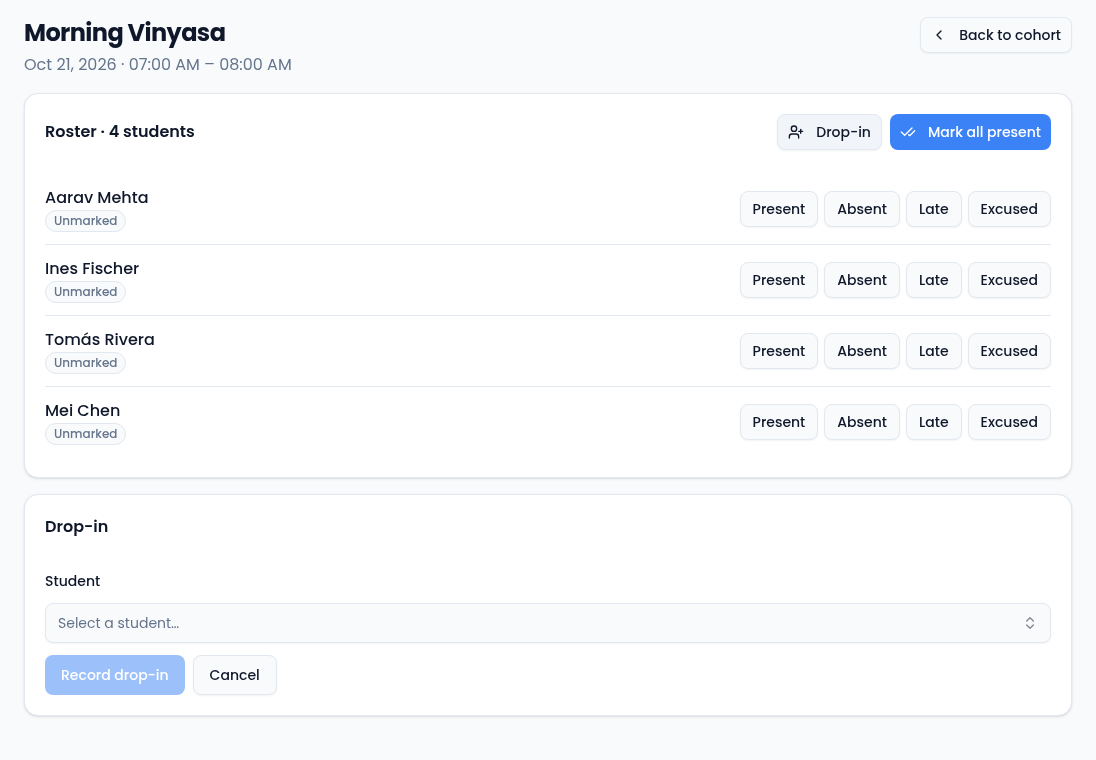
- Select Drop-in.
- Choose the Student. Active students who aren't already on this roster are listed.
- Select Record drop-in. They're added as present, tagged Drop-in.
Cancelled sessions
If a session was cancelled, the page says This session is cancelled. Marking is disabled.
Related
Related guides