Batches
Create a batch, read its page — seats, attendance, fees, roster and schedule — set its default fee plan and assessment schemes, and close it when it ends.
A batch is a group of students who train together. Open Enrollment →
Cohorts (route /enrollment/cohorts); the page is titled Batches.
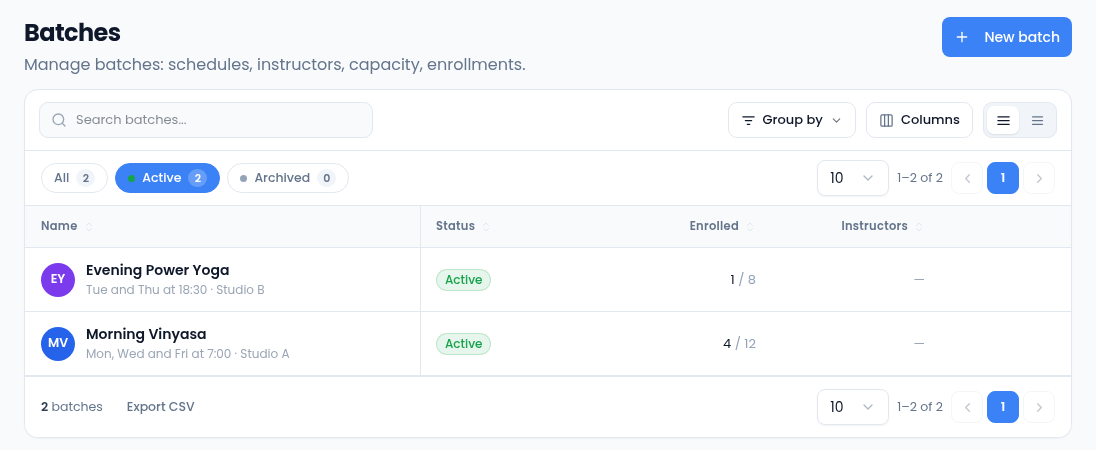
- The list opens on Active batches. All and Archived show the rest.
- Enrolled counts open enrollments, out of the capacity when the batch has one.
- Search, Group by status, choose Columns, or Export CSV.
Create a batch
- Select New batch.
- Enter the Batch name, and a Description such as when and where it meets.
- Set a Capacity, or leave it blank for no limit.
- Select Save. The new batch opens.
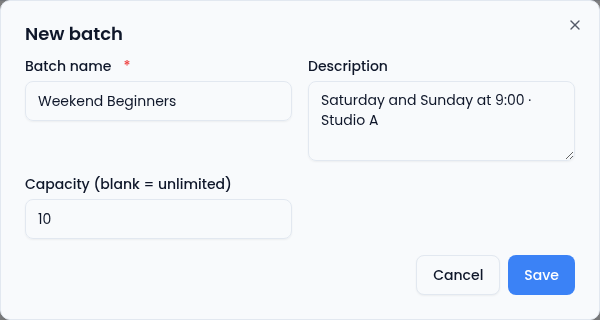
A batch's name, description and capacity can't be changed from its page after you create it, so check them before you save.
The batch page
Select a batch to open it.
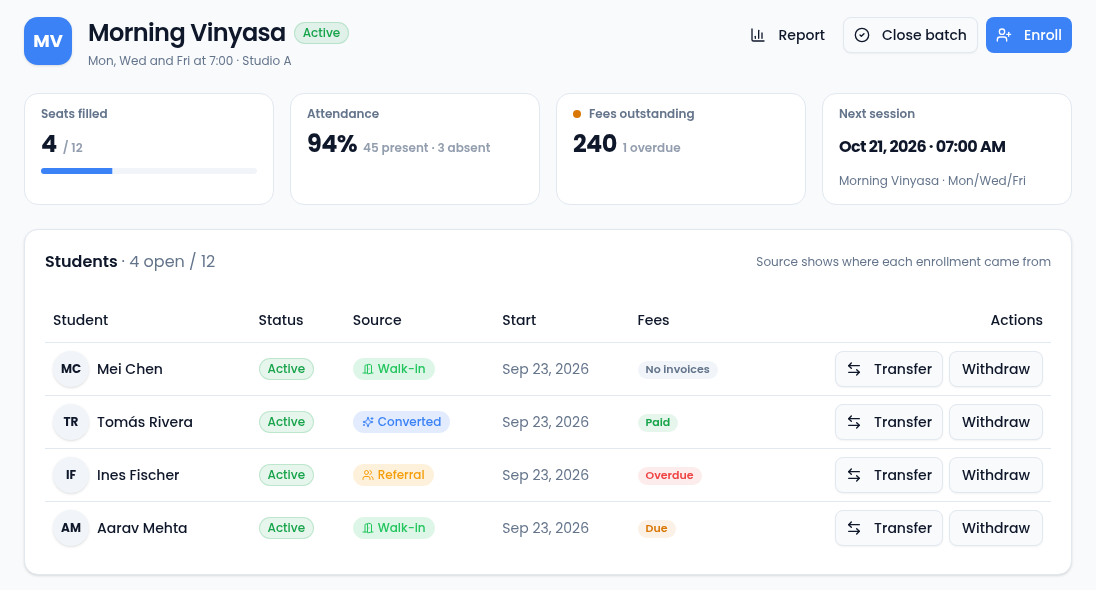
- Seats filled, Attendance (last 30 days), Fees outstanding and Next session sit across the top.
- Students lists every open enrollment: status, where it came from, the start date and the student's fee status. Select a name to open the student. Transfer and Withdraw are covered in Enroll and transfer students.
- Report opens the batch report, and Enroll adds a student.
Below the roster are the batch's schedule, default fee plan and assessment schemes.
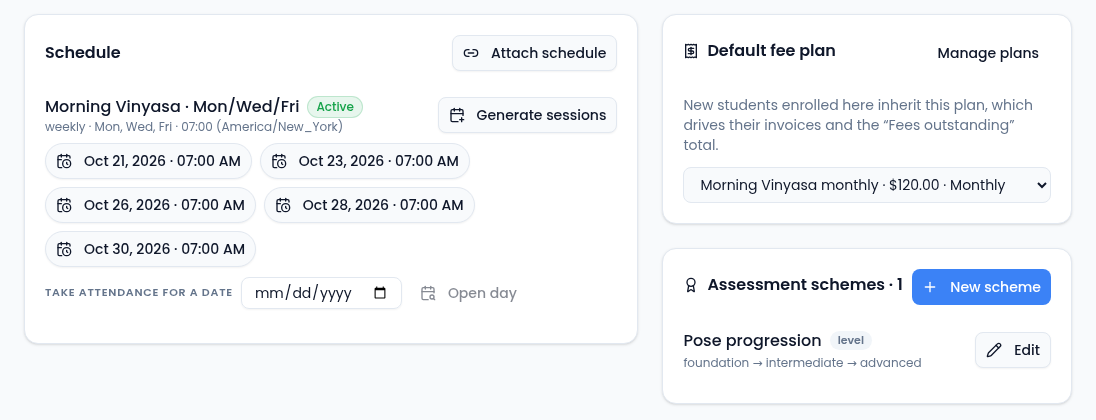
- Schedule — attach a schedule, generate its sessions and open a session to take attendance. See Schedules.
- Default fee plan — the plan this batch's invoices use when an enrollment has no plan of its own. Choose it from the list; No default plan clears it. Only active plans for this batch are offered, and it can't be changed on a closed batch. See Fees and payments.
- Assessment schemes — how you grade students in this batch, below.
Assessment schemes
A scheme is a way of measuring progress. Select New scheme, give it a Name, and choose a Type:
- Score (numeric) — a number, with an optional Scale min and Scale max.
- Grade (ladder) — one step of an ordered list.
- Level (ladder, advances student) — like a grade, but publishing a result also moves the student to that level.
- Pass / Fail.
- Rubric.
For a grade or level, list the Progression ladder steps separated by
commas, lowest first: foundation, intermediate, advanced. Tick Enabled
before you save, because only enabled schemes can be used to record an
assessment. The type can't change after creation; Edit changes the
rest. Schemes need the Manage Assessment Schemes permission.
To record a result, open the student. See Students.
Close a batch
Select Close batch when a batch has ended. A batch can only close once its roster is empty: if anyone is still enrolled, the page says Close blocked and how many to withdraw, transfer or complete first. Otherwise you confirm, and the batch is archived and leaves the active list.