Enroll and transfer students
Enroll a student in a batch, use the waitlist when it's full, withdraw a student, and move a student to another batch without losing their history.
An enrollment puts one student in one batch. A student can be enrolled in several batches, but only once in each at a time.
Enroll a student
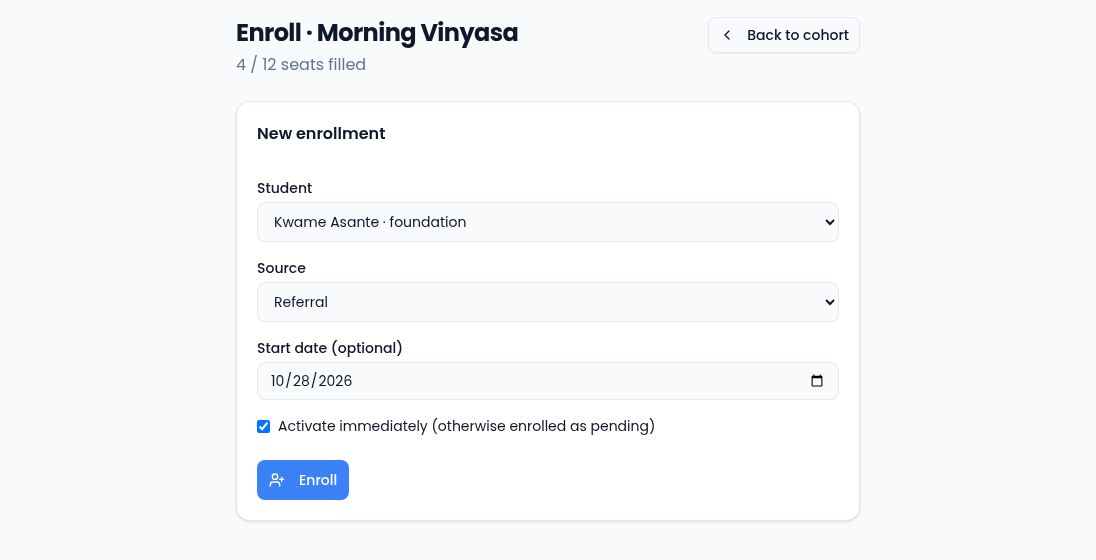
- Open the batch and select Enroll. The page shows how many seats are filled.
- Choose the Student. Only active students are listed; add new ones under Students first.
- Choose the Source: Walk-in, Converted from prospect, Referral, Transfer or Other. It appears on the batch's roster.
- Set a Start date if they start later than today.
- Leave Activate immediately ticked to enroll them as Active, or untick it to enroll them as Pending.
- Select Enroll. You're taken back to the batch.
If the student is already in this batch, the page says This student already has an open enrollment in this cohort.
When the batch is full
Pending, Active and Paused enrollments take a seat. When every seat is taken, Enroll says This cohort is at capacity and an Add to waitlist button appears. Waitlisted students don't take a seat and don't appear on session rosters.
Withdraw a student
On the batch's roster, select Withdraw beside the student and confirm. The enrollment ends; the student stays on your books and keeps their history. To take a student out of your program altogether, change the student's own status on their page. See Students.
Transfer a student
A transfer moves a student to another batch, for example from mornings to evenings.
- Select Transfer beside the student, on the batch's roster or on the Enrollments tab of the student's page.
- Choose the Target batch. Active batches other than the current one are listed.
- Set a Start date and a Note if you like.
- Select Transfer. The target batch opens.
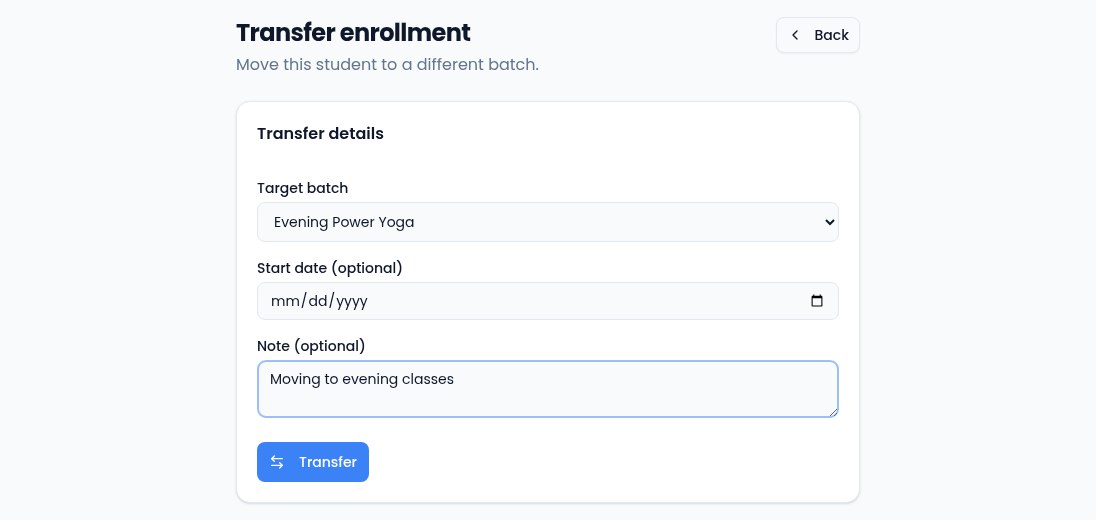
Vertiqa withdraws the old enrollment as of today and creates a new one in the target batch with Transfer as its source, so both batches keep an accurate history. An active or paused student stays active or paused; a pending or waitlisted one starts as pending. A transfer can't use the waitlist: if the target batch is full, it says so and nothing changes.