Schedules
Create the recurring timetable a batch meets on, attach it to the batch, and generate its sessions so they're ready for attendance.
A schedule is a recurring timetable — Mon, Wed and Fri at 7:00 in
Studio A — that generates a session for every date it meets. You
attach a schedule to a batch, and the batch's students appear on each
session's roster. Open Enrollment → Schedules (route
/enrollment/session-series).
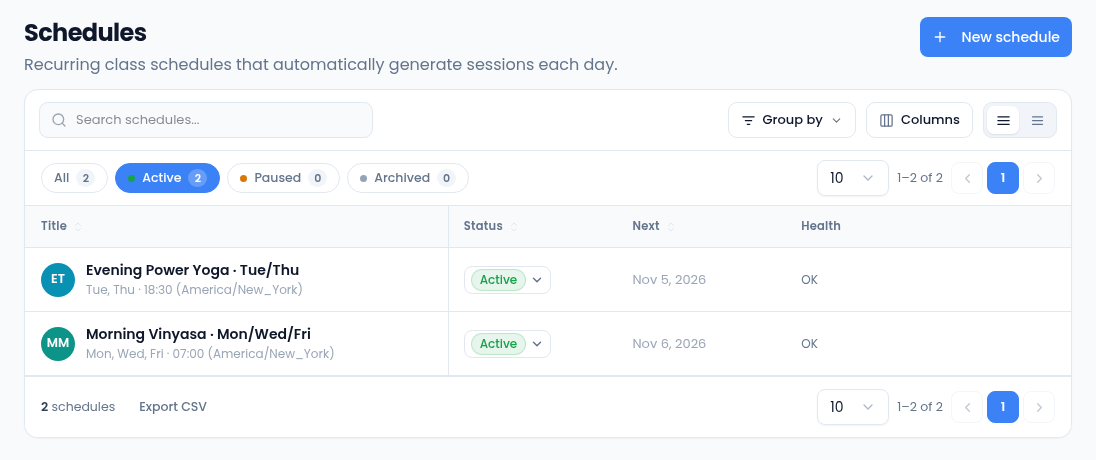
- Status — change it right in the list: Active schedules generate sessions, Paused ones stop until you resume them, and Archived is final.
- Next — the next date Vertiqa will generate a session for.
- Health — OK, or an error code when generating sessions failed. Hover it for the message.
- Edit in a row's menu changes the schedule.
Create a schedule
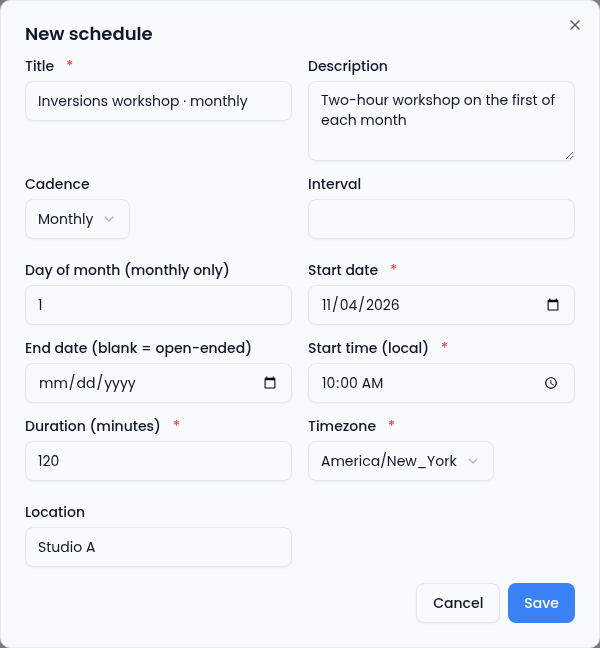
- Select New schedule.
- Enter a Title and, if you like, a Description.
- Choose the Cadence:
- Daily — every day, or every N days with Interval.
- Monthly — on the Day of month, every N months with Interval.
- Weekly — on chosen weekdays. The form doesn't show a weekday picker at the moment, so a weekly schedule can't be saved here yet. For a class on one weekday, use Daily with an Interval of 7 and a Start date on that weekday; for several weekdays, make one such schedule per day.
- Set the Start date, and an End date if it stops (blank runs on).
- Set the Start time (local), the Duration (minutes) and the Timezone the class runs in.
- Add the Location, then select Save.
Attach a schedule to a batch
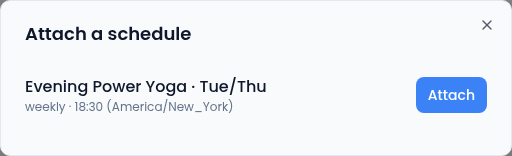
On the batch's page, in Schedule, select Attach schedule and then Attach beside the one you want. Only active schedules that aren't already on this batch are listed. One schedule can serve several batches.
Sessions
Vertiqa generates each day's sessions automatically. To have the coming weeks ready ahead of time, select Generate sessions on the schedule in the batch's Schedule card; it creates the sessions for the next 30 days. Generating again never makes duplicates.
The card lists the upcoming sessions: select one to open its attendance. For a session in the past, pick the date under Take attendance for a date and select Open day. If no session exists on that date, the page says so; generate sessions first.
Session times show in your own time zone.