Follow-up Agent
Ask the Follow-up Agent to suggest the next step for an outreach approach from what you have logged — you review and decide, and it never sends anything.
The Follow-up Agent reads what has been logged on one outreach approach — your context brief, notes, logged calls and meetings, emails sent — and suggests the one next step that moves it forward. You review the suggestion, edit it if needed, and apply it or dismiss it. It never sends an email and never changes anything until you apply it.
Turn it on for a cohort
On the cohort page, switch Follow-up Agent on. Anyone who can edit the cohort can turn it off; turning it on needs the permission to prepare follow-ups, which owners, admins and managers have by default.
Once it's on, Suggest next step appears on each approach — inside the cohort, on Home under Next actions, and on the person's Outreach card.
Ask for a suggestion
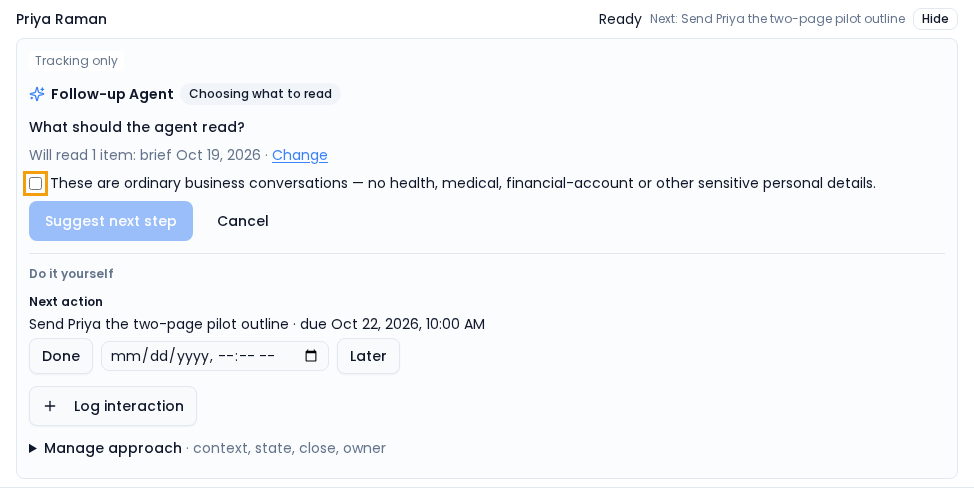
- Select Suggest next step. The agent asks What should the agent read? and preselects every logged item on the approach it is allowed to read. Select Change to leave some out. Items you aren't allowed to see are listed with the reason and can't be chosen.
- Tick These are ordinary business conversations — no health, medical, financial-account or other sensitive personal details. The agent won't read anything until you confirm this.
- Select Suggest next step. The badge shows Working on it, then Ready for review. You can leave the page; the suggestion waits on the approach.
If there is nothing to read yet, the agent asks you to log an interaction first.
Review the suggestion
A suggestion leads with one decision, then explains why:
| Suggestion | What applying it does |
|---|---|
| Reply by email | Save draft — saves an email draft you can edit. Nothing is sent until you approve and send it. |
| Create a task | Create task — creates the task with the subject and due date shown. |
| Set up a meeting | Add meeting task — adds a task to arrange the meeting. |
| Look again later | Look again on a date you pick — a task to come back to the approach. |
| Close this outreach | Close as the outcome you choose: Declined, Achieved or Stopped. |
| The agent needs your answer | The agent asks you a question. Answer it with a note, then suggest again. |
Before you apply:
- Edit the details. The subject, due date and email text are editable. The line above the buttons says exactly what will happen, including whether it replaces the current next action.
- Read the reasoning. Under the decision, the agent summarizes the situation and lists anything you should check before you act — for example What you logged may be out of date, The reply looks automated, or They may have asked to stop.
- Check the sources. Based on: names the items the suggestion came from, such as Call with Pat · 15 Oct.
Then choose Apply (the button is named for the action), Not now to hide it for 1 day, 3 days or a week, or Dismiss.
A suggestion goes stale if something changes after it was made — a new interaction, a changed next action, or the approach being closed. You'll see Something changed and can Suggest again.
Automatic suggestions
The cohort owner can also turn on Also suggest automatically when a follow-up is due. When an approach's next action comes due, the agent prepares a suggestion ahead of time so it's waiting for review. Automatic runs read only your notes, brief and sent emails, and anything involving a reply still waits for you. To stop automatic suggestions for one approach, open the ⋯ menu on its Follow-up Agent and clear Suggest automatically when a follow-up is due.
Limits and errors
Suggestions use your organization's AI budget. If the monthly budget or the daily suggestion limit is reached, the agent says so and when it resets. Other failures — The agent took too long, The agent's answer could not be used — show Try again. A failure never changes the approach.