Outbound communications
See every email, message and call you sent in the last 90 days in one place, see which landed and which need attention, and record touches made outside Vertiqa.
Outbound gathers everything you've sent in the last 90 days, whatever the
channel, so you can see who you've reached and whether it landed. Open
CRM → Outbound (route /outbound-communications). It shows your own
outbound touches, not your teammates'.
It includes:
- Emails, WhatsApp messages and texts sent from Vertiqa.
- Calls logged as outbound.
- Touches you recorded yourself with Compose, such as a LinkedIn message or an Instagram DM.
Find a touch
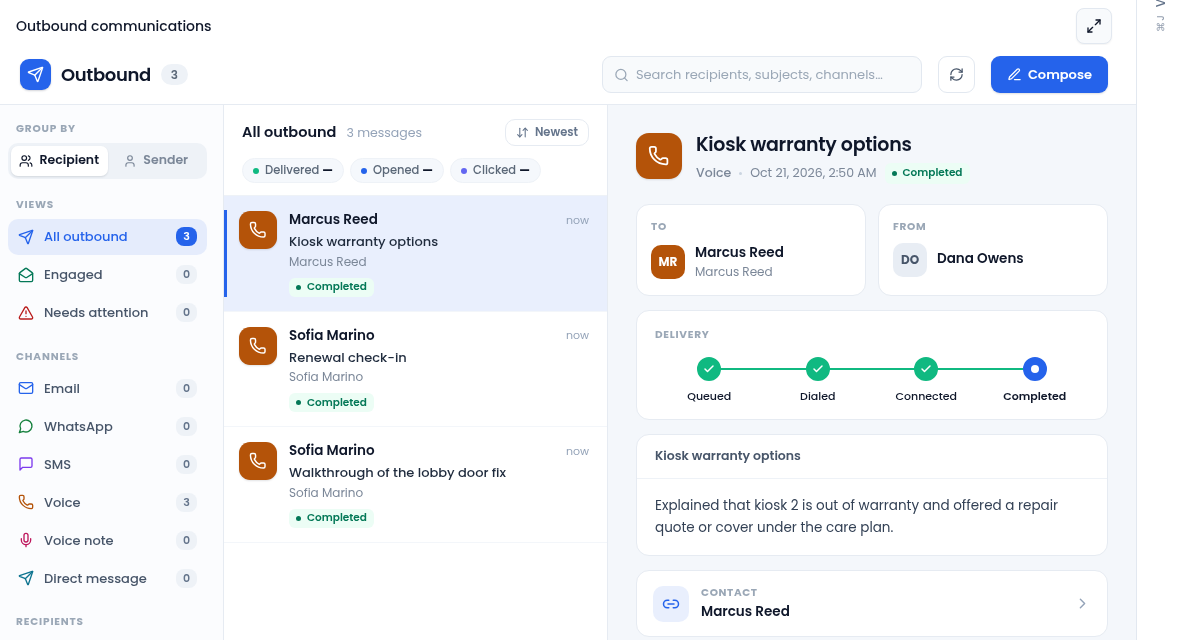
- Views: All outbound, Engaged (an email that was opened or clicked) and Needs attention (anything that failed or bounced).
- Channels: Email, WhatsApp, SMS, Voice, Voice note and Direct message, each with a count.
- Group by: Recipient lists the people and records you contacted, and Sender lists the addresses you sent from. Select one to see only their touches.
- Search looks through recipients, senders, subjects, previews and channels. Newest switches the order to oldest first.
- The Delivered, Opened and Clicked rates above the list are for the emails in what you're looking at.
Read a touch
Select a touch to see who it went to and from, its content, and the record it's linked to (select that to open it). The Delivery timeline shows how far it got:
- Email: Queued, Sent, Delivered, Opened and Clicked, with the number of opens and clicks.
- Call: Queued, Dialed, Connected and Completed.
- Messages and texts: Queued, Sent, Delivered and Read.
A failed or bounced touch shows where it stopped, and appears under Needs attention. Select Refresh to load anything new.
Record a touch you made elsewhere
Compose doesn't send anything. It records a touch you made outside Vertiqa, so your outreach history stays complete.
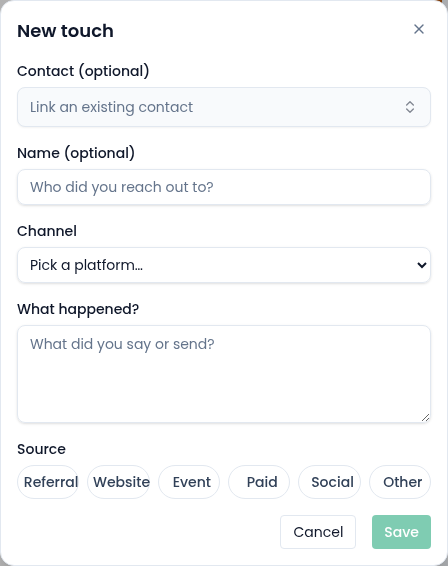
- Select Compose.
- Link the Contact you reached, or type a Name if they aren't in the CRM.
- Choose the Channel: Instagram, WhatsApp, iMessage, LinkedIn, SMS or Other.
- Under What happened?, say what you sent or said.
- Choose the Source that led to the conversation, then select Save. Save stays off until there's a channel, a source and a description.
The touch appears in the list under WhatsApp or SMS if you chose one of those, and under Direct message otherwise.
Seeing Outbound needs permission to view activities.