The content calendar
See scheduled email sends, page launches, campaign milestones and social posts on one board, spot what still needs approval and which themes have gaps, and drag items to reschedule them.
The content calendar puts everything marketing has planned on one board, so
you can see what goes out when and what's still waiting for approval. Open
Marketing → Content Calendar (route /marketing-content-calendar).
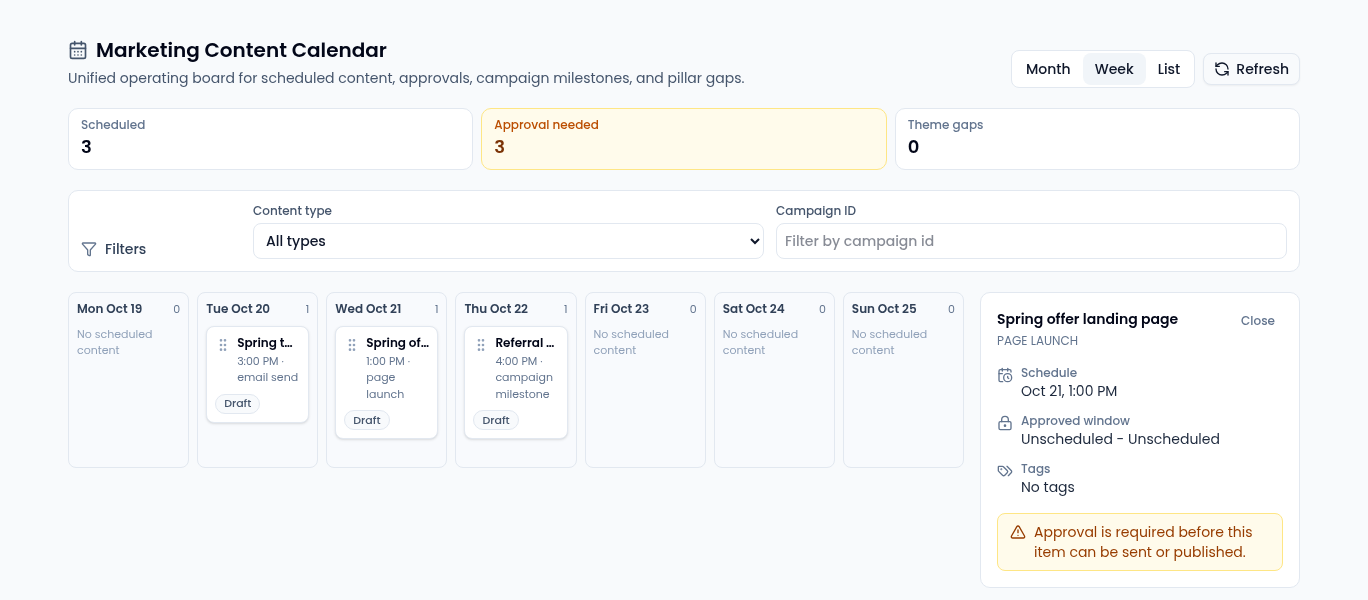
What's on it
The board brings together:
- Email sends and page launches you've planned.
- Campaign milestones.
- Social posts from Social, with the channel they're for.
- Theme gaps: your content pillars — the tags you use on content items — that have nothing planned in view, shown as a Theme gap banner.
Each item shows its time and a status badge: Draft, Review, Approval needed, Approved, Scheduled, Published or Blocked.
The three cards at the top count what's in view: Scheduled, Approval needed and Theme gaps.
Change the view
- Week (the default) shows this week, Monday to Sunday.
- Month shows four weeks starting this Monday.
- List shows the same items in date order, with theme gaps first.
Times are shown in UTC. Select Refresh to load changes made elsewhere.
Filters narrow the board by Content type (Email sends, Page launches, Campaign milestones or Social placeholders) or to one campaign by its Campaign ID.
Inspect an item
Select an item to open its panel on the right:
- Schedule — when it's planned.
- Approved window — the window its approval covers, if it has one.
- Tags attached to it.
If the item still needs approval before it can be sent or published, the panel says so. Select Close to go back to the board.
Reschedule by dragging
In Full mode, drag an item by its handle to another day to reschedule it. You can drag planned content that isn't published or archived, and social posts that are scheduled; other items have no handle. If a reschedule fails, the board says Calendar item was not rescheduled. Moving approved content outside its approved window sends it back for approval.
In Simple mode
In Simple mode the calendar is a daily and weekly view: this week's scheduled content, what needs approval and theme gaps, without the view switcher, the filters or dragging.