Renewals
Add renewal and contract-end watches to accounts, opportunities and estimates, and see when each will create its follow-up.
A renewal watch reminds you before a contract ends or a renewal comes
due. Each watch belongs to an account, opportunity or estimate, and has a
renewal date and how many days' notice you want. Open Settings →
Renewals (route /settings/renewals). You need permission to edit
opportunities to see this page.
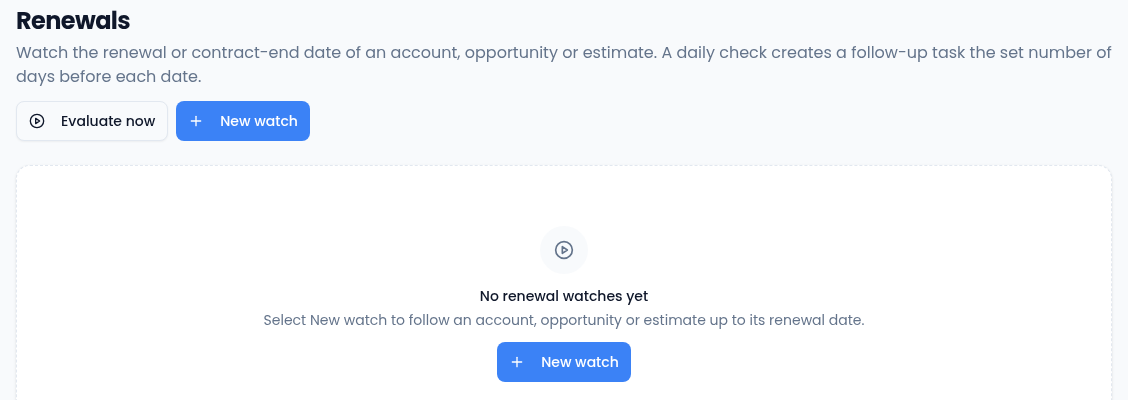
Add a watch
-
Select New watch.
-
Choose the Record type (Account, Opportunity or Estimate), then search for the record and select it.
-
Give it a Label, such as "Annual maintenance contract". The label becomes the follow-up task's subject.
-
Choose the Owner, who gets the follow-up task. Without an owner, the task is unassigned.
-
Pick the Renewal date and how many days' notice you want in Notify before (days), from 0 to 365.
-
Leave Repeats on for a renewal that comes round again, and set Repeat every (days), 365 for a yearly renewal. Turn it off for a one-off date, such as a contract end.
-
Add Notes for the owner if it helps, and select Create watch.
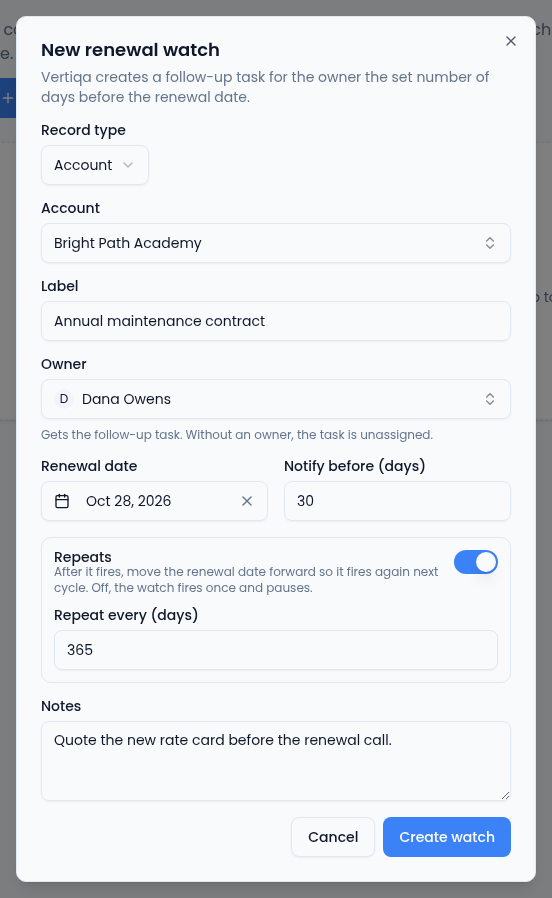
The dialog says what's missing before it saves.
How a watch works
Once a day, Vertiqa checks every active watch. When a renewal is within the watch's notice period, it creates a follow-up task on the record for the owner. A watch doesn't fire twice in the same day.
After it fires, a repeating watch moves its renewal date on by its repeat interval, ready for the next cycle. A one-off watch is paused instead.
The Renewals list
For each watch, the list shows:
- Label, and the Record it belongs to. Select the record type to open the record.
- Renewal date, and how many days away it is.
- Notify before: the days of notice.
- Status: Active or Paused, and Recurring for a watch that repeats.
- Last alert: when it last created a follow-up.
The ⋯ menu on a row has Edit (change the label, owner, dates and notes; a watch stays on its record), Pause or Resume, and Delete. Deleting a watch keeps any follow-up tasks it already created.
Evaluate now runs the daily check straight away and says how many follow-ups it created.