Qualification form
Choose the questions on the intake form you send to new inquiries, and see the answers that come back.
Reviewed AdminVertiqa 1.75+
The qualification form is a short intake form you send from an inquiry,
asking the customer what they need, when, and their budget. Set up its
questions in Settings → Qualification Form (route
/settings/qualification-form).
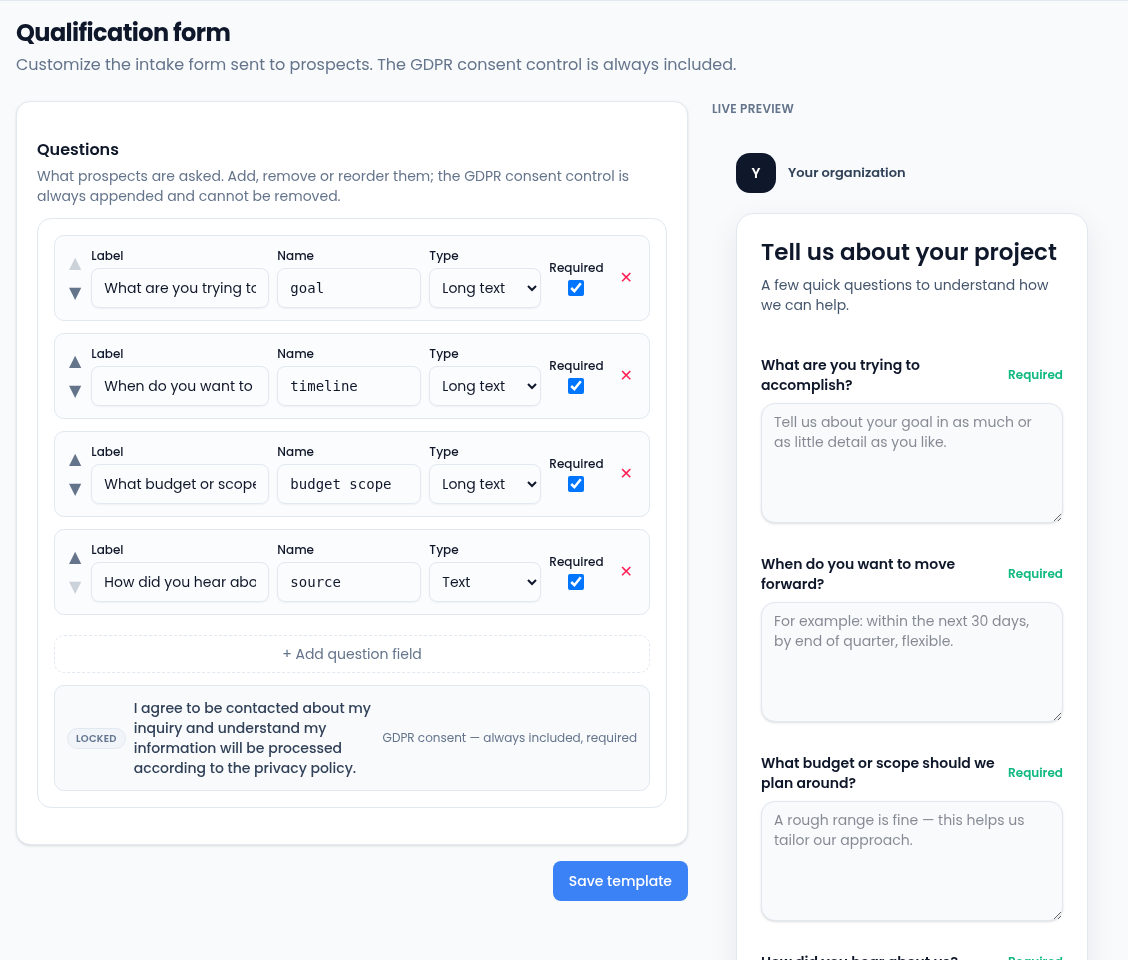
Edit the questions
- For each question, set the Label the customer sees, a Name (a
short unique ID, such as
budget) and the Type: Text, Email, Phone, Number, Long text, Select, Radio buttons, Checkbox, Date or Date & time. - Tick Required if it must be answered.
- Use the arrows to reorder questions, the cross to remove one, and Add question field to add another.
- Select Save template.
Every question needs a name, and two questions can't share one. The GDPR consent box is always added at the end and can't be removed.
Send the form and read the answers
On an inquiry that has no intake answers yet, select Send intake form. When the customer fills it in, the answers show on the inquiry and in Submissions at the bottom of this page, with the customer, the inquiry, when it was submitted and its status. Select Refresh to load new ones.