Author and publish an instrument version
Create an instrument, write a draft version, validate it to compute its canonical hash, record the approvals it requires, then publish — and retire it when it is superseded.
Every instrument version follows the same four-stop lifecycle, shown as a rail across the top of the instrument detail page:
Draft created → Validated → Approvals → Published
Nothing skips a stop. The rail always tells you where the selected version is and what it is waiting for.
This surface is available only to organizations with the Instruments feature enabled, and it lives in Full mode under Settings → Instruments.
1. Create the instrument
From Settings → Instruments, choose New instrument. You supply:
- Key — lowercase letters, numbers, hyphens and underscores, up to 64
characters, e.g.
readiness-assessment. This is the permanent identifier; pick it carefully because it is what runs, workflows, and exports refer to. - Calculation profile — the engine, chosen once. The kind follows from the profile automatically, so an incoherent pairing is not possible.
- Display name — optional, and the only part you can restyle later.
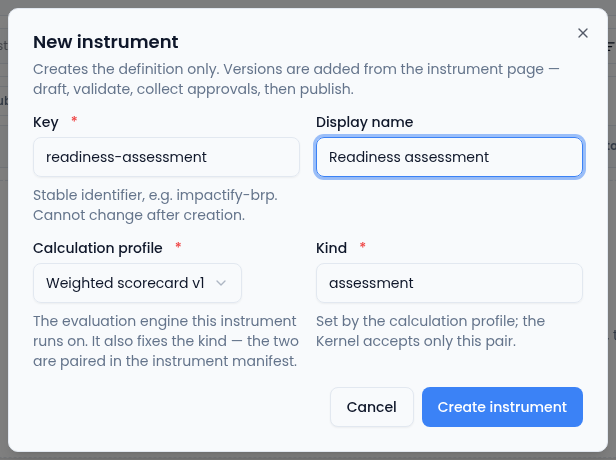
Creating an instrument creates no rules yet. A new instrument has no versions and cannot be evaluated.
2. Write a draft version
Use New draft version on the instrument detail page. You paste the full definition envelope as JSON — its inputs, the calculation, the outputs, the golden test vectors, and the approvals publication requires.
Two things to know before you paste:
- The envelope carries its own
instrument.versionsemantic version. When you create a draft from an existing version, it is prefilled from that version with the minor number bumped (1.4.0→1.5.0), so you edit a working copy rather than starting from a blank box. - Unknown fields are rejected. The platform will not quietly ignore a typo in a field name; it fails the draft and tells you which field.
Only drafts can be edited. Edit draft re-opens the same editor; a published version is immutable and the platform refuses the edit outright. Saving a draft clears its stored hash, so you must validate again before any approval counts.
3. Validate
Validate does three things at once:
- Checks the definition against the profile's contract, returning a list of issues with a code and the exact location in the document for each one.
- Computes the canonical definition hash — a fingerprint of the version's content, plus a hash per section (inputs, calculation, outputs, …) shown under Section hashes.
- Runs the golden vectors declared in the definition — the worked examples with known expected results. Each is shown as a pass or fail chip.
A definition that fails validation cannot be approved or published. Fix the draft, save, and validate again.
4. Record approvals
Approvals bind to the canonical hash, which is what makes them meaningful: an approval says "I approved exactly this content", not "I approved this instrument in general".
Under Approvals, choose the role you are approving as — customer, vertiqa, or compliance — and choose Record approval. Recording an approval revalidates the current draft first and binds to the hash that validation returns, so an approval can never attach to a stale fingerprint.
The definition's own publication.required_approvals list decides which roles
are needed. The lifecycle rail counts them for you: "1 of 2 required approvals
recorded — missing compliance." If an approval was recorded and the draft was
edited afterwards, that approval is flagged stale hash and no longer counts.
5. Publish
Publish is available on a draft to users who hold the publish permission. It is transactional: when the new version goes live, the previously published version is retired in the same operation, so there is never a moment with two live versions or none.
After publishing:
- The version becomes read-only. Its hash, its content, and its approvals are frozen.
- Every new evaluation uses it.
- Results produced by the previous version keep pointing at that version.
6. Retire
Retire withdraws a published version without deleting it. Its history stays readable, but evaluation against it fails with a "version not published" reason. Retire when a scoring approach is withdrawn and no replacement is going live; otherwise simply publish the successor, which retires the predecessor for you.
Switching between versions
The Versions control in the record header lists every version with its status. Selecting one repoints the whole page — lifecycle, details, hashes, approvals, and definition JSON. The published version is selected by default, or the newest version when nothing is published.
Copy JSON copies the selected version's definition envelope to your clipboard — the quickest way to start an equivalent instrument, or to hand a definition to a reviewer.
Common blockers
| What you see | What it means |
|---|---|
| "Not computed — run Validate to canonicalize the draft" | The draft has never been validated, or an edit cleared its hash. |
| A stale hash chip on an approval | The draft changed after that approval. Re-validate and re-approve. |
| Publish button missing | You hold view or manage permission, but not publish. |
| The editor refuses a saved draft as immutable | You are editing a published version. Create a new draft version instead. |