Example: book a same-day repair
A complete lead-capture page built step by step — a single-page repair request with qualification scoring, a renter deal-breaker, three different endings, a lead binding and inquiry routing.
The business: a residential HVAC company. Summer, phones ringing, two vans. The problem isn't lead volume. Half the calls are renters who can't authorise work, or people outside the service area, and the good ones wait in the same queue as the rest.
The goal: qualify in the form, hand a same-day slot straight to the people who can book one, and leave a trail the office can settle a dispute with.
This is one of three conversion page examples. Each step names the builder tab it happens on: Form, Scoring, Page or Handoff.
Start
Open Conversion pages (route /crm/conversion-pages) and choose Start
from a template → Contact us. It already binds submissions to a lead and says
so before you pick it. Then edit it into the real page.
Fields: one page, eight questions, a hidden field and a checkbox
Form tab. When you are done the tab reads Form · 10: every row in the table
below, the hidden field and the permission checkbox included.
Keep Form layout on Single page. A repair request is short, and phone visitors abandon steps they didn't ask for.
![The Form fields section with Form layout set to Single page and the first five questions: Your name (Text, required, full_name), Best number to reach you (Phone, required), Email (Email, required), Service ZIP code (Text, required, with the validation pattern ^[0-9]{5}$), and Are you the homeowner? as radio buttons with the options Yes, I own it and I'm the landlord.](/help/screenshots/cpx-repair-form-fields.png)
| Field ID | Label | Type | Notes |
|---|---|---|---|
full_name | Your name | Text | Semantic type full_name, matched to the contact automatically |
phone | Best number to reach you | Phone | Required |
email | Required. The confirmation email needs it | ||
service_zip | Service ZIP code | Text | Validation pattern ^[0-9]{5}$ |
property_role | Are you the homeowner? | Radio buttons | homeowner, landlord, renter, business |
problem | What's going on? | Select | no_cooling, weak_airflow, strange_noise, maintenance |
urgency | How soon do you need someone? | Select | today, this_week, just_planning |
notes | Anything else we should know | Long text | Optional |
utm_source | UTM source | Hidden metadata | Source UTM, key utm_source |
consent_contact | I agree to be contacted… | Checkbox | Semantic type consent, required |
Field IDs are the stable identity of each answer. They start with a letter and contain only letters, numbers, underscores or hyphens. Once a page is published, a renamed ID is a change you have to approve, so choose them carefully the first time.
The hidden field is the one people forget. It costs the visitor nothing, and it's what tells you whether last month's ads or the van magnets brought in the work.
Scoring: say what a good job is
Scoring tab. The tab reads Scoring · 0 until the switch is on. Rules you
have written but not enabled don't run, and the count says so. With the five
rules and one deal-breaker below it reads Scoring · 6.
-
Turn on Enable deterministic scoring.
-
Add the rules with + Rule. Each rule picks a question, a comparison, a value and the points.
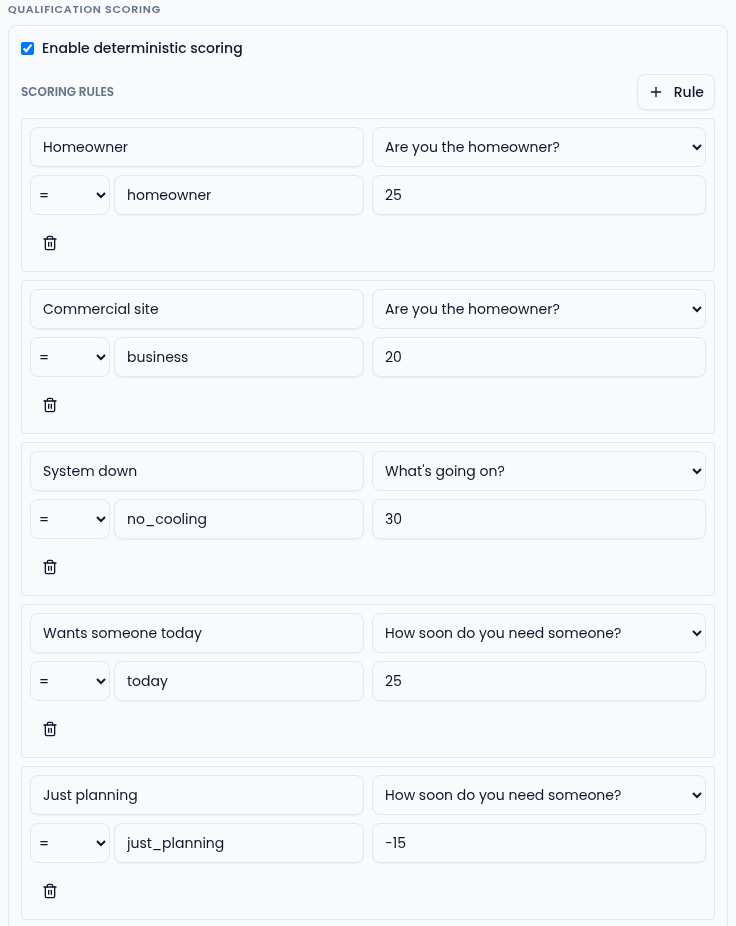
A rule can take points away too. Just planning is -15. Label When Points Homeowner property_role=homeowner25 Commercial site property_role=business20 System down problem=no_cooling30 Wants someone today urgency=today25 Just planning urgency=just_planning-15 -
Add one Deal-breaker with + Deal-breaker: Renter — cannot authorise work, when
property_role=renter, reason Needs the property owner to approve the visit. -
Set Outcome thresholds: qualified at 60, review at 25. Anything below is Not a fit.
-
Check it in the Live simulator before you publish. Enter answers as JSON:
{
  "property_role": "homeowner",
  "problem": "no_cooling",
  "urgency": "today"
}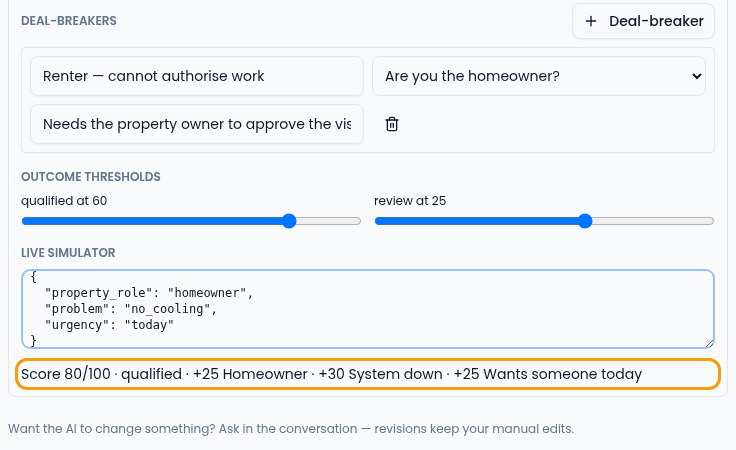
The simulator shows the score, the outcome and every rule that matched. Change
property_roletorenterand the outcome becomes declined because of the deal-breaker, whatever the points say.
Scoring never rejects anyone. A declined response is still captured, visible and exportable. It just gets a different ending and a different place in the queue.
After submitting: three different last screens
Page tab, below Page sections and the contact and privacy footer. Write a message for each outcome.
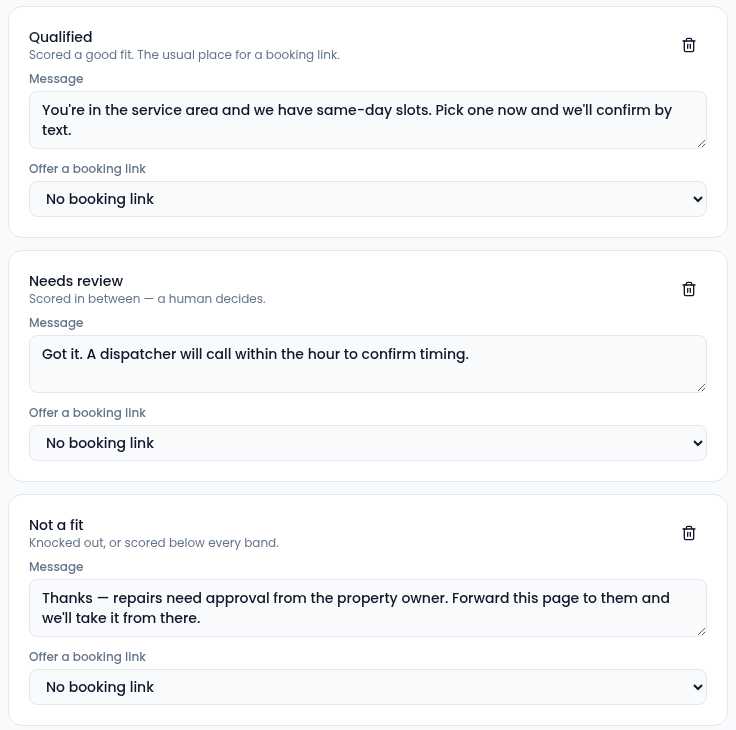
| Outcome | Message | Booking link |
|---|---|---|
| Qualified | "You're in the service area and we have same-day slots. Pick one now and we'll confirm by text." | Same-day diagnostic |
| Needs review | "Got it. A dispatcher will call within the hour to confirm timing." | None |
| Not a fit | "Thanks — repairs need approval from the property owner. Forward this page to them and we'll take it from there." | None |
| Everyone | A fallback, used if scoring is ever turned off. | None |
Choose the booking link by name under Offer a booking link. The list shows your active booking links; you never paste a URL. If a link is later revoked or expires, the button disappears instead of sending a customer to a dead page.
Submission binding: where a repair request lands
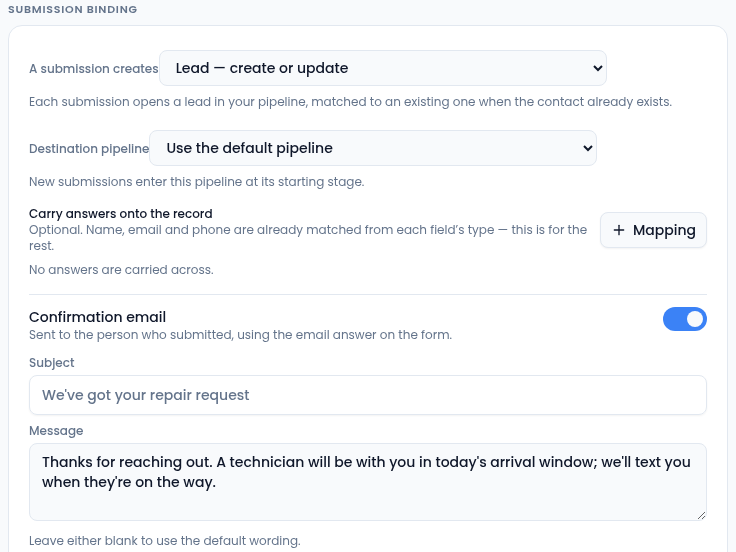
Handoff tab, under Submission binding.
-
A submission creates: Lead — create or update. Repeat callers match their existing lead instead of creating duplicates.
-
Destination pipeline: leave it on the default pipeline, or pick the one dispatch works. New submissions enter at its starting stage.
-
Carry answers onto the record: select + Mapping and map
problemto a custom field Reported issue andservice_zipto Service ZIP. Name, email and phone are already matched from the field types, so they need no mapping. -
Confirmation email: on. Subject "We've got your repair request", with a message that names the arrival window. Leave both blank to use the default wording.
-
Permission statements: one statement whose ID is
consent_contact, the same ID as the checkbox field, with purposeintake, Required ticked, and the exact text the visitor agrees to.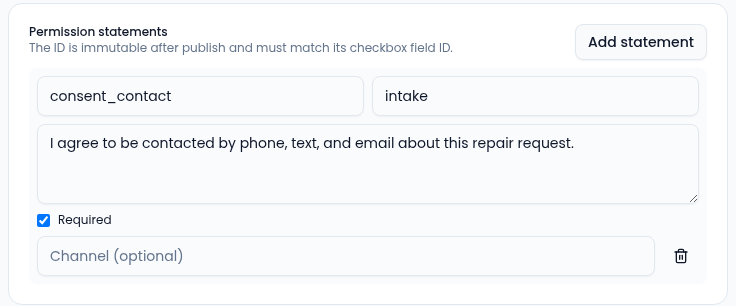
The statement ID must match the checkbox's field ID.
Routing and distribution
Handoff tab, under Submission routing. Every submission is recorded on the page's Submissions tab whichever of these are off.
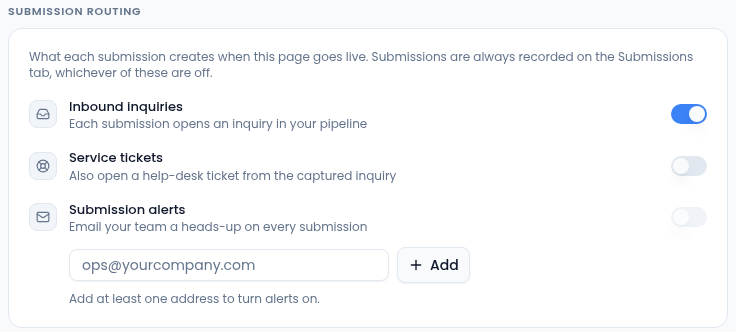
- Inbound inquiries: on. Every submission opens an inquiry someone is prompted to work.
- Service tickets: off. This is sales intake, not a help desk.
- Submission alerts: type the dispatch inbox address, select Add, then switch alerts on. The switch stays off until there's at least one address. An alert says a submission arrived and links to the inquiry; it never contains what the customer typed.
With the lead binding, inquiries and alerts all on, the tab reads Handoff · 3.
Publish and test
Select Publish. Before the public URL changes, Vertiqa lists the changes
that need your approval. Here that's the template's message field renamed to
notes. Approve it and the page goes live at
{your-subdomain}.vertiqa.io/pages/same-day-repair.
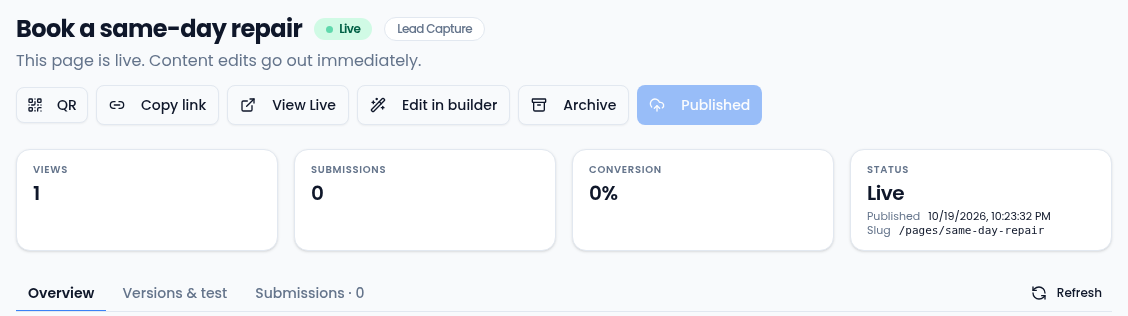
The page then opens on its details screen (route
/crm/conversion-pages/{id}), with its views, submissions and conversion rate.
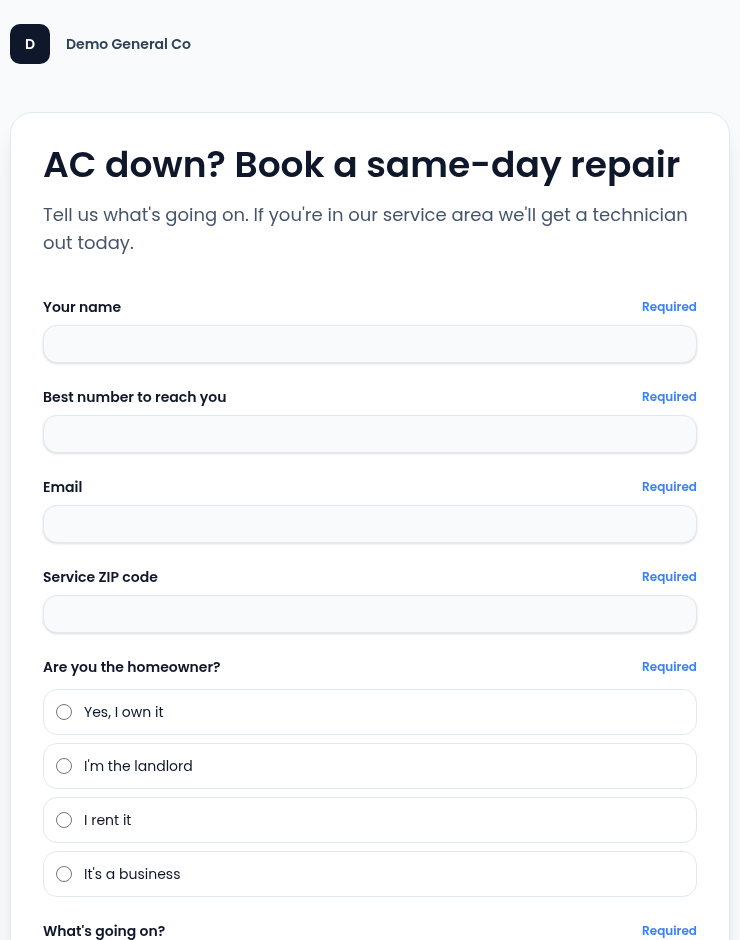
Select View Live to see what customers see:
Before you hand the URL out, open Versions & test and use Send a test:
{
  "full_name": "Test Caller",
  "email": "owner@example.com",
  "phone": "555-0100",
  "service_zip": "78701",
  "property_role": "homeowner",
  "problem": "no_cooling",
  "urgency": "today",
  "consent_contact": true
}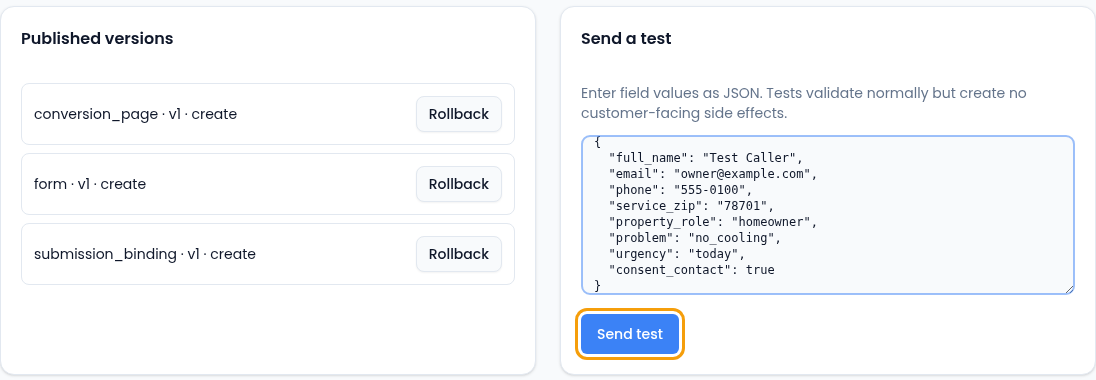
A test creates no lead, permission record, alert or confirmation email. The row appears on the Submissions tab marked Test.
Once it's live, QR makes a tracked QR code for the van magnets and leave-behind cards, so that traffic is counted separately from the website. Embed the same page on the website's Service page, so you have one form and one set of numbers rather than two.
A week later
The office manager opens Submissions, searches no_cooling, and finds a
row whose Routed to section shows a dispatch error from an outage. Retry
routing creates the lead. The answers were never at risk, because the
submission is recorded before routing runs.
On the lead itself, View the conversion page submission opens the exact
answers that created it, including the utm_source that shows it came from the
van magnet.