Decide a time-off request
Open a time-off request to check its dates and hours, then approve, decline, cancel or edit it.
Open a request from Time Off or from the person's employee record. Its page shows who it's for, the dates and hours, and the decisions you can make.
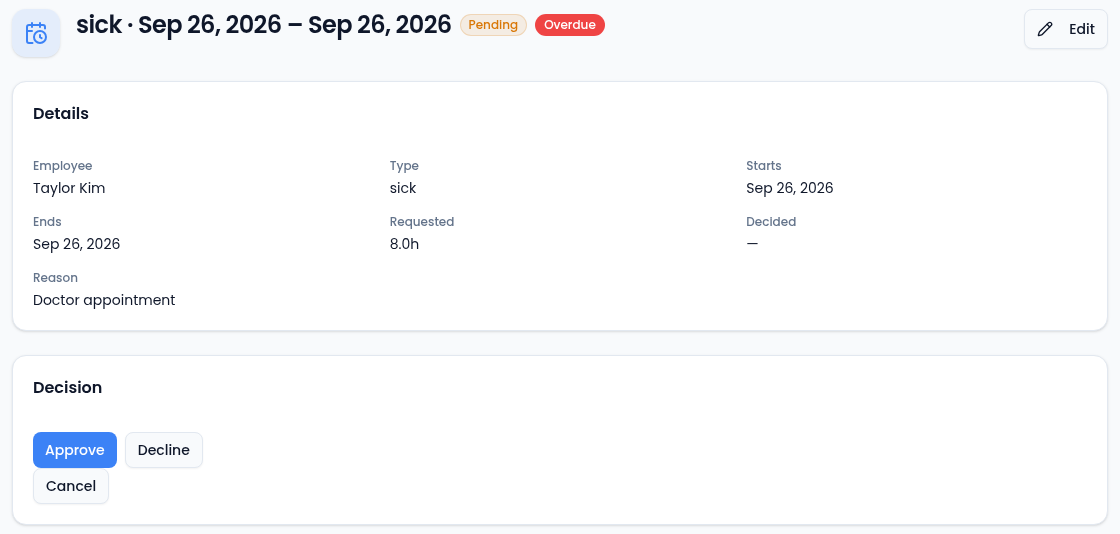
Check the request
Details shows the Employee (select the name to open their record), the Type, the Starts and Ends dates, the Requested and Decided hours, and the Reason. After a decision it also shows when it was made and the Decision note.
Before you approve, check the person's balance for that type of leave. Their employee record lists their balances with the hours available.
Approve
- In Decision, select Approve.
- Check Approved hours. It starts at the requested hours; change it if you're granting a different amount, such as half of a day. Leave it blank to keep the requested hours. It has to be more than 0.
- Add an optional Note, then select Approve.
The request moves to Approved. The hours you approved show as Decided, and the note is saved as its Decision note. Select Cancel in the dialog to stop without deciding.
Decline
- In Decision, select Decline.
- Add an optional note in the prompt, such as the reason, and select OK. Select Cancel in the prompt to stop without deciding.
The request moves to Declined, and the note is saved as its Decision note.
Who can decide
Owners and admins can decide anyone's request. Managers can decide their direct reports' requests, but not their own. Who reports to whom is the Manager on each employee record.
Approve and Decline only appear when you can decide this request. Otherwise the Decision card says who can, for example "Only Taylor Kim's manager or an HR admin can approve or decline this request."
If a decision doesn't go through, the Decision card says why, for example that the request has already been decided by someone else.
Cancel a request
Cancel withdraws a request that's pending or already approved. You're asked for an optional note, the same way. Declined and cancelled requests are final; the Decision card then says there are no further actions.
Edit a pending request
Edit changes the type, dates, requested hours and reason while the request is still pending. Once it's decided its dates and hours are locked: cancel it and submit a new request instead.
After you approve
Approving doesn't change any balance. Open the person's balance for that type and add the approved hours to Used. See Balances.
You can also ask Vee to approve, decline or cancel a request, and confirm the change it prepares. See Tell Vee to do things.