Edit a location
Maintain a site's address, access notes, and account link.
Reviewed OperatorVertiqa 1.75+
The location page holds the operational truth about one site: where it is, how to get in, and which account owns it.
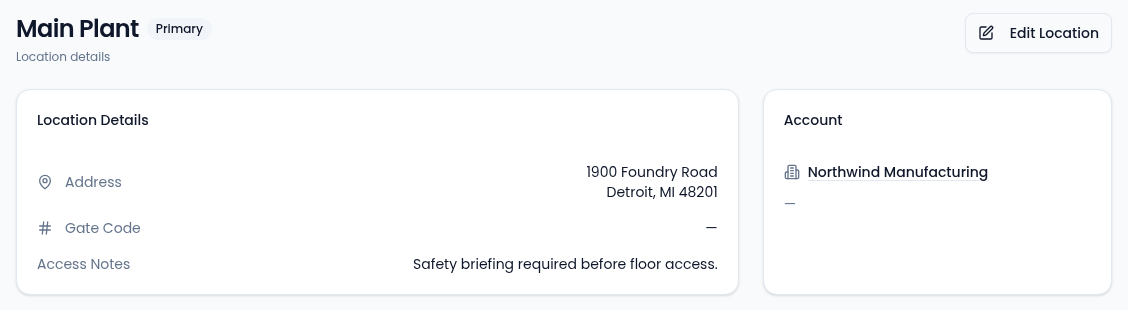
On the page
- Location Details: the address, the Gate Code and the Access Notes.
- Account: the company the location belongs to. Select it to open the account.
- A Primary badge when this is the account's main site.
Update a location
-
Select Edit Location.
-
Change the account, name, address, gate code or access notes, or tick Primary Location to make it the account's main site.
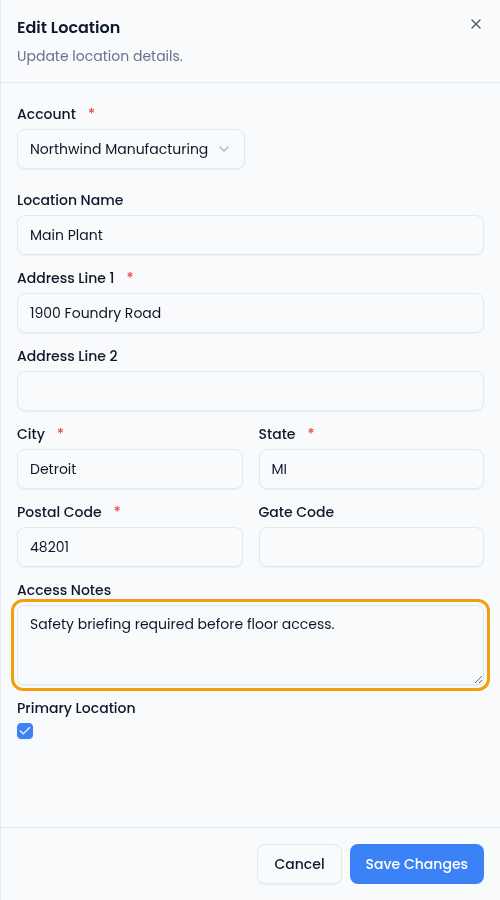
City, state and postal code are required when you edit a location. -
Select Save Changes.
To archive a location, open its account and use Archive on the Locations sub-tab.
Tips
- Put anything operational into Access Notes. The next person sent to the site will thank you.
- Don't create a location for a one-off meeting address. Locations are for sites you'll come back to.
- If an account moves, update the existing location rather than creating a new one, so its history stays attached.