Command Center getting started
A first-use walkthrough for triaging AI OS work using business-first item rows — object, risk, promise or deadline, recommended action, and evidence summary.
Command Center is the daily starting point for AI OS work. It collects the work Vertiqa believes needs attention: approvals, commitments, customer follow-up, blocked work, alert rule signals, and agent runs that failed or stalled.
Use it when you want to answer: "What needs a decision from me now?"
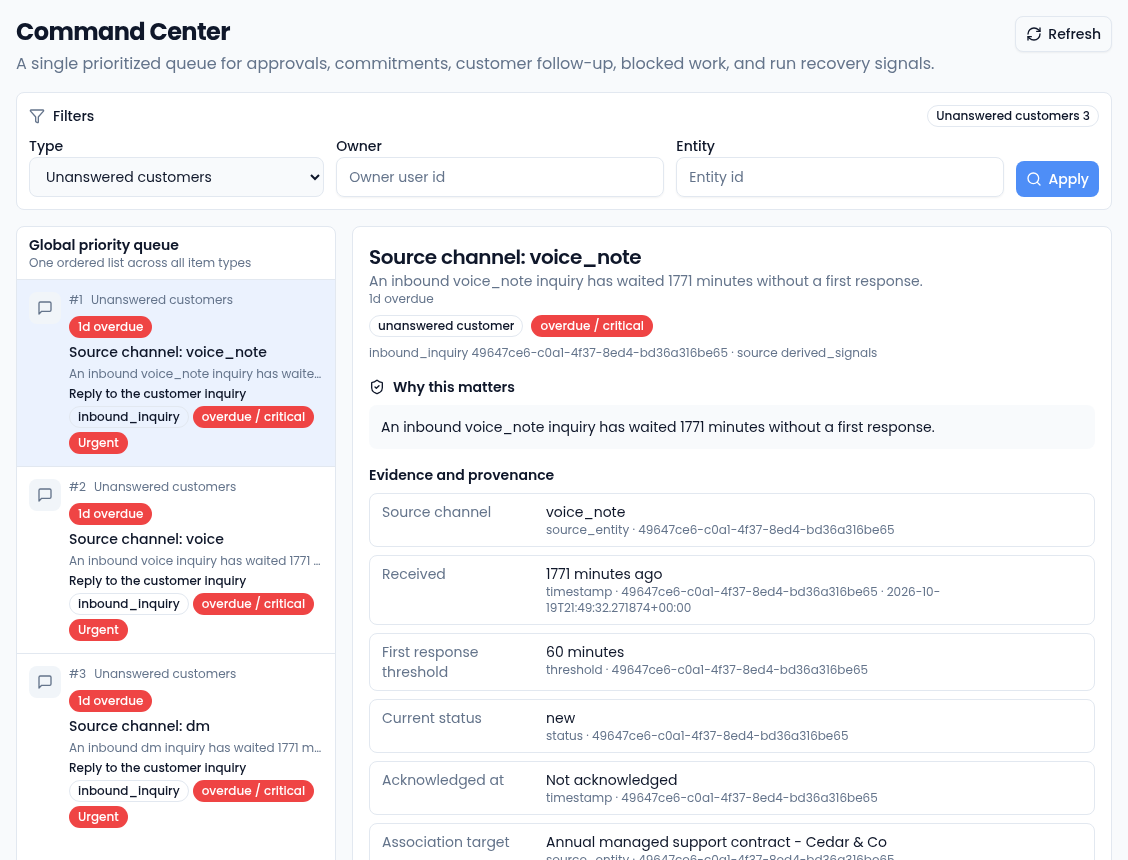
What each item shows
Items are ordered by priority in the Global priority queue. Each row shows:
- Its place and type — its position in the queue, the kind of item (such as Failed runs or Unanswered customers) and how overdue it is.
- What needs attention — the item's title and a one-line summary of what is at risk.
- The recommended next step — for example Reply to the customer inquiry or Inspect in Run Inspector.
- The record and its state — chips for the record type and status, and an urgency badge such as Urgent.
Select an item to open its detail on the right: Why this matters, Evidence and provenance (the records and timestamps that surfaced it), Priority inputs (how its place in the queue was worked out), and Next best action. Use the Type, Owner and Entity filters with Apply to narrow the queue; the counts at the top right show how many items of each type are waiting.
First pass workflow
- Open Command Center from Full mode, or Queue from Simple mode.
- Start with the highest-priority item at the top.
- Read the business object and risk summary to understand what is at risk.
- Check the evidence summary to confirm the item is based on real operating data.
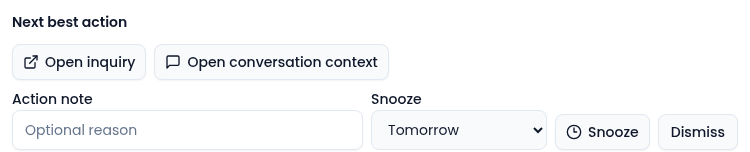
- Take the inline action only if the recommendation matches what you would do manually.
- If the item is real but not urgent, snooze it.
- If the item is not useful, dismiss it, with a reason in Action note.
The queue should become smaller as decisions are made. If an item remains after an action, refresh the page and check whether the underlying record still meets the queue condition.
Drafts are reviewable — no autonomous external send
When an AI loop proposes an action (draft email, task creation, record update), it appears in the Approval queue as a draft for operator review. External send remains human-triggered. You review the draft, check the dry-run before/after diff if shown, and approve or reject. Nothing is sent without your action.
Common actions
- Approve or Reject — decide a pending approval. The before/after diff shows exactly what will change.
- Mark fulfilled — close a promised follow-up or obligation.
- Open … — go to the record behind the item, such as Open inquiry, to do the work there.
- Snooze — hide a valid item for 1 hour, until Tomorrow, or for 1 week.
- Dismiss — remove an item that is not actionable or no longer relevant.
Failed or stuck agent runs are retried or cancelled from run inspection, not from the queue. See Agent run recovery.
When to open another surface
Open AI OS Activity & Health at /ai-os when the question is not
about a single item but about which loops are active, what guardrails and
usage limits are in place, or what overall loop health looks like.
Open Recent activity (via AI OS Activity & Health) when the item is about a failed, stuck, retried, or cancelled agent run.
Open Alert rules (via AI OS Activity & Health) when the item is about a rule, alert, or actual-vs-intended mismatch.
Open Guardrails, Usage limits, or Recurring checks (via the AI OS Activity & Health overview) when the issue is not a single queue item but how agent loops are allowed to run, how often, and within what limits.
Simple mode
Simple mode shows the same underlying queue through Queue. Use it for mobile triage and daily operator work. It intentionally hides most setup and configuration, but the actions still go through the same governed Kernel APIs.
Related
Learn more about the AI assistant →