AI OS admin setup
How administrators review guardrails, usage limits, recurring checks, and alert rules from AI OS Activity & Health and advanced admin detail links.
This page is for administrators and the Vertiqa team. The advanced configuration surfaces referenced below (
/admin/...) are internal setup tools. As a day-to-day user you do not need them — start in the AI OS Activity & Health at/ai-osinstead.
AI OS setup controls how agent loops enter the queue, what they are allowed to do, and how operators inspect failures. Most teams should start with conservative settings and increase loop autonomy only after the queue, evidence, and recovery paths are understood.
Getting started: open AI OS Activity & Health
Open AI OS Activity & Health at /ai-os to see your workspace's
current guardrails, usage limits, recurring checks, and alert rules in
one place. For everyday review this is the only surface you need.
Detailed configuration editing is an advanced, administrator-only task. Each panel links to the internal admin detail surface for that control type, which is normally configured by your Vertiqa team.
Recommended setup order
-
Review Guardrails in AI OS Activity & Health — confirm agents have the right read, propose, and execute limits for your workflows.
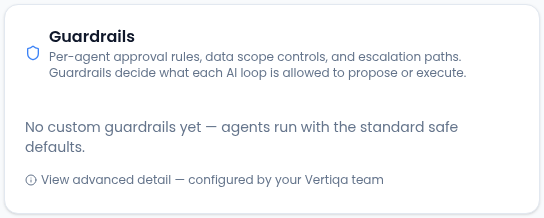
With no custom guardrails, agents use the standard safe defaults. -
Set Usage limits for tenant, agent, or goal-level cost and quota ceilings before enabling recurring loops.
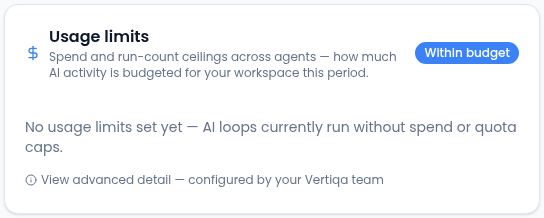
No limits set yet means loops run without spend or quota caps. -
Configure Recurring checks to make agent work scheduled — keep checks disabled until guardrails and usage limits are in place.
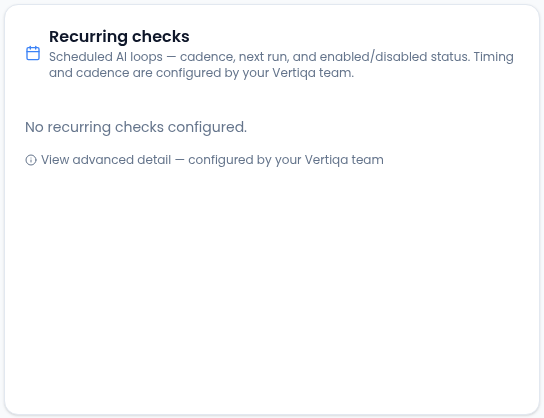
Each check shows its cadence, next run and whether it's on. -
Tune Alert rules so noisy alerts do not flood the queue.
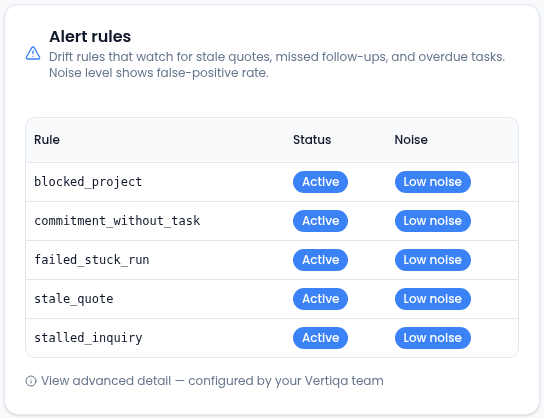
Noise shows each rule’s false-positive rate. -
Use Recent activity in AI OS Activity & Health to confirm that scheduled and manual agent work is producing inspectable run history.
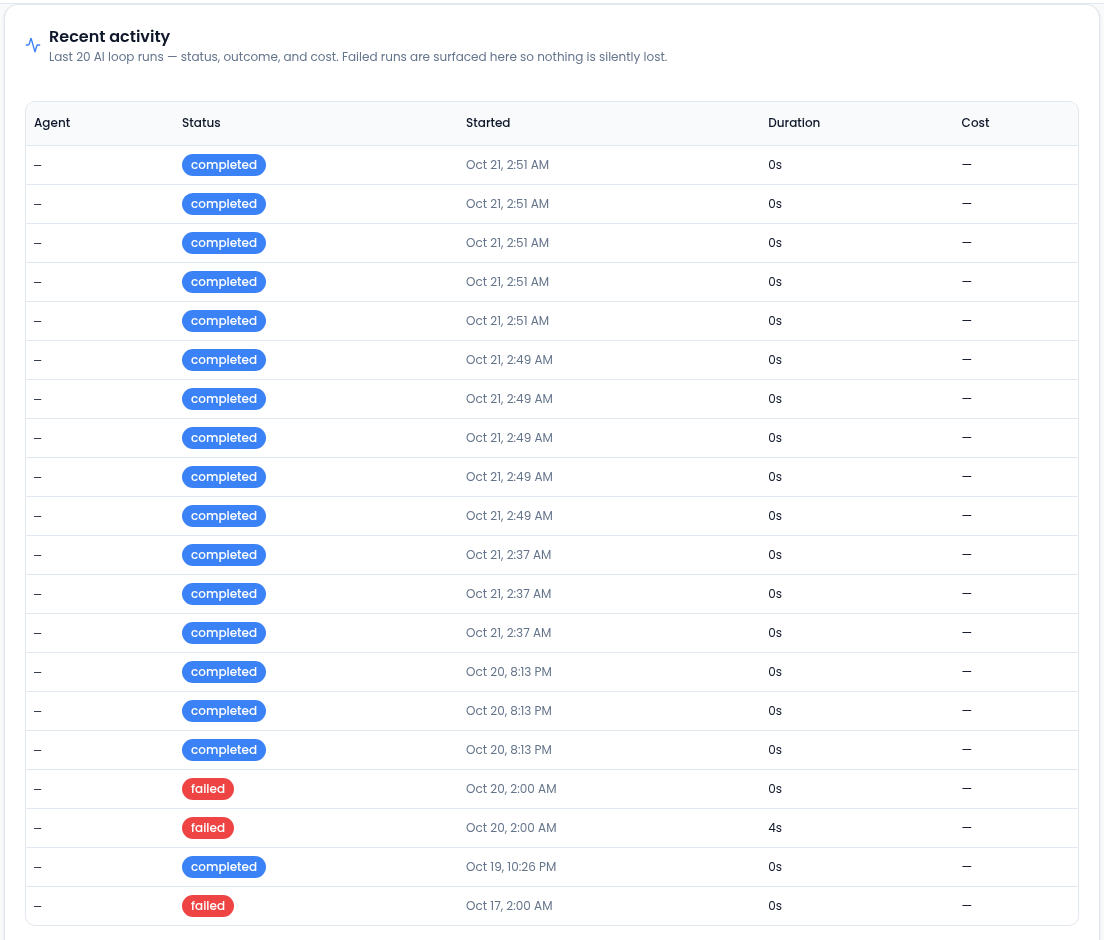
Failed runs are listed here too, so none are silently lost.
Guardrails
Guardrails decide what an agent may do. They should match operating risk:
- read-only access for evidence gathering,
- propose-only access when a human should approve the mutation,
- execute access only for low-risk actions that have proven reliable.
If an action is rejected by a guardrail, treat that as a control working as designed. Adjust the guardrail only after confirming the action is safe for that agent, record type, and context.
To review guardrail details: open AI OS Activity & Health → Guardrails panel
→ View advanced detail — configured by your Vertiqa team (advanced admin
detail in /admin/policies).
Usage limits
Usage limits protect against runaway agent activity. Set spend, quota, or latency limits for the tenant, a specific agent, or a goal.
Review usage limits when:
- an agent is running more often than expected,
- a recurring check has just been enabled,
- AI OS Activity & Health shows repeated agent failures,
- a usage row is approaching or over its ceiling.
To review usage limit details: open AI OS Activity & Health → Usage limits
panel → View advanced detail — configured by your Vertiqa team (advanced
admin detail in /admin/budgets).
Recurring checks
Recurring checks make agent loops scheduled. Keep them disabled until the related guardrails and usage limits are in place.
Use run now (in the advanced schedules detail) to test a check manually before enabling recurrence. Then check Recent activity in the AI OS Activity & Health to confirm the run was created and inspectable.
To review recurring check details: open AI OS Activity & Health →
Recurring checks panel → View advanced detail — configured by your Vertiqa
team (advanced admin detail in /admin/schedules).
Alert rules
Alert rules compare actual operating state against intended state. Start with a small set of high-signal rules, then tune thresholds when alerts are too noisy or too quiet.
To review alert rule details: open AI OS Activity & Health → Alert rules
panel → View advanced detail — configured by your Vertiqa team (advanced
admin detail in /admin/drift).
Related
Learn more about the AI assistant →