Assets
Keep a register of the equipment you look after for clients, with its warranty date, so no warranty runs out without someone noticing.
An asset is a piece of client-owned equipment you service: a door controller, a kiosk, a rooftop unit. Each one belongs to an account and can carry a serial number, an install date and a warranty date. Vertiqa flags the warranties that are about to run out or already have.
Open Service → Assets (route /service/assets). Assets is part of Full
mode. It's a register your team keeps up to date by hand: nothing is read from
the equipment itself.
The Assets list
-
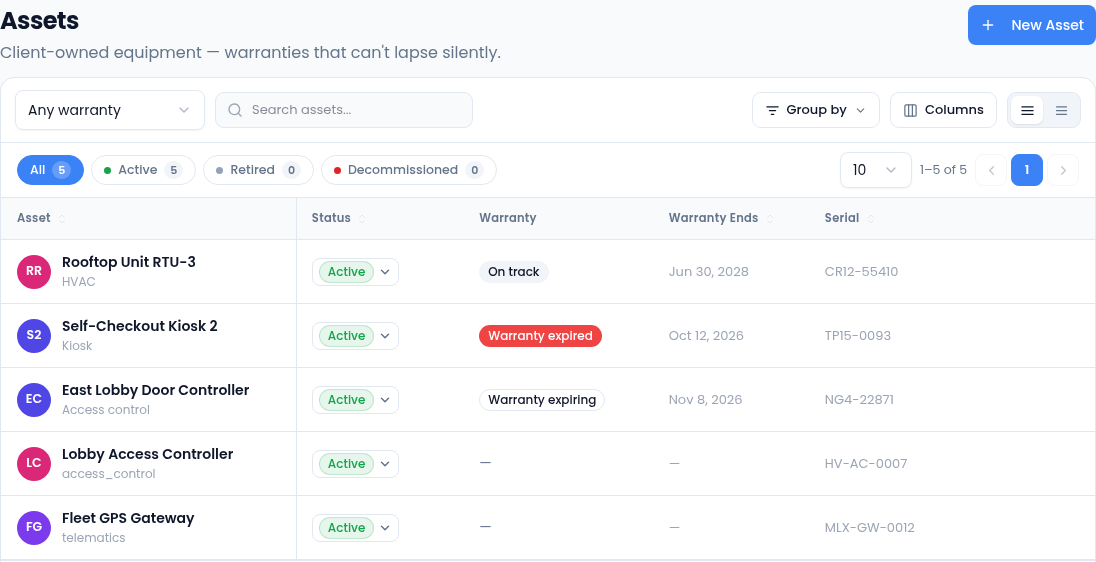
Status chips show only Active, Retired or Decommissioned assets.
-
The Warranty column, and the Any warranty filter next to search, work from the warranty date of active assets:
- Warranty expiring: it ends within the next 60 days.
- Warranty expired: the date has passed.
- On track: it ends further out.
Assets with no warranty date, and retired or decommissioned ones, have no flag.
-
Search assets looks through names, types, serial numbers, manufacturers and models. Group by groups the list by status or type, and Export CSV downloads what you're looking at.
-
Columns adds the Manufacturer column, which is hidden at first.
-
Change an asset's Status right in the list, or select it to open it.
Register an asset
-
Select New Asset.
-
Enter the Asset Name and choose the Account that owns it. Both are required; you can create the account from the picker if it isn't in the CRM yet.
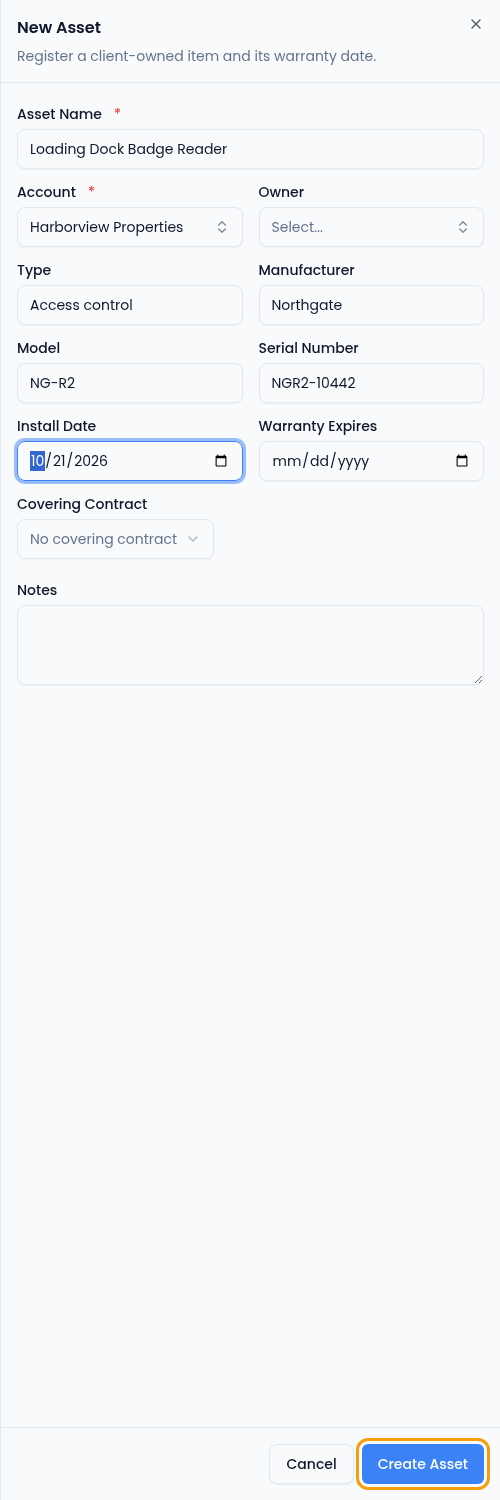
Only the name and account are required. -
Add what you know: an Owner on your team, the Type, Manufacturer, Model and Serial Number.
-
Enter the Install Date and Warranty Expires date. The warranty date can't be before the install date.
-
If a service contract covers the asset, choose it under Covering Contract.
-
Select Create Asset.
An asset's record
Open an asset to see its details and history.
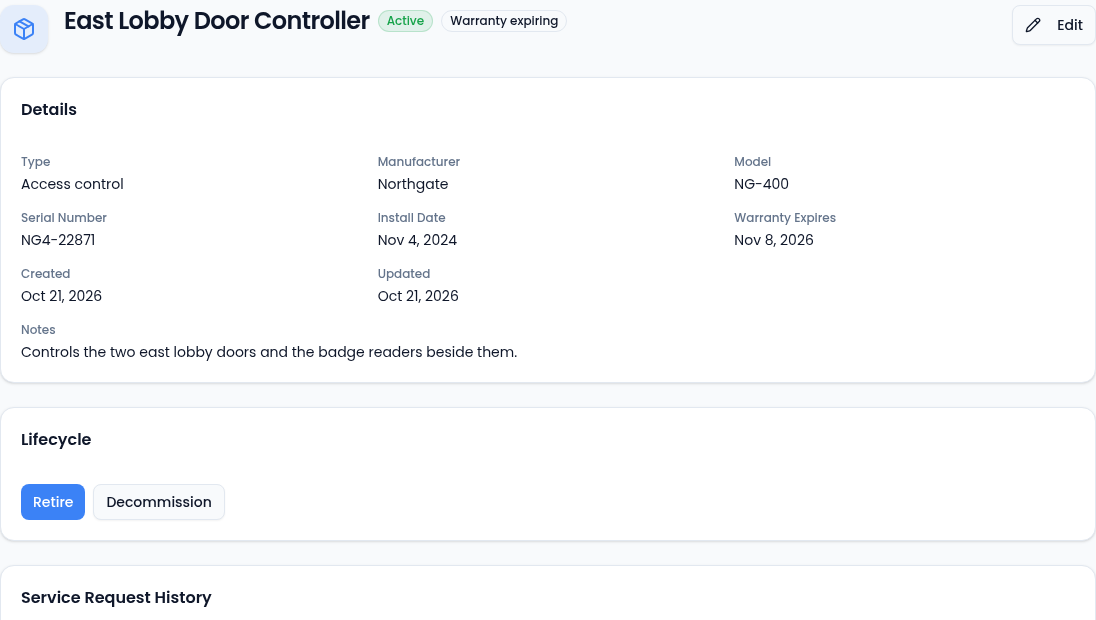
- Edit changes the name, type, make, serial number, dates, owner and notes.
- Retire or Decommission an asset when it leaves service. Both are final: a retired or decommissioned asset stays in the register for history but can't change status again, and it no longer gets a warranty flag.
- Service Request History lists the service requests that name this asset. Choose the asset under Related Asset when you log a request.
- Notes keeps internal notes, and Attached Documents shows files linked to the asset.
Who can do what
Seeing assets needs permission to view assets. New Asset, Edit and the lifecycle buttons appear only for people who can change them.