Staffing overview
What the Staffing module is for, the six records it works with, and where to start each day.
Staffing turns client demand into placed people. It sits on top of the CRM rather than beside it: the companies and people you already track stay where they are, and Staffing adds the roles, the demand, and the work that connects them.
Staffing is a vertical pack. Its records exist for your organization only once an administrator has enabled the pack, so if you cannot see the Staffing section at all, that is enablement rather than a permission to request. Because it is a pack, its stages, custom fields and labels are configured for your firm rather than fixed — see Set up the Staffing pack if that is your job.
Start at /staffing — the Staffing home. It opens as a work queue rather than a dashboard: the top line tells you how many things need a person today, and the list beneath it is those things, each carrying the one action that moves it forward.
The six records
Three of them are roles on records the CRM already owns:
- Client — a company that buys staffing services. Backed by a CRM account, which stays the single source of company name, website and address.
- Vendor — a supplier or partner firm that can provide consultants. Also account-backed, and genuinely separate from Client: one company can be both.
- Consultant — a person you can put forward for work. Backed by a CRM contact, which stays the single source of their name, phone and email.
Three of them are Staffing's own work records:
- Requisition — one client's demand for one or more people, with its openings, skills, dates, location and priority. Shown as Requisitions in Full mode and Requirements in Simple mode; both are the same record.
- Submission — one consultant presented against one requisition. It is a relationship with a history, not a second copy of the person. A rejected submission stays as a record of what happened.
- Assignment — the placement that results when a submission is accepted, with its dates, owner and rates.
Because Client, Vendor and Consultant are roles rather than new identities, you never create a duplicate company or person to record staffing detail. Fix a phone number once and every submission that consultant appears on is correct.
You do not have to leave Staffing to fix it, either. New Client, New Vendor and New Consultant either attach the role to a company or person you already have, or create both together in one step; and Edit on any of those records shows the CRM company or person fields alongside the staffing ones, under one Save. See Staffing roles and their CRM records for what lives where, who may change which half, and how to add people at a client or vendor.
Your first few actions
-
Open /staffing and read the queue. If it says all clear, nothing is waiting on you.
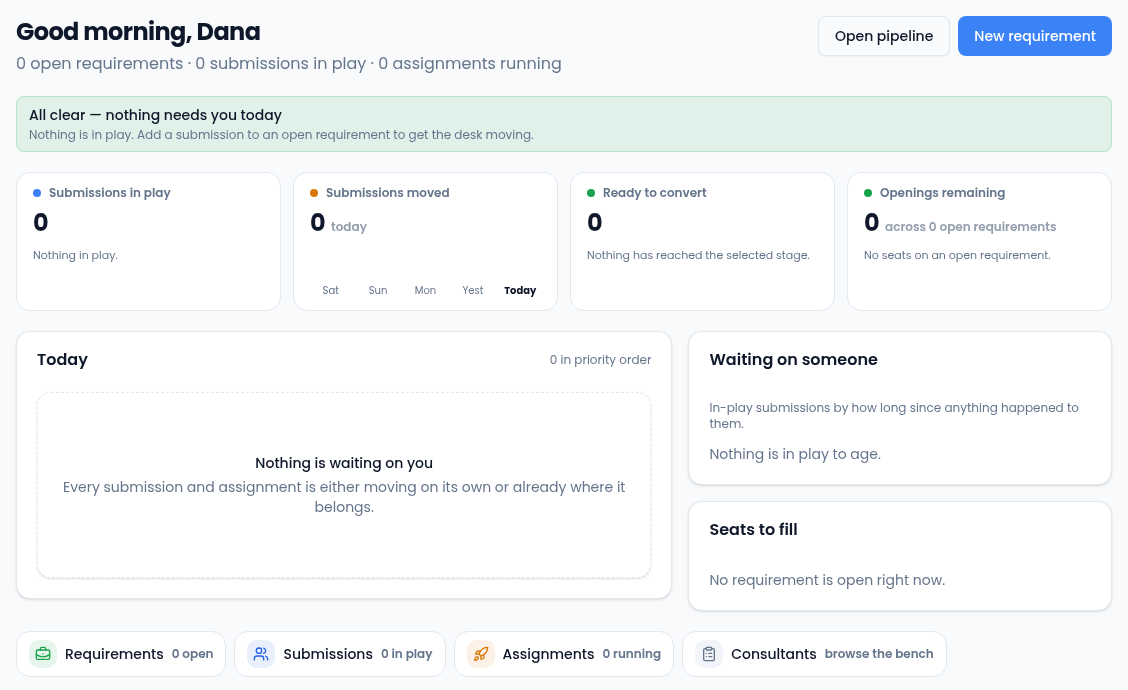
An empty desk reads All clear; the chips at the bottom open each list. -
Open a requirement from the Requirements chip to see what a client actually asked for, and how many of its openings are filled.
-
Add a submission to put a consultant forward against it.
-
When the client accepts, convert the submission to an assignment. Do this from the submission, not by creating an assignment directly — the conversion is what preserves the trail from placement back to the person who won it.
-
Browse Consultants to see the bench you can draw on, and add anyone missing with New Consultant.
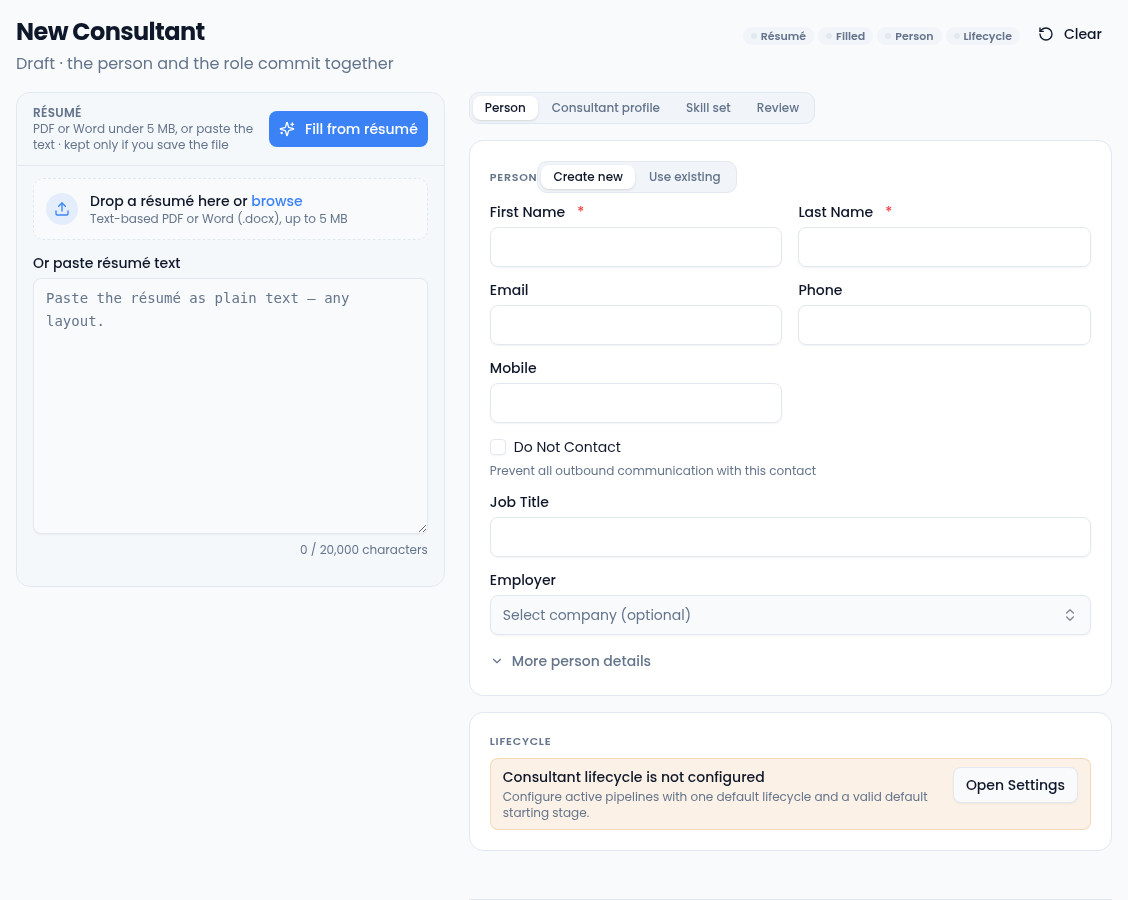
Create the person here, or choose Use existing to add the role to a contact you already have.
Full mode and Simple mode
Simple mode gives you the daily surface: the queue, the section links, and list-first pages with tap actions. It is the better fit on a phone.
Full mode adds the reading instruments — the composition bar, the movement
matrix, waiting bands, seats-to-fill — and the pipeline at
/staffing/pipeline, which is Full mode only. Simple mode uses the lists and
their stage actions instead of the multi-pane board.
Consultants carry their current USD/hour bill and pay rates. Assignments carry the bill and pay rates agreed for that placement. Submissions do not carry rates. The same read or manage permission that governs each record also governs its rates; there is no separate rate permission. Requisition target ranges and custom fields classified as rates remain separately governed.
Stages are configured per organization too, so the ones you see are your firm's and may not match another team's. The same is true of any custom fields your administrator has added to these records.
Where the rest lives
- /staffing/pipeline — all three work lists as lanes or a board (Full mode).
- /staffing/reports — the desk in aggregate.
- /staffing/import — bring existing clients, consultants and requisitions in, with a preview and a dry run before anything commits.