Share a business card
Share your card by link, QR code or email signature, see what people get when they open it, and what Vertiqa records.
Every card has its own public link. Anyone can open it, without signing in or installing anything, and save you to their phone's contacts in one tap. Only an Active card can be shared; a disabled one shows Card Unavailable.
Ways to share
-
Link. On My Cards, select the copy button beside the card's link. Paste it into a message, your social profiles or your website.
-
QR code. Select QR on the card's tile to see the card's QR code, and Download PNG to print it on a badge, flyer or stand. Scanning it opens your card. The code stays the same for as long as the card exists, so printed copies keep working.
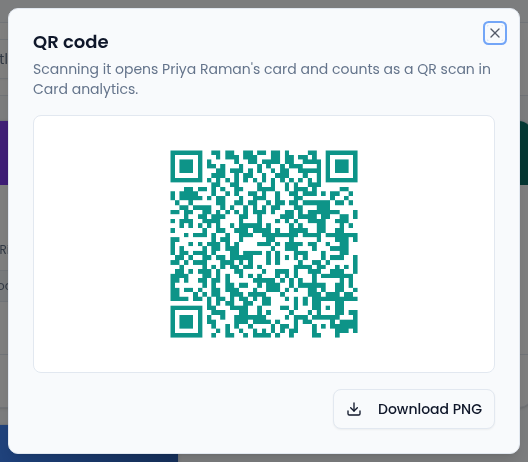
The same QR code is in your email signature. -
Email signature. The signature from the editor's Email Signature tab has its own QR code and a View my card link, so everyone you email can open your card. See Create or edit a business card.
Test the link or QR code on your own phone before you print anything.
What people see
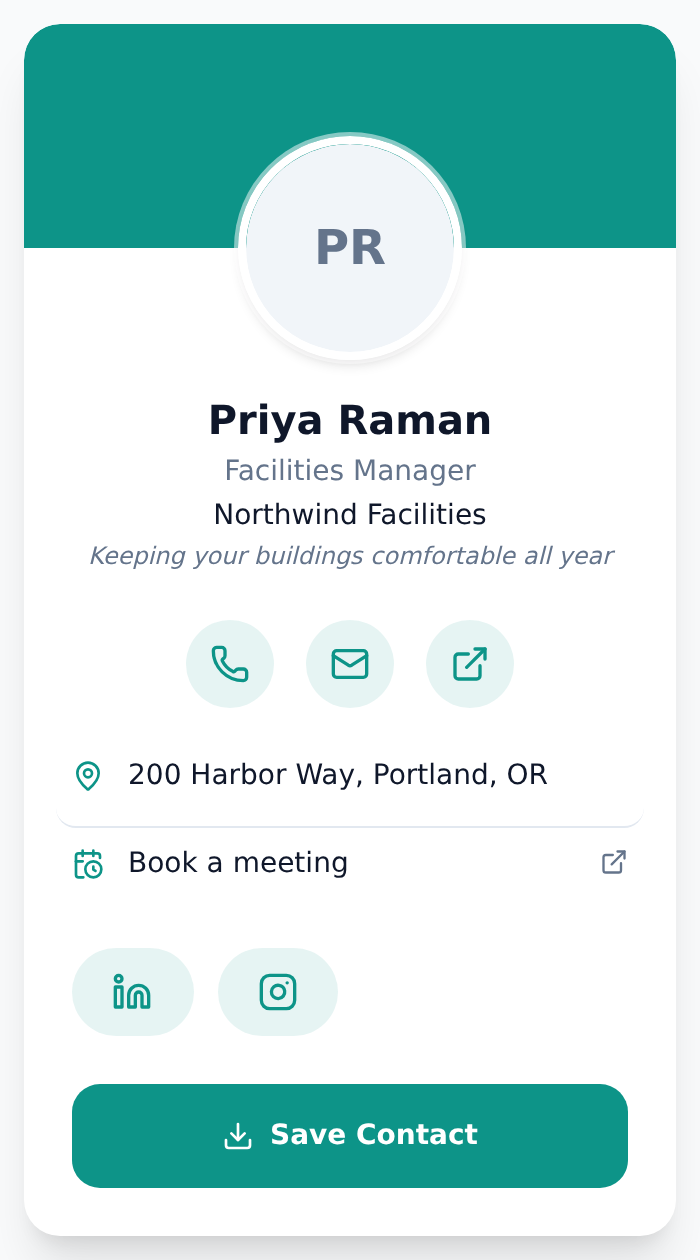
The card shows only the details you filled in:
- Buttons to call, email or open your website, in one tap.
- Your address, a Book a meeting link if you added a booking link, and your social links.
- Save Contact, which downloads a contact file (vCard) with your details that their phone adds to its contacts.
The card uses your accent colour and font. If you didn't pick a colour, it uses your card template's colour, or else the default branding your admin set in Business cards settings, or else your organization's colour. A logo shows below the card when your template, that default branding or your organization has one.
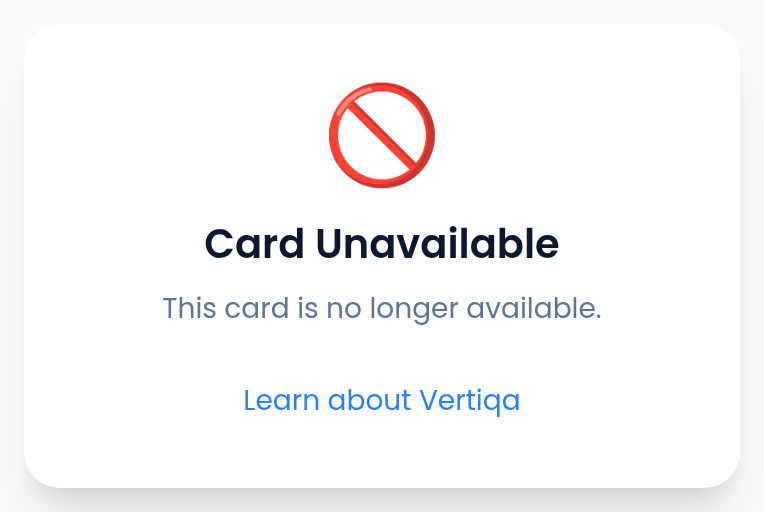
When a card is disabled, its link and QR code show this page instead. A deleted card shows Card Not Found.
What Vertiqa records
- Each time someone opens the card, Vertiqa counts a view, whether they came from the link, a QR code or your email signature.
- When they opened it by scanning its QR code (the one from QR on the tile or the one in your email signature), that view also counts as a QR scan.
- Each Save Contact counts as a download. If you're a contact in the CRM yourself, with the same email as your Vertiqa account, a "Business card downloaded" activity is added to that contact's timeline.
- If your admin turned on Lead Capture, each new person who saves your contact also adds a CRM contact named "Business Card Lead" with your card's name, owned by you and tagged Business Card. Vertiqa doesn't get their name or email, so follow up when they get in touch.
Owners and admins see views, downloads and QR scans for every card in Card analytics.
Related
Learn more about digital contact cards →